
Convert the legacy Scroll macros on your Confluence Data Center pages before you move your spaces to Confluence Cloud. This keeps the content that controls your exports working after the migration.
How the Macro Migration Works
Data Center and Cloud differ here. On Confluence Data Center, Scroll Exporter Extensions is bundled with each Scroll Exporter app. You do not install it separately. On Confluence Cloud, Scroll Exporter Extensions is a separate app that you install from the Atlassian Marketplace.
The macro migration covers the Scroll macros of all Scroll Exporter apps. If you use more than one Scroll Exporter app, you do not need to repeat the migration for each app.
The macro migration converts these macros:
-
Scroll PDF Exporter Ignore
-
Scroll PDF Exporter Ignore Inline
-
Scroll PDF Exporter Only
-
Scroll PDF Exporter Only Inline
-
Scroll PDF Exporter Indexterm
-
Scroll PDF Exporter Title
-
Scroll Office Ignore
-
Scroll Office Ignore Inline
-
Scroll Office Only
-
Scroll Office Only Inline
-
Scroll Office Indexterm
-
Scroll Office Title
-
Scroll HTML Ignore
-
Scroll HTML Ignore Inline
-
Scroll HTML Only
-
Scroll HTML Only Inline
-
Scroll HTML Indexterm
-
Scroll HTML Title
-
Scroll Export Button
-
Scroll Pagetitle
Some Scroll macros from Data Center work differently or are not available in Confluence Cloud. The macro migration tool on Data Center finds the pages in a space that contain these macros. It then converts the macros to a format that Confluence Cloud supports. For more details, see the list of differences between Scroll macros on Cloud and Data Center.
Prerequisites
Before you start the macro migration, make sure that:
-
Your Scroll Exporter app is installed on Confluence Data Center. The macro migration tool comes with it.
-
Your Scroll Exporter app and Scroll Exporter Extensions are installed on Confluence Cloud.
-
Confluence Source Editor is installed on Confluence Data Center.
-
Collaborative editing is disabled on Confluence Data Center. This is required. If collaborative editing is on, you can lose unpublished changes on the pages that the tool converts.
-
Read-only mode is off on Confluence Data Center. In read-only mode, you cannot select Start Migration.
-
The person who runs the migration has edit permission on the affected pages. With view permission only, they cannot see the list of affected pages or convert them. We recommend that a member of the
confluence-administratorsgroup runs the migration.
Migrate Scroll Macros in a Space
To convert the Scroll macros in a space on Confluence Data Center, follow these steps:
-
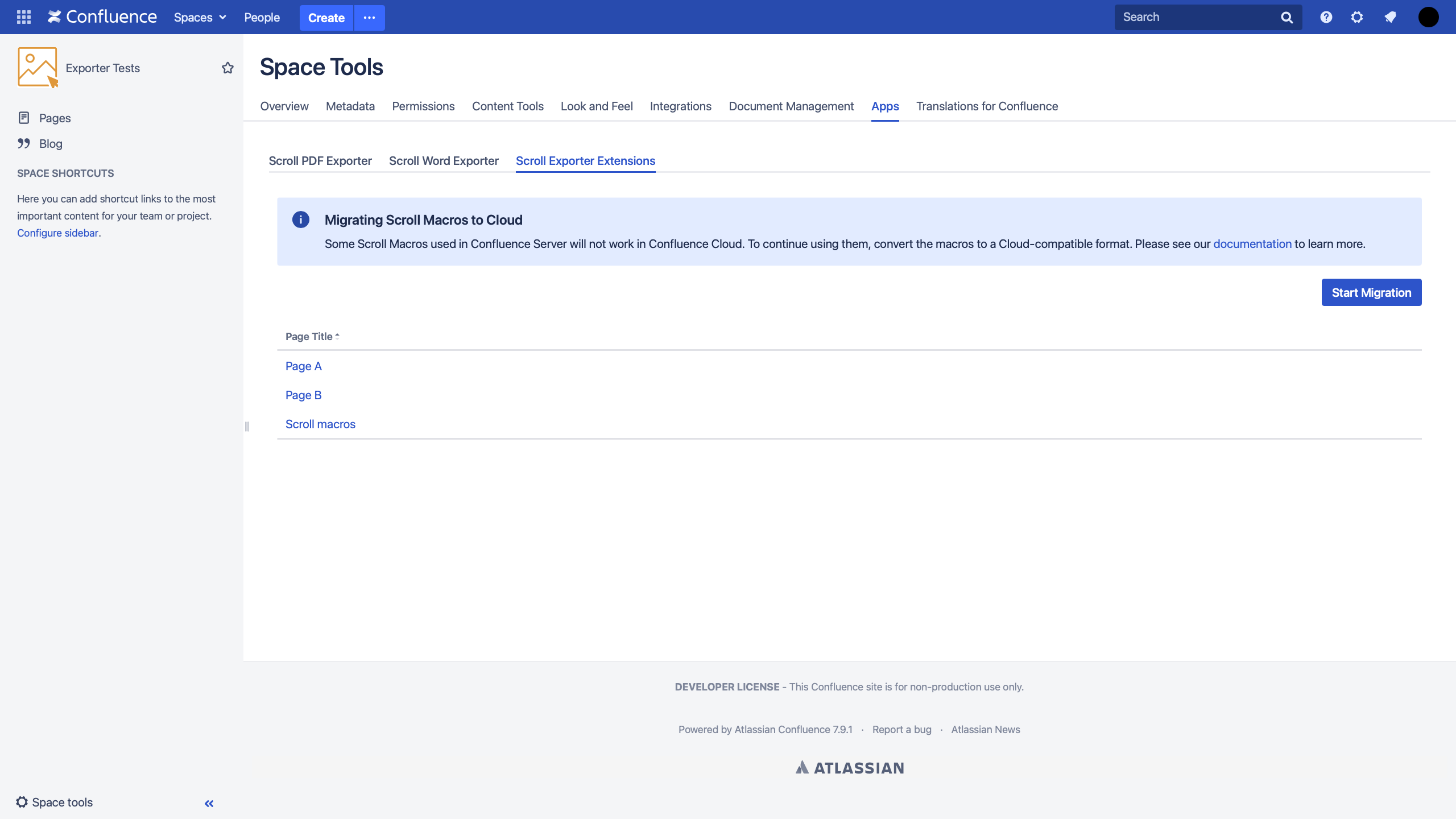
Go to Space Tools > Apps > Scroll Exporter Extensions. The tab lists the pages that contain Scroll macros that need to be converted.
-
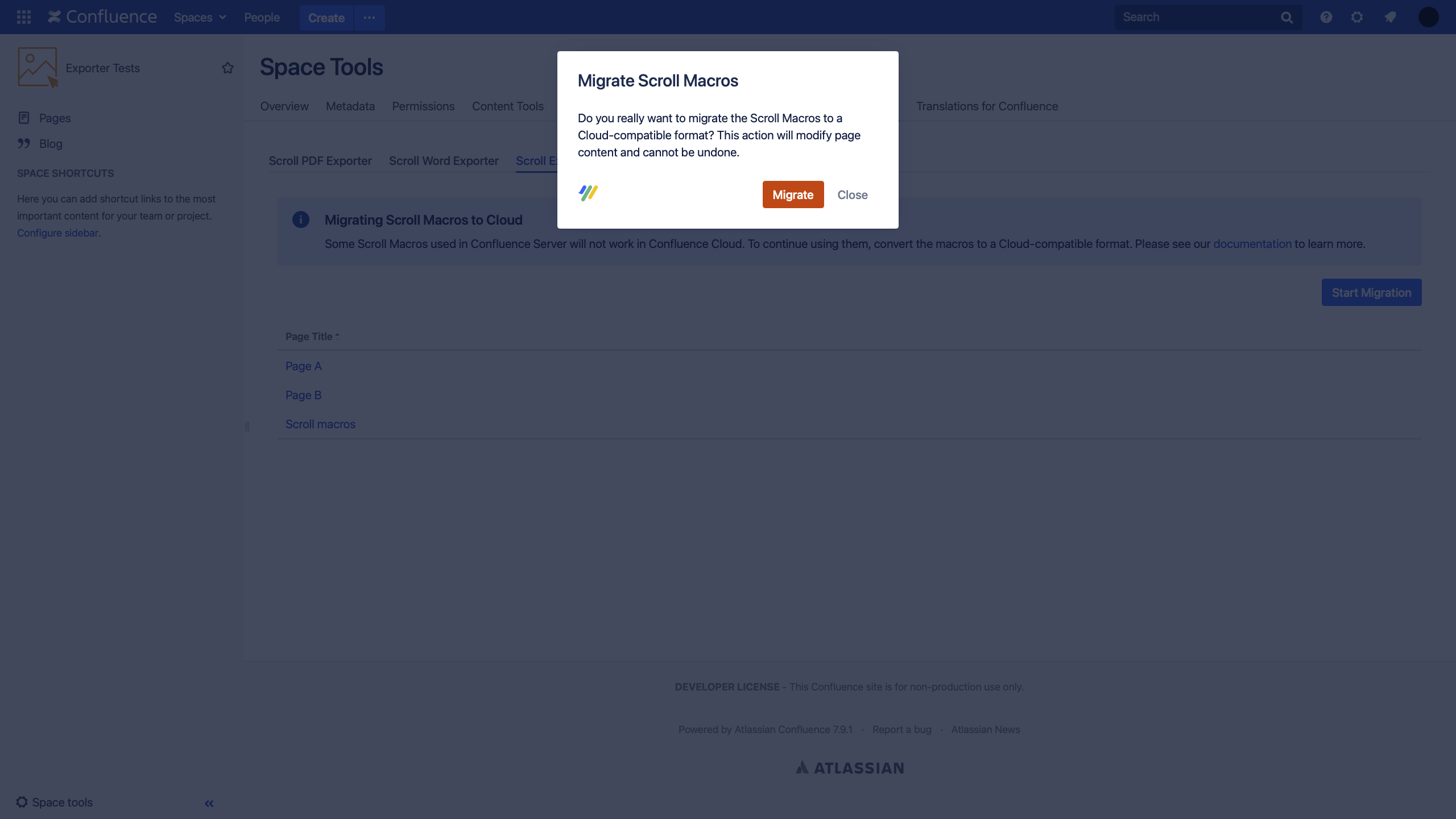
Click Start Migration.
-
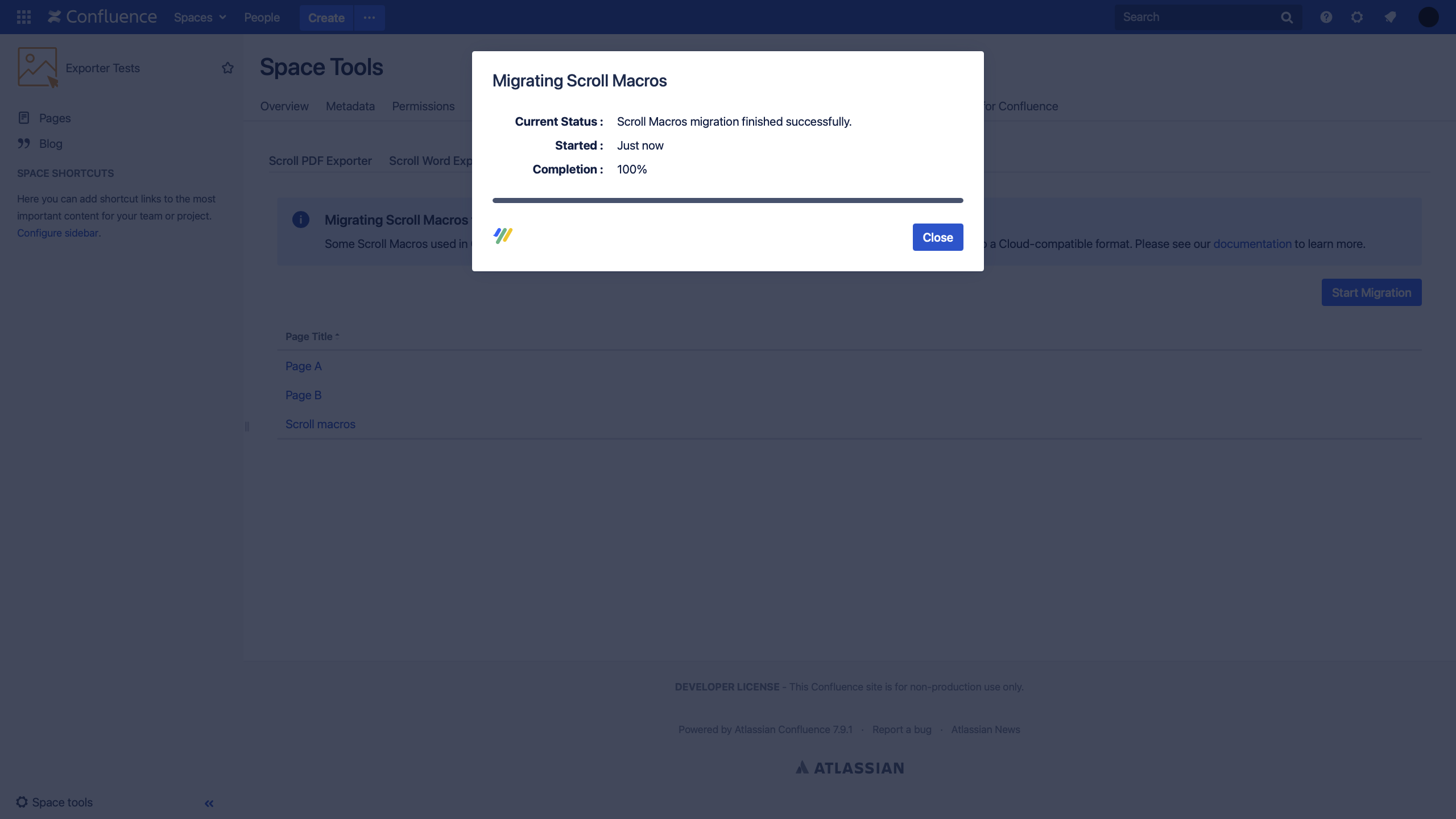
Wait for the migration to finish. A success message appears.
When the tool has converted all affected pages, the Scroll Exporter Extensions tab shows an empty list. The list can take several minutes to update after the migration. 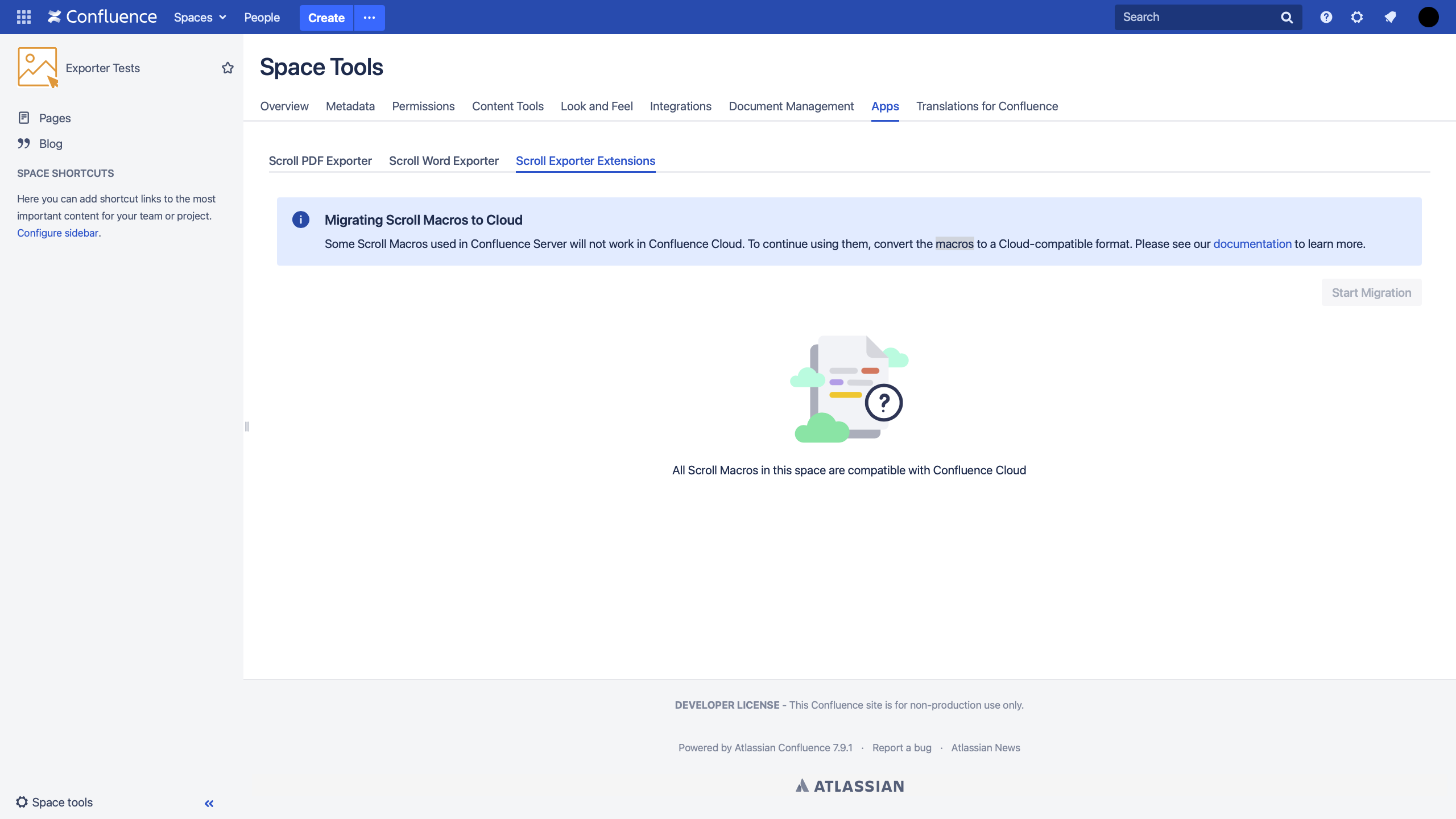
Repeat these steps in each space that contains Scroll macros. You can then migrate the spaces to Confluence Cloud.
What Changes After the Migration
Most converted macros work in Confluence Cloud the same way as before. These macros change:
-
Scroll Pagetitle: In Confluence Cloud, the Scroll page title is not a macro. It is an action in the page tools menu (•••) called Set Scroll Page Title. The migration converts each Scroll Pagetitle macro into this setting,
-
Scroll Export Button: If the button uses a custom export template, import that template into Confluence Cloud. Otherwise, the button uses a bundled template that comes with the app. Before you download templates from Data Center, update your Scroll Exporter app to its latest Data Center version.
Still Unclear? Reach Out to Us
If you need help with any of these migration steps, contact us at help@k15t.com.