
Define which fields are synchronized between instances.
Are you on the right help page?
If you connect Jiras...
...via HTTP(S) (server/data center, cloud, local), you're in the right place.
...via email or file exchange (server/data center behind a firewall), check out this page instead.
Fields can be mapped either bi-directional or uni-directional if a Field Mappings is available. In general you can map fields of the same type to each other e.g. Summary to Summary. Other mappings might require a specific field mapping (transformation). Please refer to Field Mapping References for detailed information on which system fields are supported so far. The standard custom fields are also supported.
Please note that every field which should be edited by Backbone should be on the edit screen for this project and issue type combination. If you don't want this behavior, have a look at the advanced setting sync.editTransition.
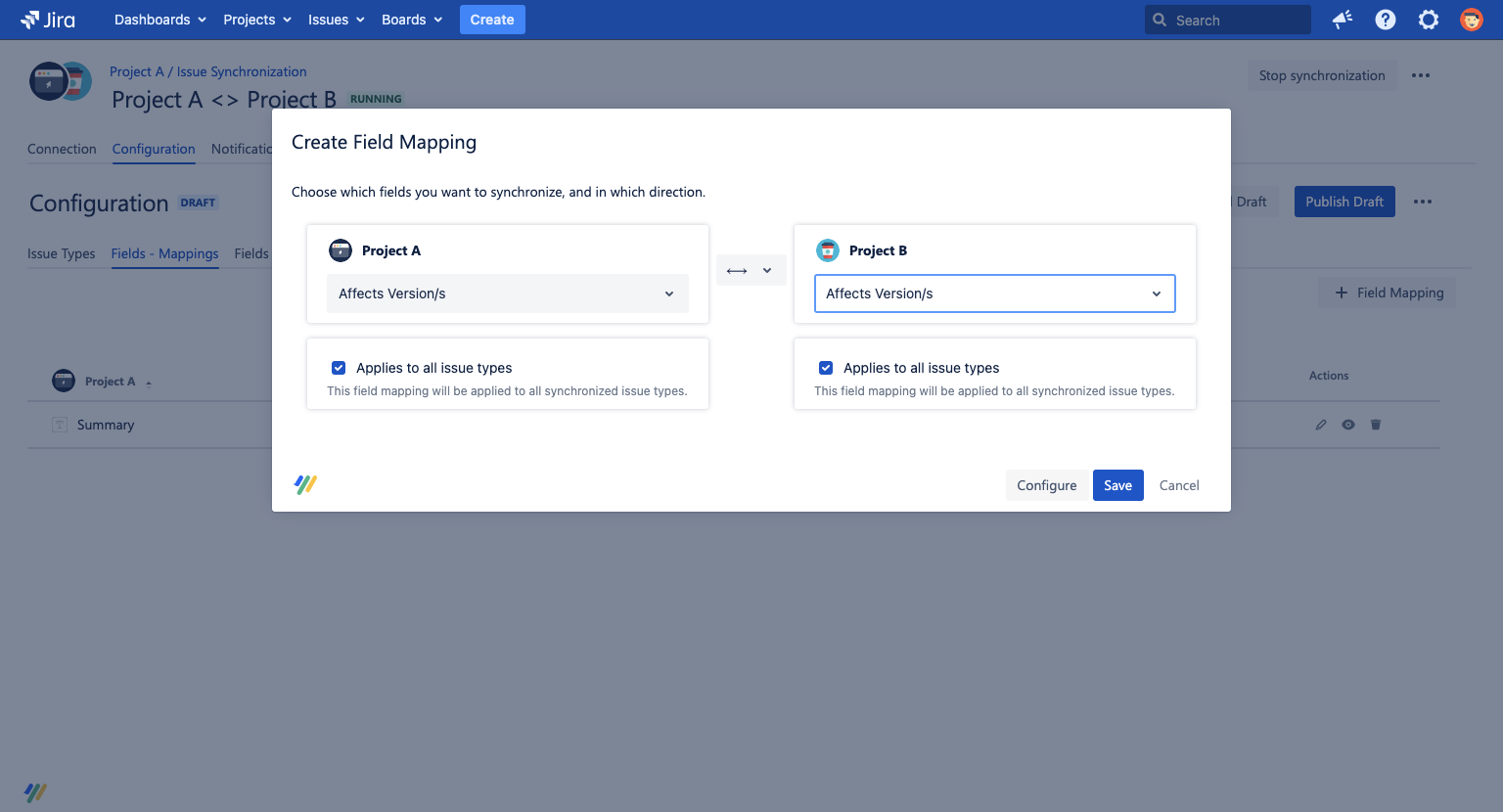
Field Mapping
If fields can be mapped to each other without further configuration you will be able to save in the first step of the create field mapping wizard. If not or if you want to customize the proposed mapping the next steps of the wizard will allow you to define the field mappings. For a select customfield you can for example map its single options there. Depending on your chosen directions, you will see one or both screens below.
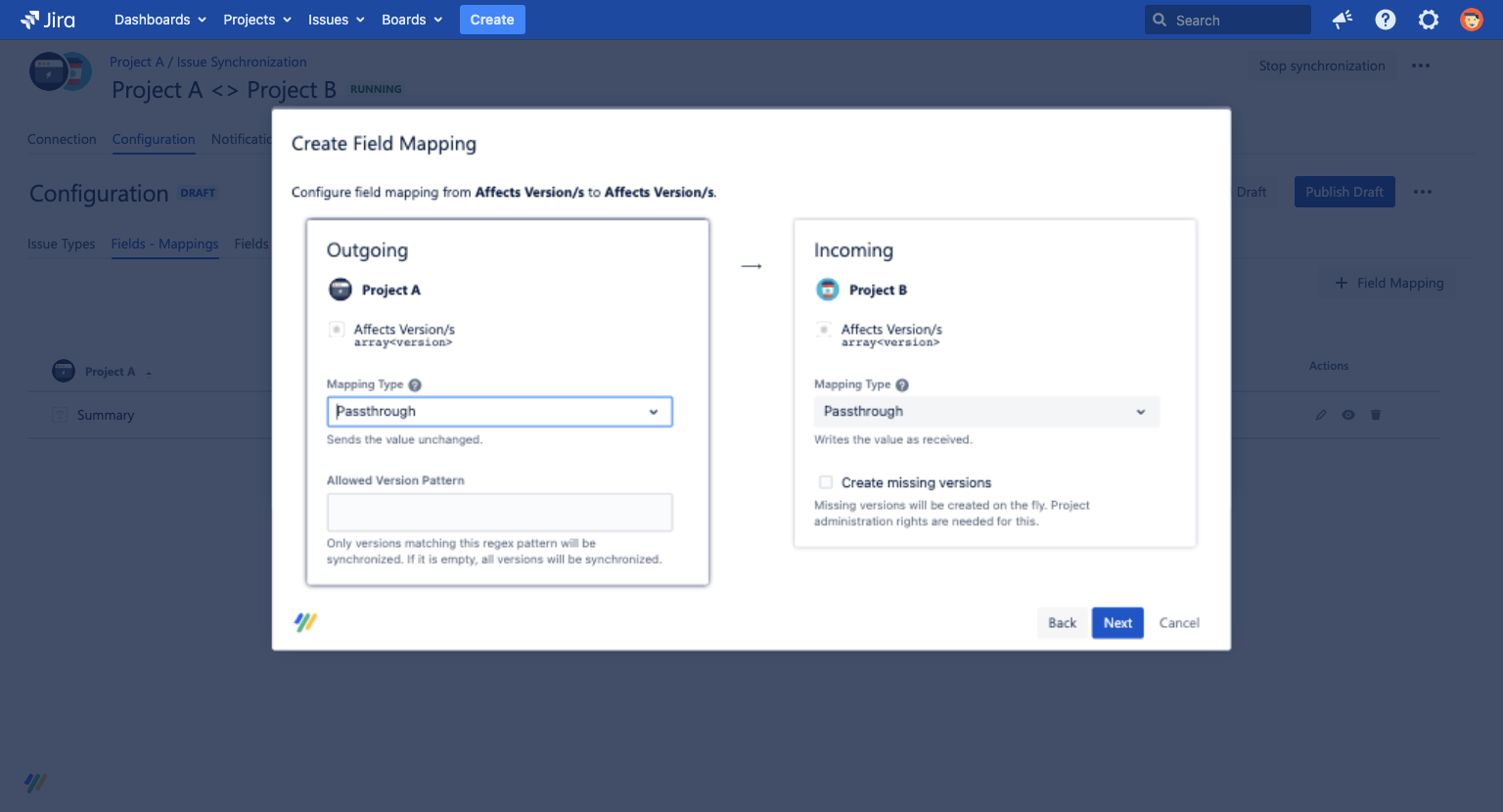
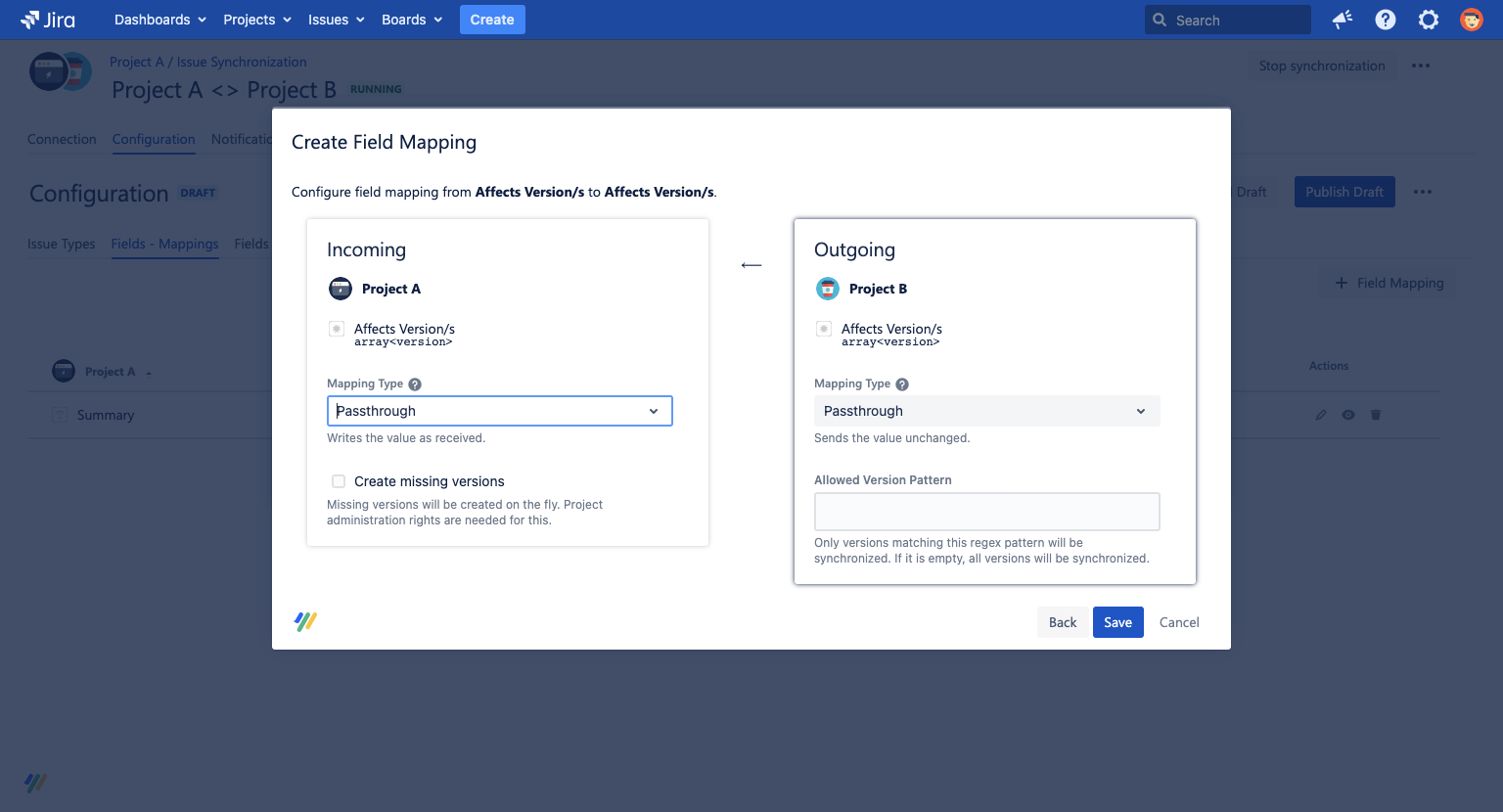
After you've created a field mapping, you can see it in the list of field mappings. It is also possible to delete or edit an existing field mapping from here.
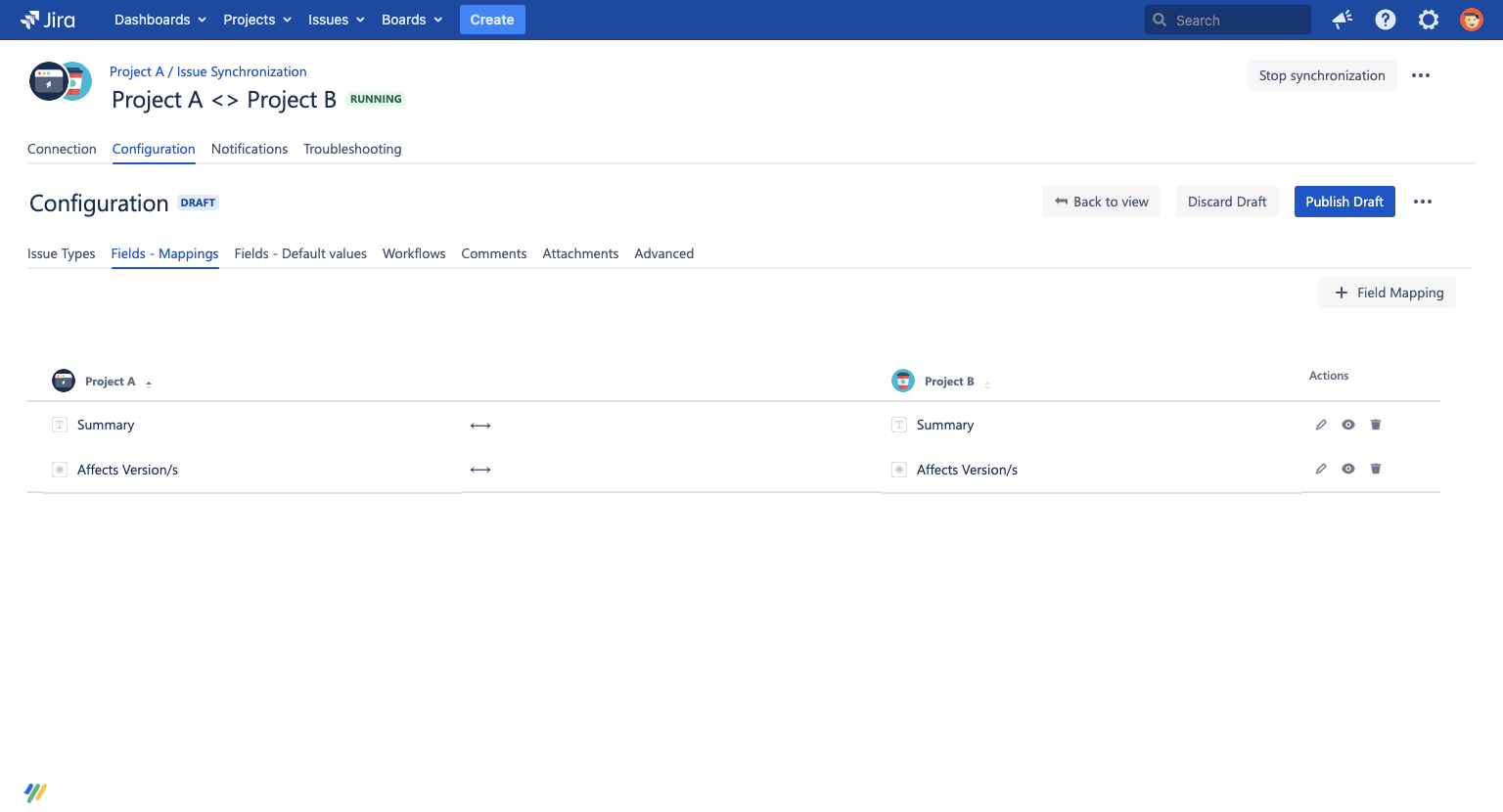
Please note that you need the "Edit issues" permission for each project where you define incoming field mappings.
Speed It up With Simple Mappings
Speed things up with the simple mappings feature by adding multiple Field Mappings at the same time using a menu with checkboxes.
To open the simple mappings menu, click +Field mapping > Simple:
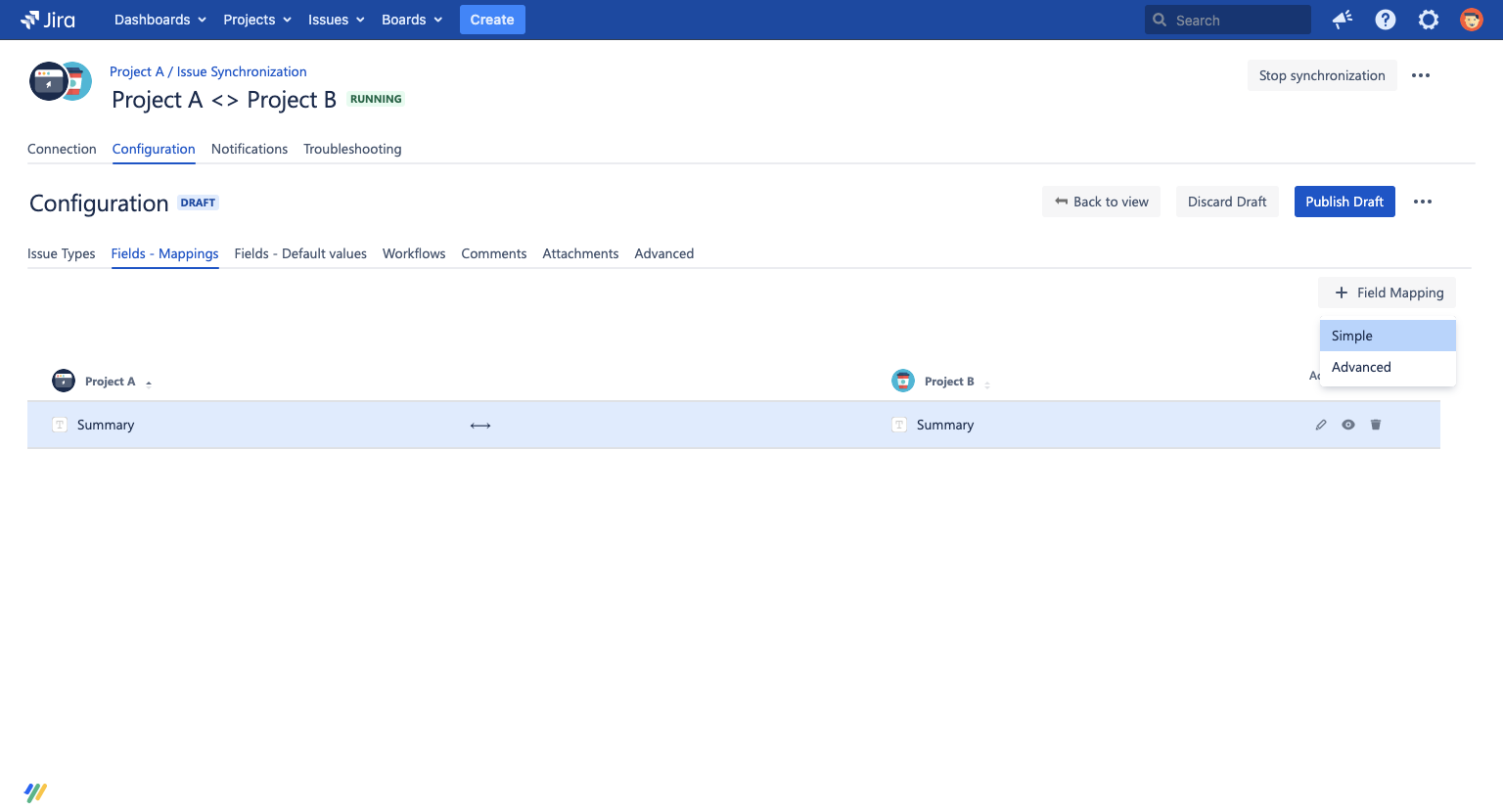
Now, a menu will appear where you can map all of a project's Fields with the corresponding Fields of the other project. You can select which Fields you wish to map using the checkboxes, and you can choose the direction of the synchronization using the dropdown list at the top of the screen.
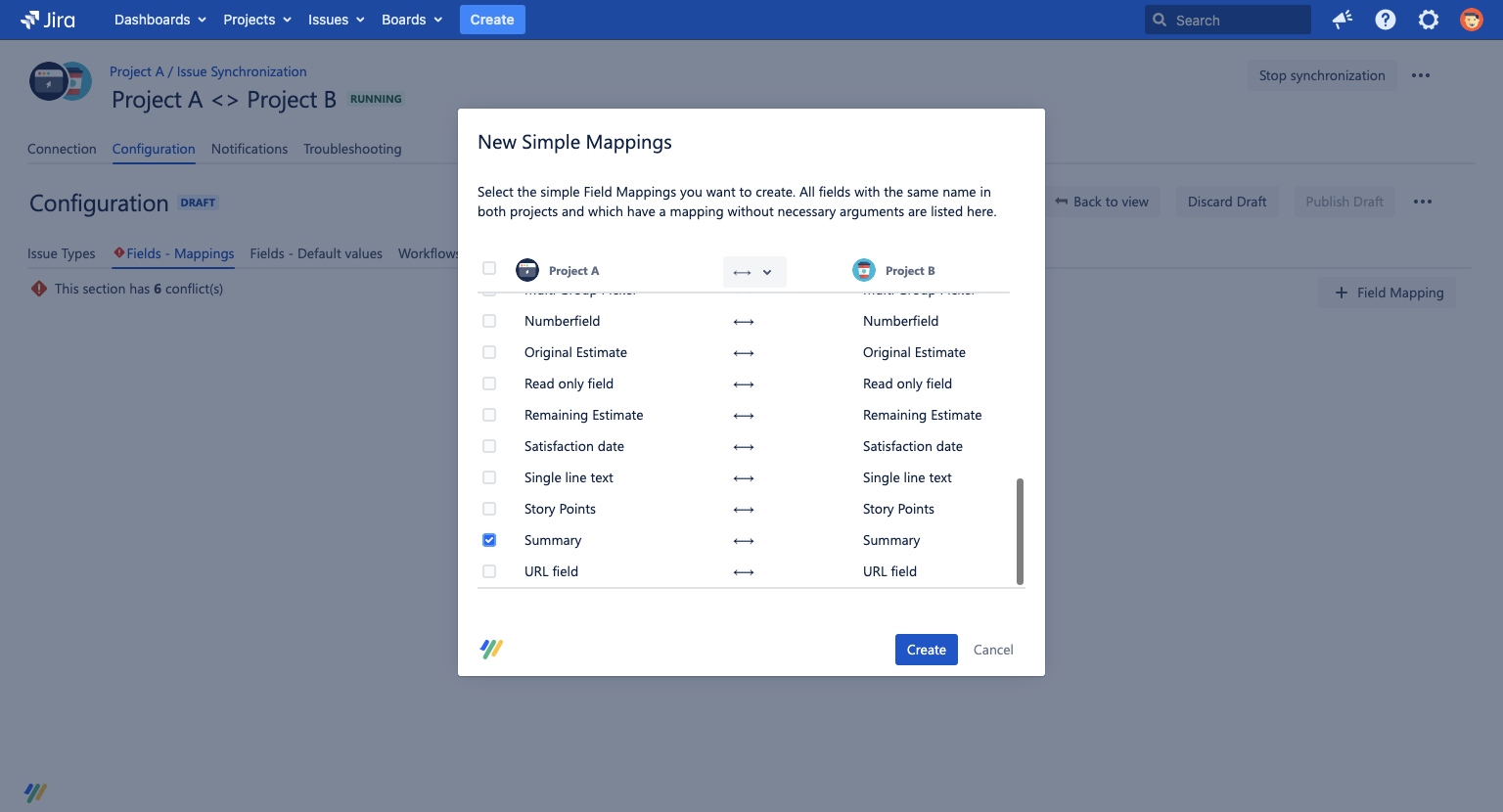
After you have configured the mappings, click the create button and they will be configured on your synchronization.
With the simple mappings menu, you can only map a project's Fields with the same type of the other project (Description<>Description, Assignee<>Assignee etc.). If you want to map different Issue Types (e.g. Description<>Assignee) to one another, you have to do it manually.
Each time you use this tool, you can only add synchronizations going in the same direction. If you want to add synchronizations going in more than one different direction, you have to use the tool multiple times.
Field Reference
System Fields
This list shows which system fields are supported by Backbone. Read-only indicates that the field can only be synchronized in one direction. If you miss support for a certain field, please let us know via the support button.
In general, we support three different types of field mappings: Passthrough, Correlation and To Text. You can read more in the article about Common Field Mapping Types. For detailed information on how to synchronize some of the more complex mappings, refer to the field mapping reference.
|
Field Name |
Supported? |
|---|---|
|
|
|
|
|
|
|
Attachment |
|
|
Comment |
|
|
Component/s |
|
|
Created |
|
|
Creator |
|
|
Customer Request Type |
|
|
Description |
|
|
Due Date |
|
|
Environment |
|
|
Epic color |
|
|
Epic link |
|
|
Epic name |
|
|
Epic status |
|
|
Epic theme |
|
|
|
|
|
Flagged |
|
|
Images (this is not the Attachments field) |
|
|
IssueType |
|
|
Key (IssueKey) |
|
|
Labels |
|
|
Last Viewed |
|
|
|
|
|
Multi-select fields |
|
|
Multi-level cascading select |
|
|
Original Estimate |
|
|
Parent |
|
|
Priority |
|
|
Progress |
|
|
Project |
|
|
Project-specific select |
|
|
Project-specific multi-select |
|
|
Remaining Estimate |
|
|
|
|
|
|
|
|
Resolved |
|
|
Request participants |
|
|
Satisfaction date |
|
|
Security Level |
|
|
Select fields |
|
|
Single version picker |
|
|
|
|
|
Status |
|
|
Story points |
|
|
Sub-Tasks |
|
|
Summary |
|
|
Time Spent |
|
|
Updated |
|
|
Votes |
|
|
Watchers |
|
|
Work Ratio |
|
|
|
|
|
∑ Original Estimate |
|
|
∑ Progress |
|
|
∑ Remaining Estimate |
|
|
∑ Time Spent |
|