
Backbone adds a Sync Panel to the view work item screen of all work items in the Jira spaces you are syncing. It displays a variety of information about the synchronization.
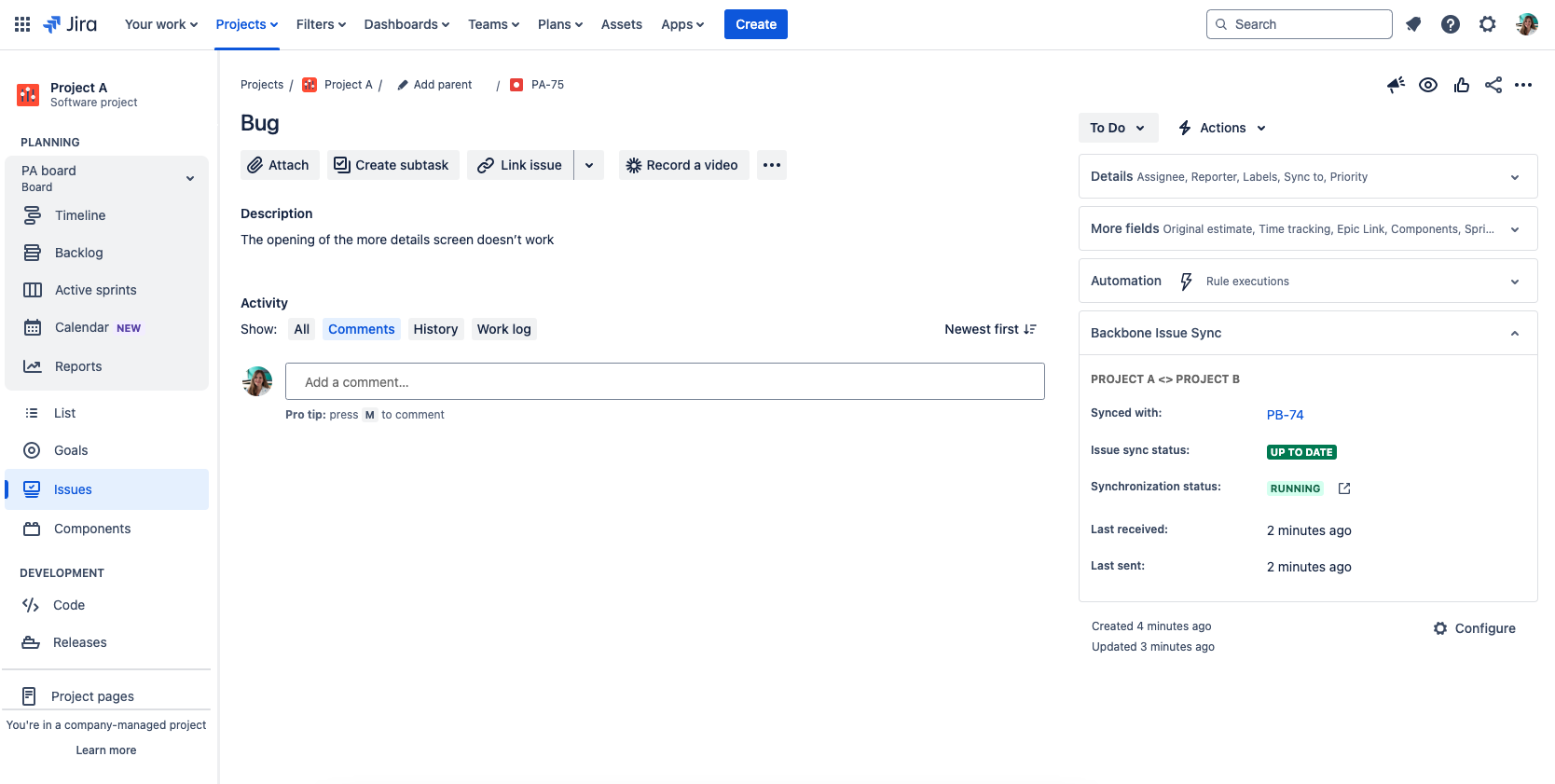
Information in the Sync Panel
You can find the following sections with information in the sync panel.
|
Synced with |
The key of the partner work item. Tip: by hovering over the link, you’ll find a quick copy icon. |
|---|---|
|
work itemsync status |
Details about the synchronization status of this work item.
|
|
Synchronization status |
Details about the status of the synchronization of this space.
For more details click on the outgoing link icon, which leads you to the synchronizations overview. |
|
Last received/sent |
The time when the work item last received changes from the partner instance or sent changes to the partner instance |
Expand or Collapse the Panel
You can expand and collapse the sync panel.
-
When you expand the panel, it will also be expanded automatically when you go to another work item.
-
When you collapse the panel, it will also be collapsed automatically when you go to another work item.
In the collapsed mode, you can also find a quick overview of the state of the synced work item:
-
the work item is successfully syncing (up to date)
-
there is an issue blocking the work item from syncing (error)
-
🕑 the work item is in the pending state (pending)
-
empty - the work item is not synced
Hide or Display the Panel
By default, the sync panel is visible to all Jira users. You can restrict who can view the panel either globally or at the space level using the view-sync-panel permission.
-
Global level: Configure this permission in the global permissions to control access across all spaces. You can grant access to specific user groups or to no one, which hides the panel for everyone.
-
Space level: Configure this permission in the space settings to control the panel of the synchronization(s) in one space. As with the global setting, you can grant view access to specific groups or to no one, hiding the panel for all synchronized work items in that space.
When you synchronize to a data center instance, the settings only impact the visibility on your cloud instance. On data center, the access can be changed under project settings > Backbone Work Sync and clicking Visibility Sync Panel.
If you are using Jira Service Management, make sure the synchronization user is member of the Jira-Servicedesk-Group to be able to see the sync info panel