
With Backbone, you can define workflow mappings based on work item status, allowing you to sync statuses between work items. This guide will demonstrate how to map the workflows between two synchronized work items.
Choose the Correct Workflow Editor
Backbone has two workflow mapping editors:
When you start configuring your workflow mappings, it's important to choose the correct one for your needs. You can always switch from default to advanced, but the other way around is not possible without needing to create a new workflow mapping.
Recommended editor
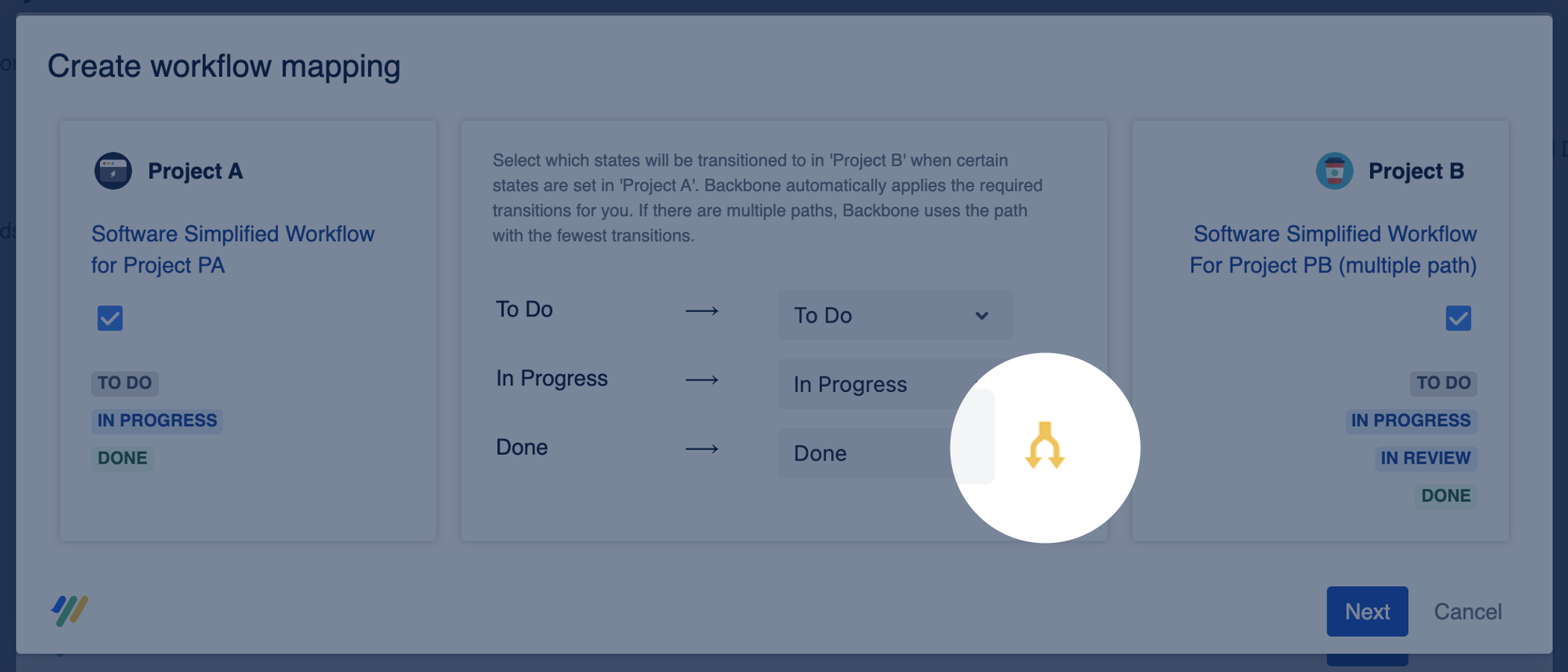
It is recommended to use the default editor as it’s easier to use and maintain. However, when you have certain transitions in your workflows that can be executed in multiple ways, and you need to define which exact path should be taken, we recommend the advanced editor. This is because you can't select which transitions between states should be made in the default editor.
Default Editor
Let's create a workflow mapping with the default editor.
-
To get started, open the synchronization configuration and click Workflows > New workflow mapping;
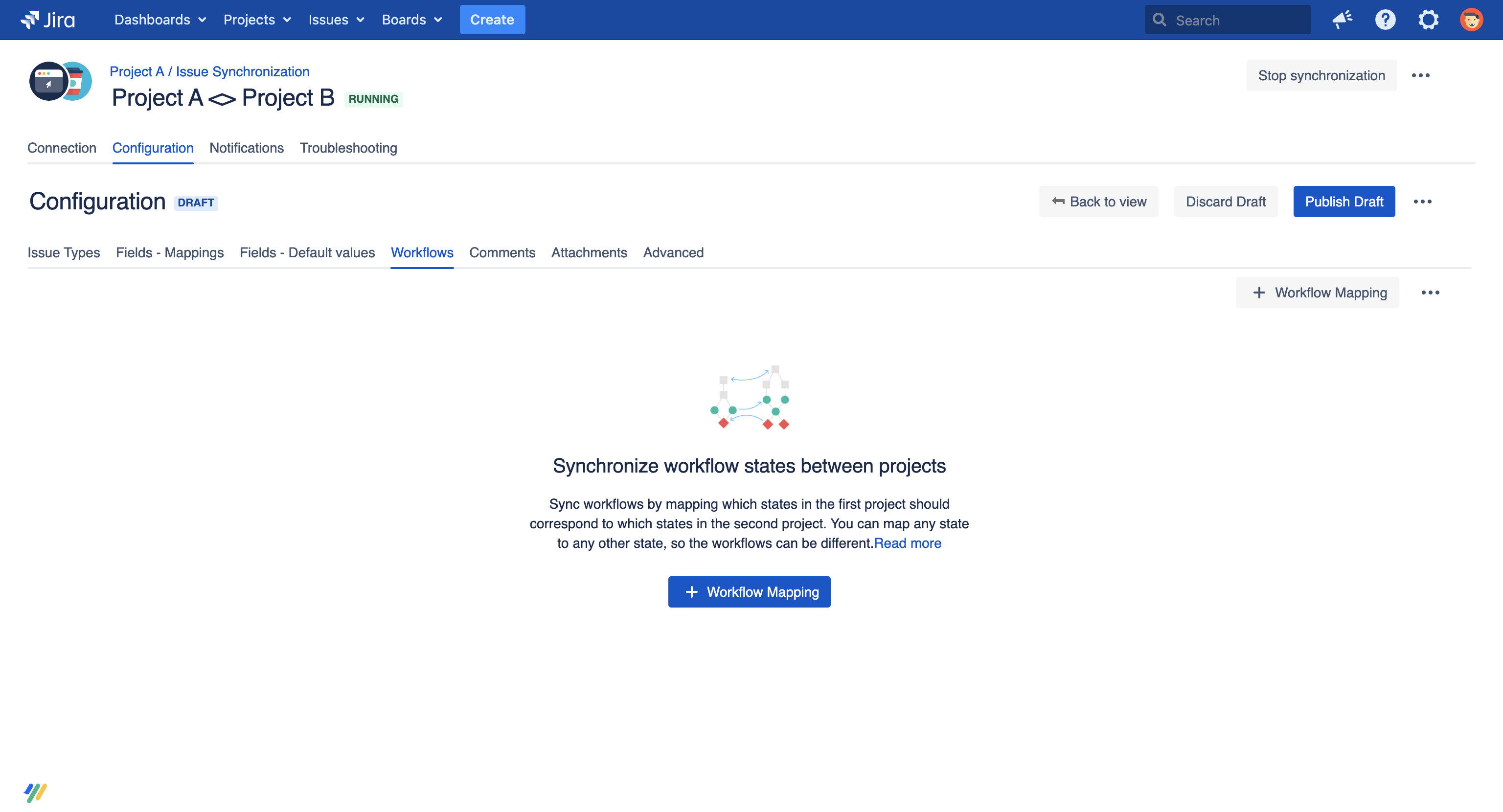
If you see a different view (with two columns for the two spaces), this means that you've already created workflow mappings for this space with the advanced editor – you won't be able to switch back to the simple editor without losing these.
-
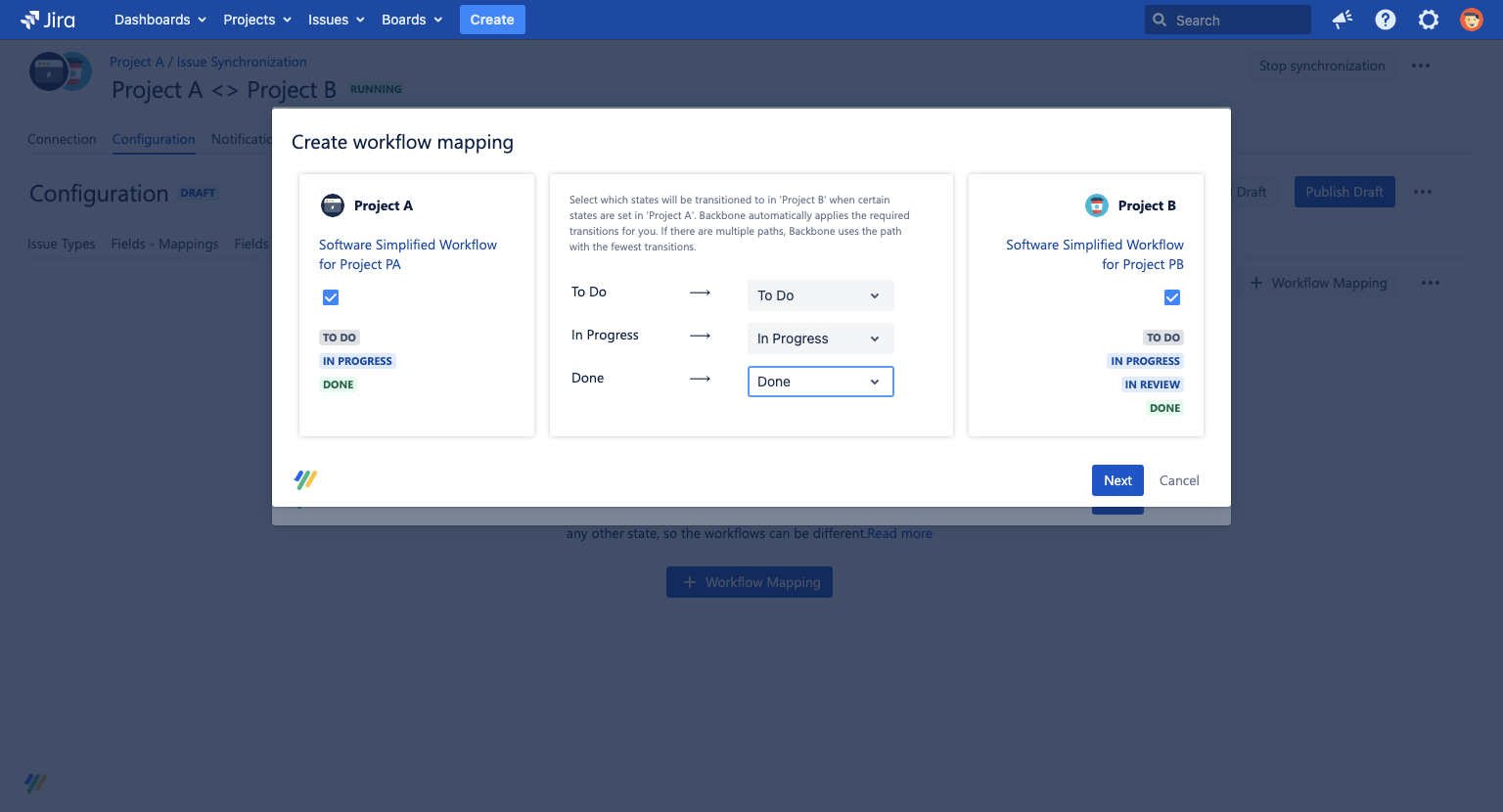
Select which workflows you want to map, and what work types you want to map the workflow for.
-
Now, you can use the editor to map what workflow state the partner space should be triggered to when your space sends them a certain workflow state:
-
On the next screen, map what workflow status your space should transition to when the partner space sends a workflow state. You can configure this in the same way as step 3.
Advanced Editor
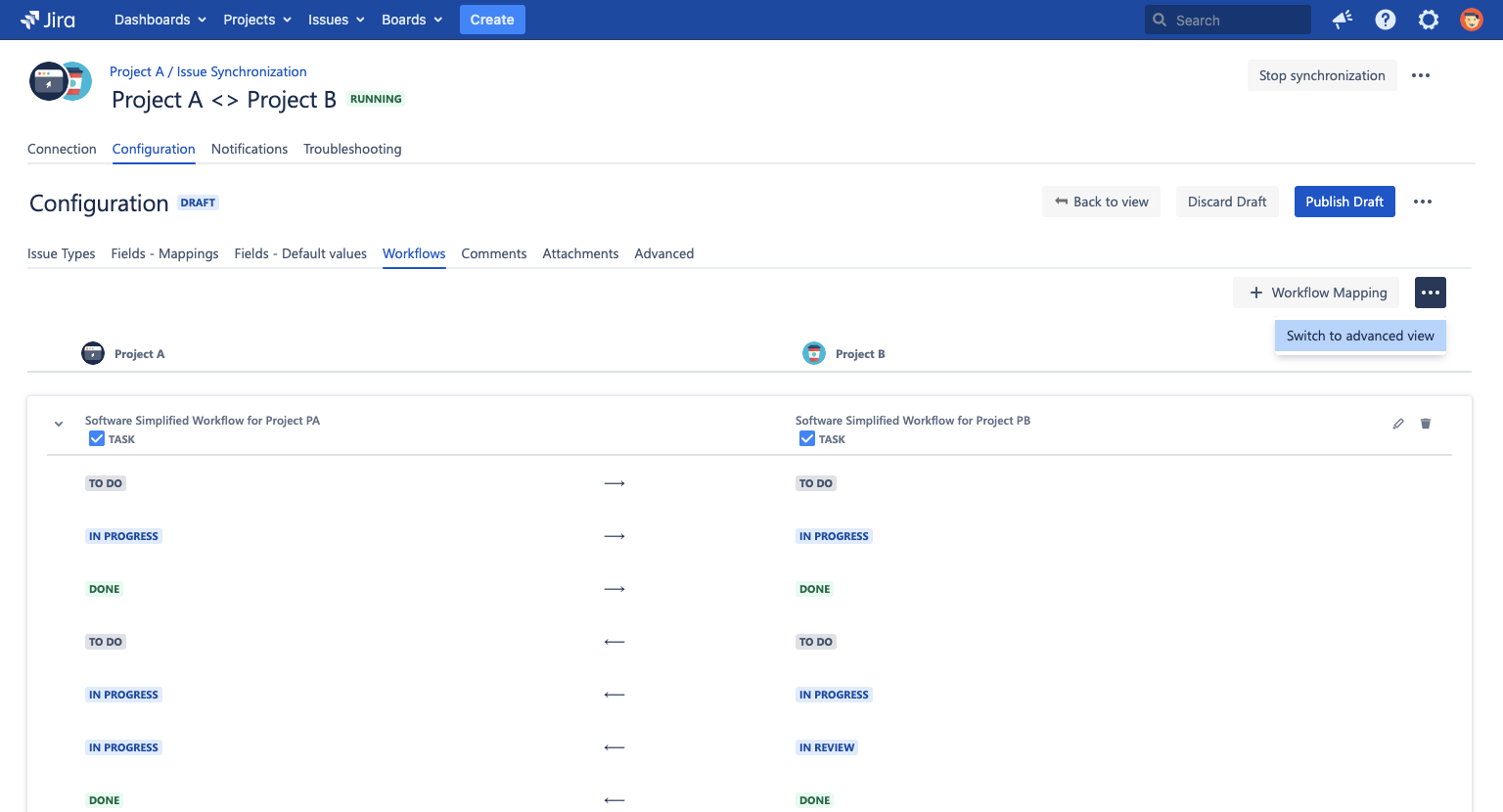
The advanced editor lets you map workflow states between spaces, and also select specific transitions between those states.
If you need to use the advanced editor, switch by clicking ... > Switch to advanced view:
-
If you want to create a workflow mapping for all work types belonging to a space's default workflow, then click Default workflow mapping +.
-
If you want to create a workflow mapping for (a) specific work type/s, click + New workflow mapping.
To define a workflow mapping, simply click + then you can define transition rules for your space. When you define a transition rule, you can define what transition for space's workflow should be triggered when the workflow status in the partner space changes. The condition is always a combination of the local status and the status of the partner space. Whenever the status in the partner space changes, Backbone will search for a matching condition and perform the selected transition (or transitions). The list of transitions to select depends on the selected local status.
Transition rule example
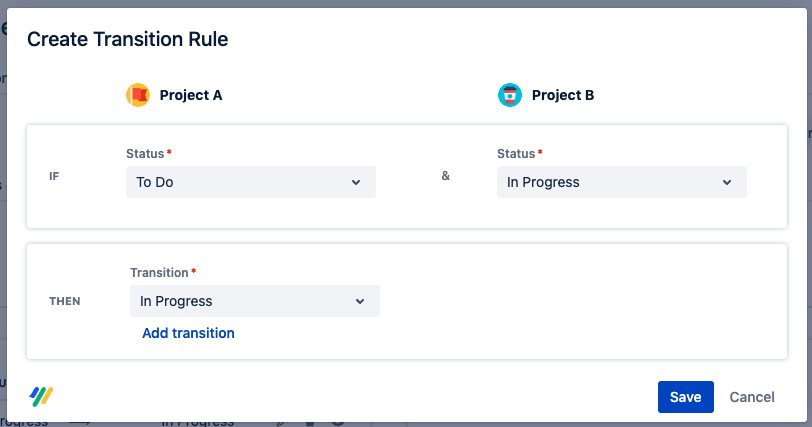
Here, if Project A is in status To Do, and Project B's workflow status changes to in Progress, then Project A's workflow status transitions to status In Progress.