
To synchronize issue links, simply navigate to the Fields - Mappings tab of your configuration and add a mapping for the Linked issues field.
Synchronization behavior
When you synchronize issue links, the linked issues will be displayed in the partner issue. Which links are synced, depends on your setup:
-
Are you syncing locally (same instance)? Then all issue links are synced.
-
Are you syncing across instances? It is only possible to synchronize issue links that are also synchronized to the partner instance.
Furthermore, the issue link types (e.g. 'relates to', 'blocks', 'causes') are synchronized. You can either synchronize these one-to-one (meaning that they will be identical in both partner issues) or you can map specific issue link types in one projectto specific issue link types in the second project (e.g. 'relates to' in Project A will by synced as 'is related to' is Project B).
Synchronize the same issue link type to same issue link type
If you want to synchronize the same issue. link type value in both projects, simply select the Linked issues Passthrough Mapping option:
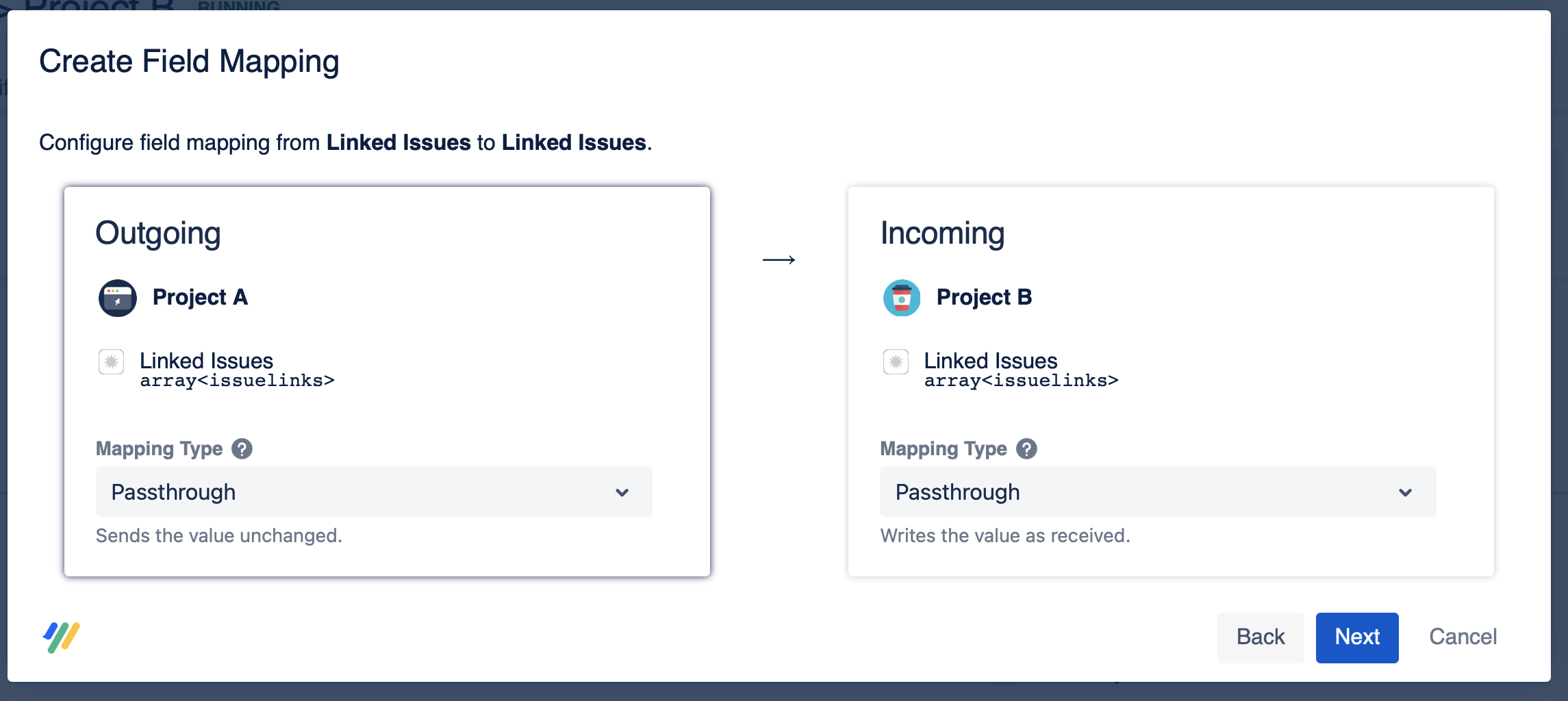
You should only select this option if the synchronized projects have the same set of issue link types. This is because if one synchronization partner attempts to synchronize an issue link type that doesn't exist in the partner instance, Backbone will throw an error.
Synchronize specific issue link types to other specific link types
Select the linked issue types correlation mapping setting:
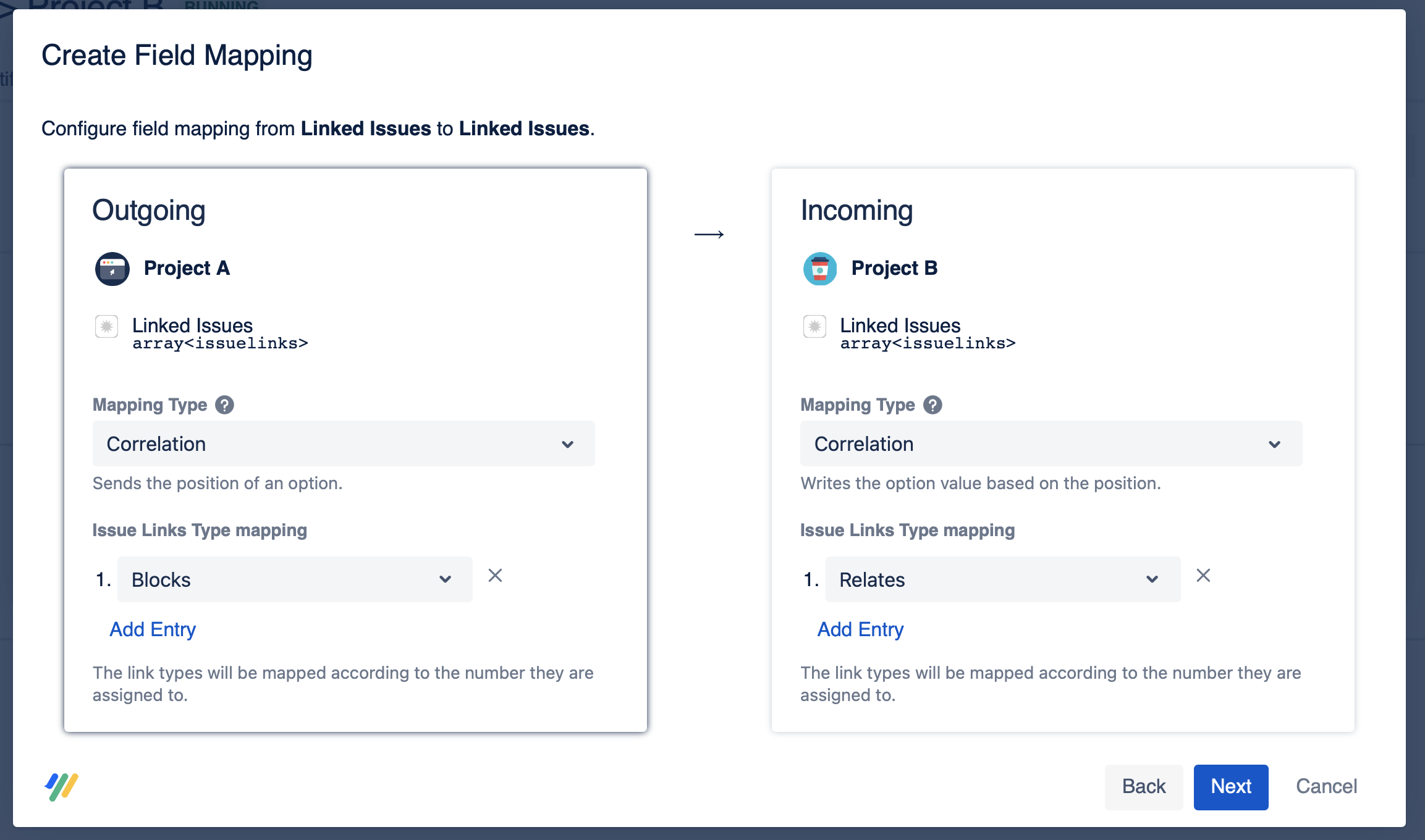
In the issue links type mapping section, click Add Entry to enter the link types you want to synchronize. The link types are mapped according to the number they are assigned to – so the issue link type assigned to number 1 on the left side will be synchronized to the issue link type 1 on the right side.