
Copy the page tree of any version or translation to create a variation of its content in a new page tree.
Just like copying individual pages, you can easily duplicate entire versions or translations with Scroll Content Manager. This is a simple way to replicate content and start working from a fresh copy.
When copying a version or translation, you can choose to create the copy in the same space or a different space. The copied content will be a new, independent document.
How to Create a Copy of a Page Tree
First, you need to navigate to the Document Manager:
-
Click Scroll Content Manager in the space sidebar.
-
From the Document Library, click the document card of the document.
When you find yourself in the Document Manager, follow the steps below to copy the page tree:
-
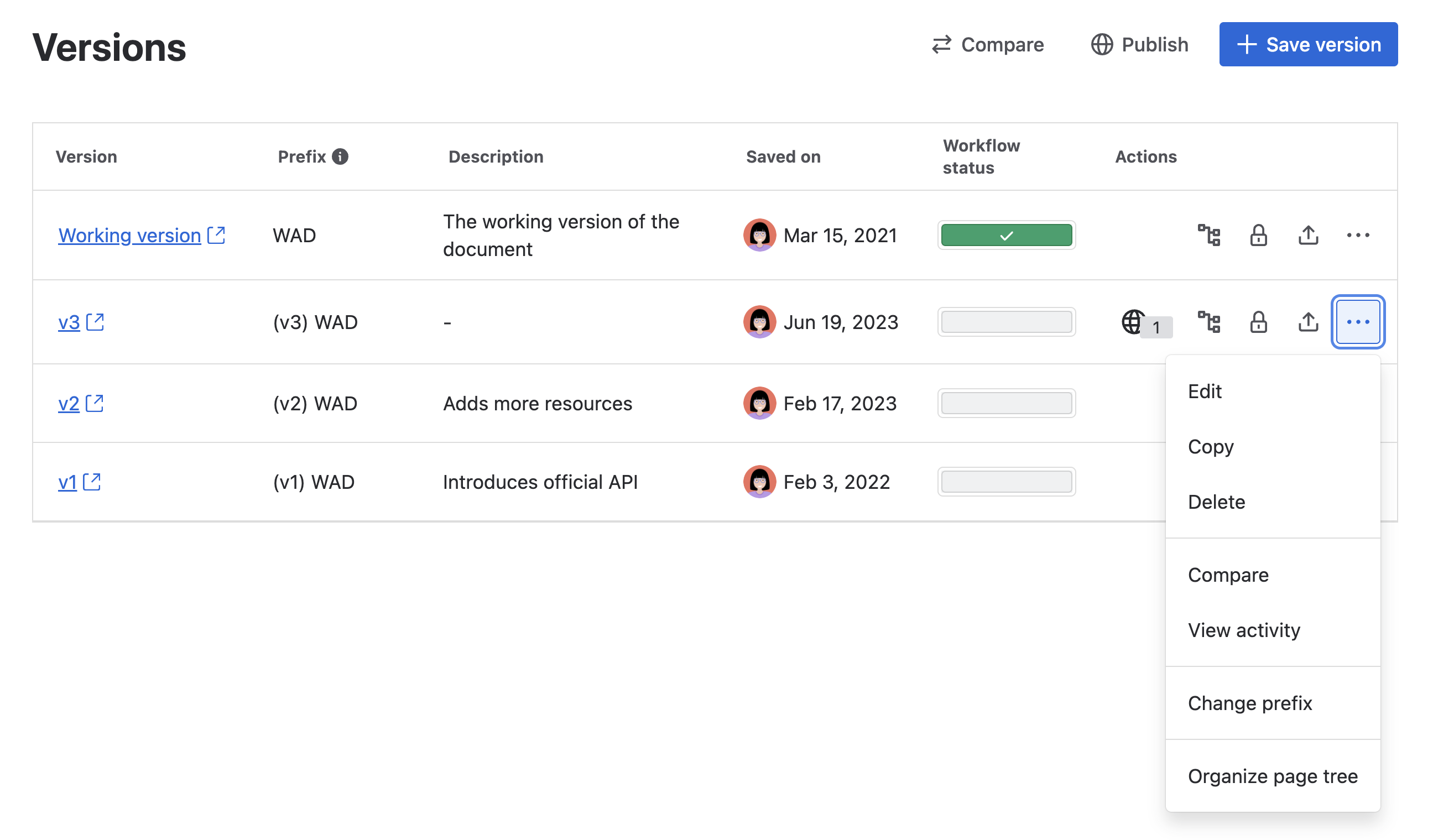
Locate the version you would like to copy and click More page tree actions (•••) in the Actions column > select Copy.
-
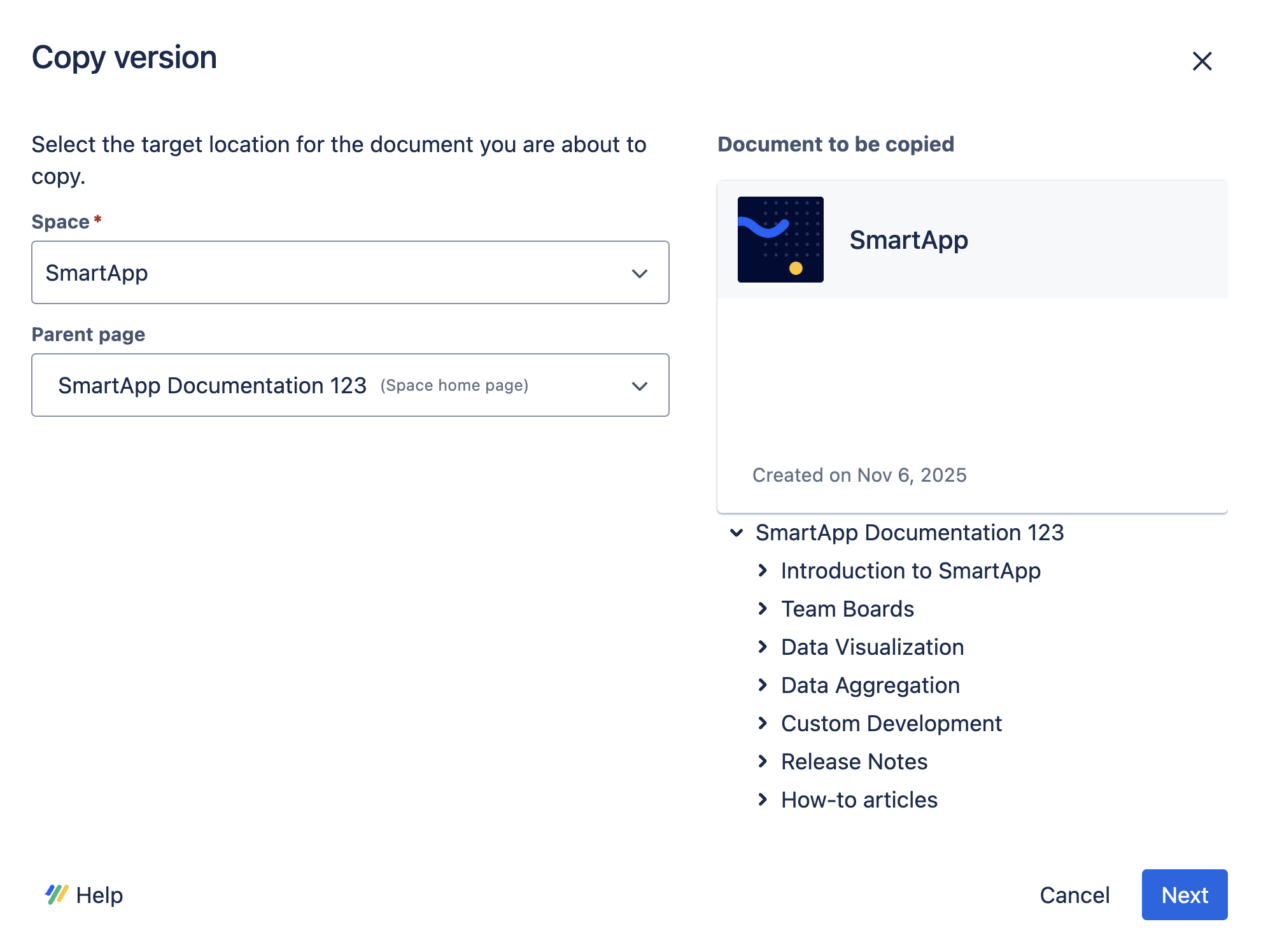
Pick a location for your page tree copy by selecting the Confluence Space and then the Parent page.
-
Click Next
-
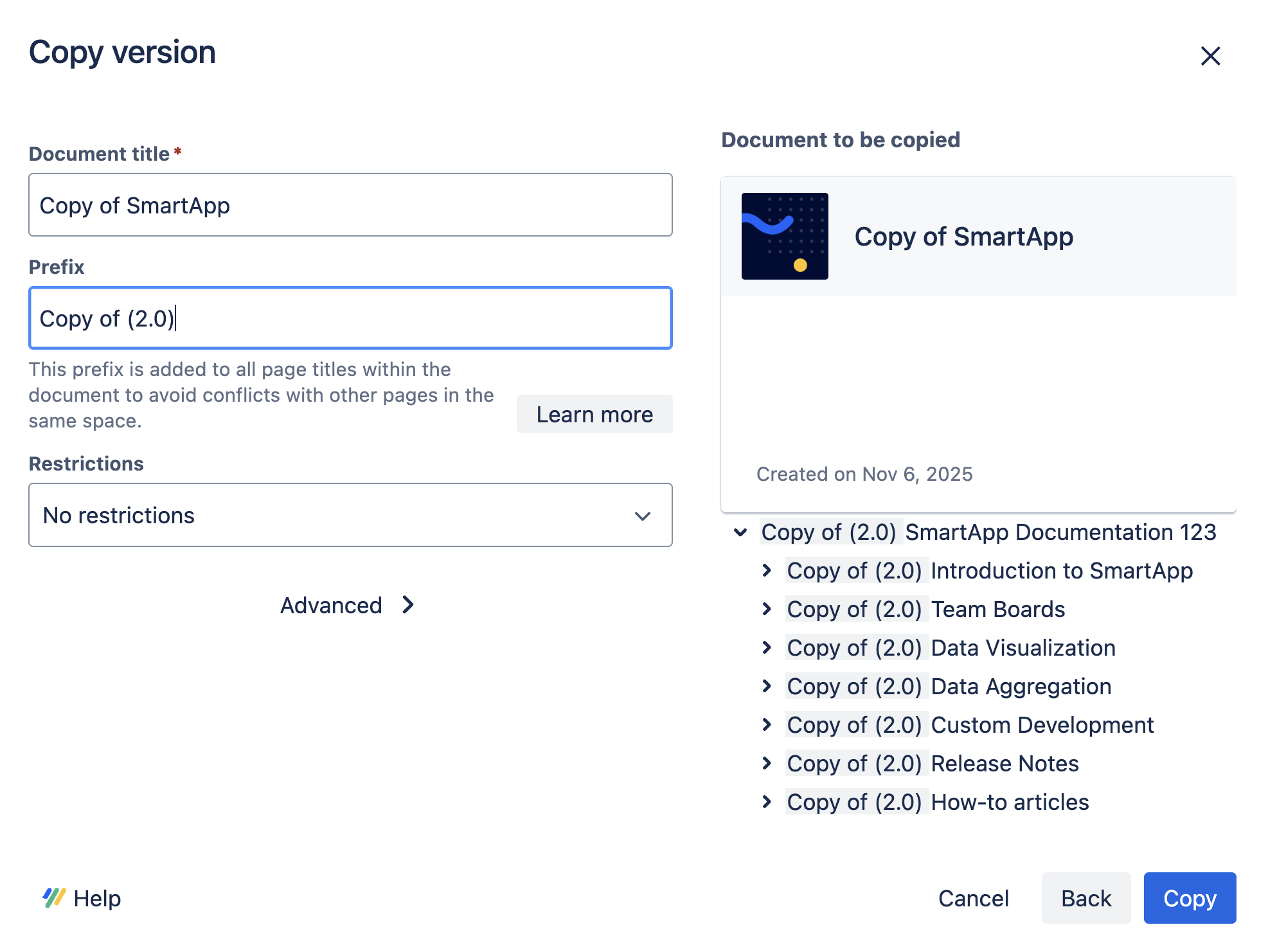
Enter a document title or use the default entry to define the name of the new parent document.
By default, the name of the new parent document will be “Copy of”, followed by the name of the original version’s parent document.
-
(Optional) Customize the Prefix for the new version page tree.
By default, the prefix is “Copy of,” followed by the version name of the version you’re copying (e.g. 2.0). You can choose to customize or delete the prefix. When you customize the prefix, all page titles of the copy will inherit the “Copy of” prefix. You'll see a dynamic preview of the copy's new title on the left as you enter the new prefix.
-
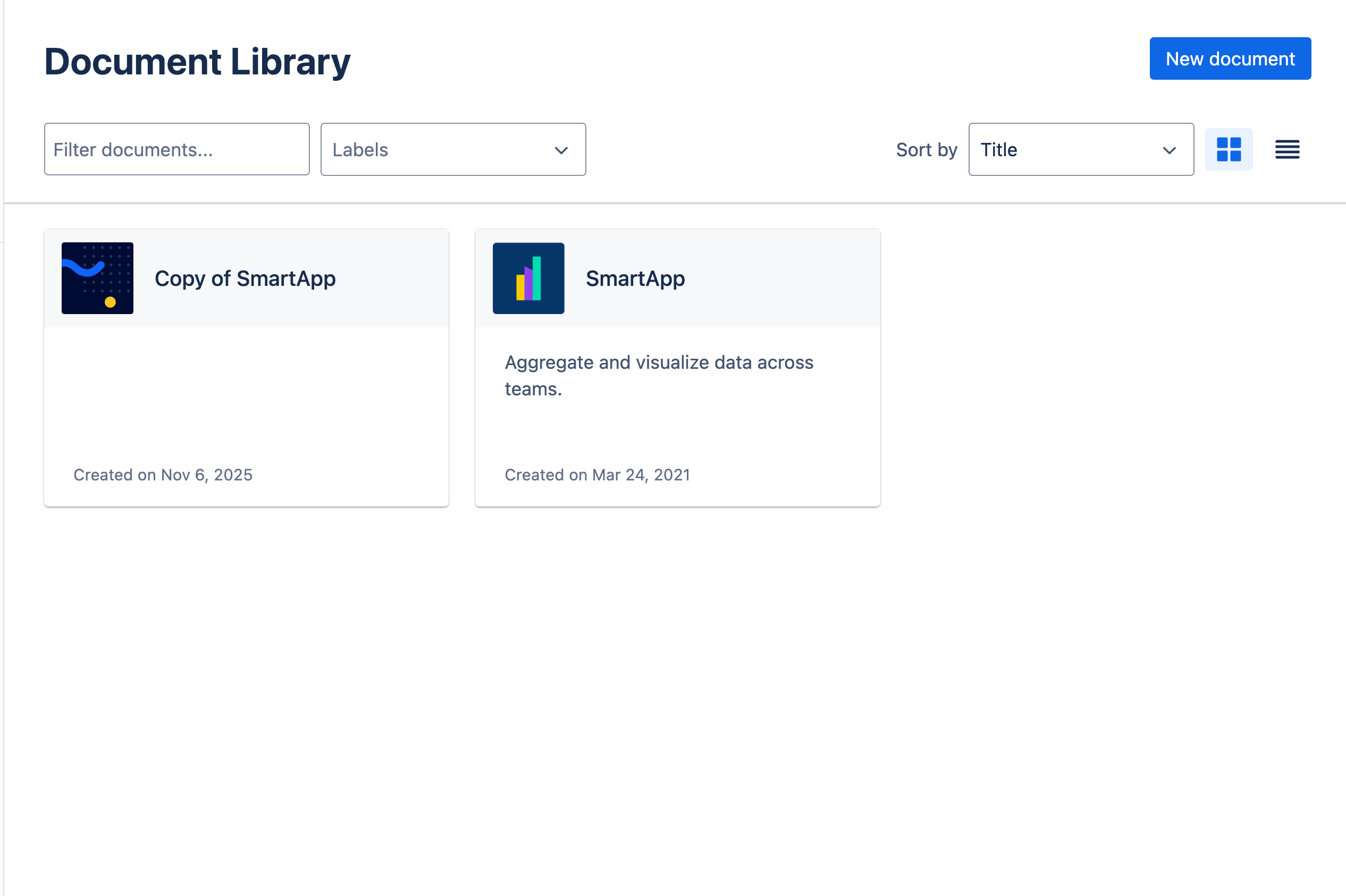
Click Copy, the new copy of the version appears under a newly created parent document in the Library of the space you selected.
What Gets Copied?
When copying a version, some details are included on with the new copy, and some are not:
|
Element |
Included |
|---|---|
|
Version content |
|
|
Page attachments or images within the version |
|
|
Summary |
|
|
Labels |
|
|
Versions |
|
|
Created by |
Transfers to the creator of the Copy |
|
Comments |
|
|
Contributors |
|
|
Page History |
|