
By using the Help Center export template included with Scroll HTML Exporter you can straight away export your Confluence content to HTML format.
Simply open the page you want to export, then click:
-
More actions menu (•••) > Apps > Export with Scroll HTML Exporter
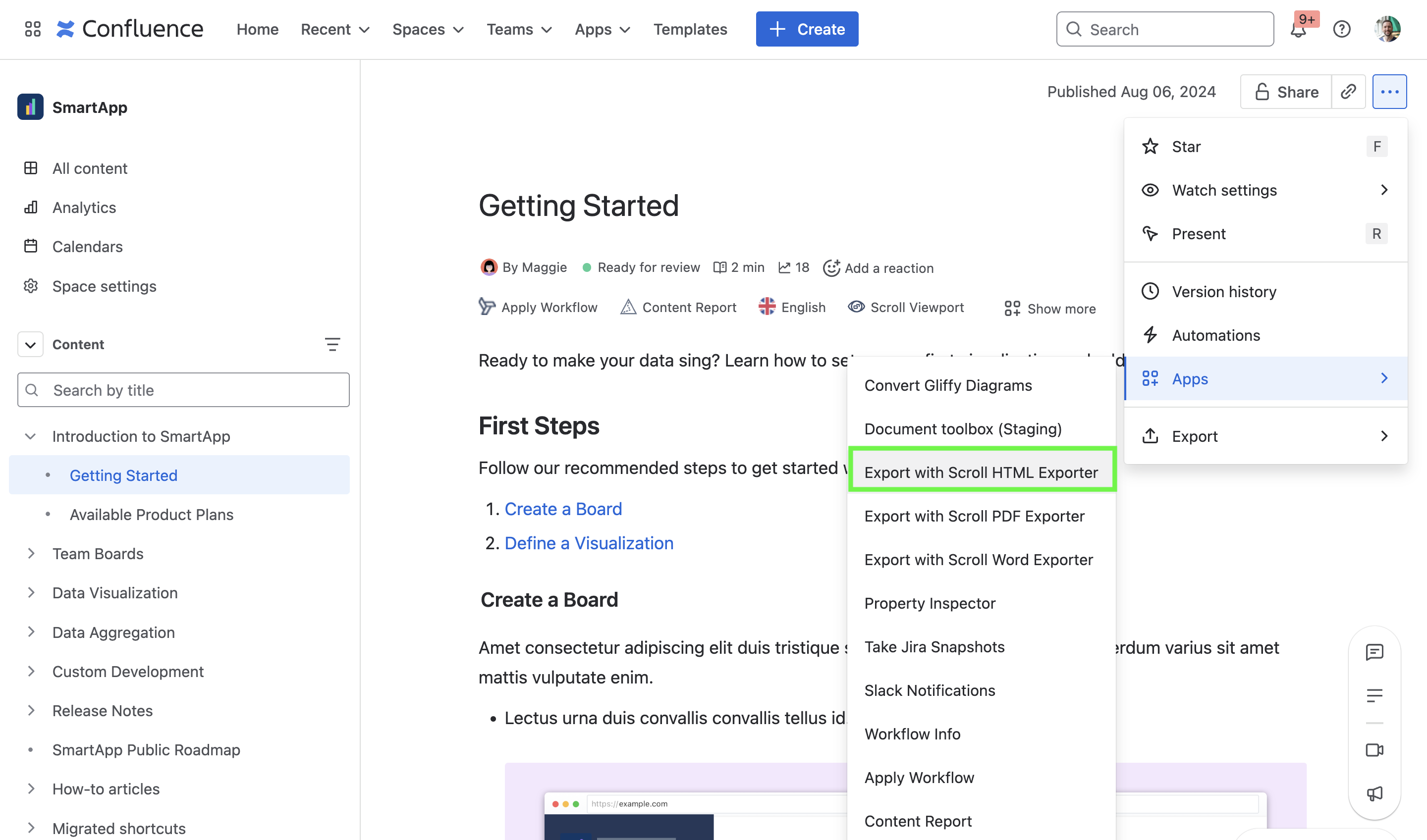
A dialogue box will then open where you can define the export scope to either:
-
This page and its children – export the page you start the export from and all the saved child pages
-
Only this page – export only the page you start the export from
-
Document – export the entire document associated with the selected page (only available when using Scroll Content Manager). This also applies to Variant, Version, and Language information.
Want to export an entire space?
To export all pages in a space:
-
Go to the space home page.
-
Open the export dialog from the More actions menu (•••).
-
In the export dialog, set the scope to This page and its children.
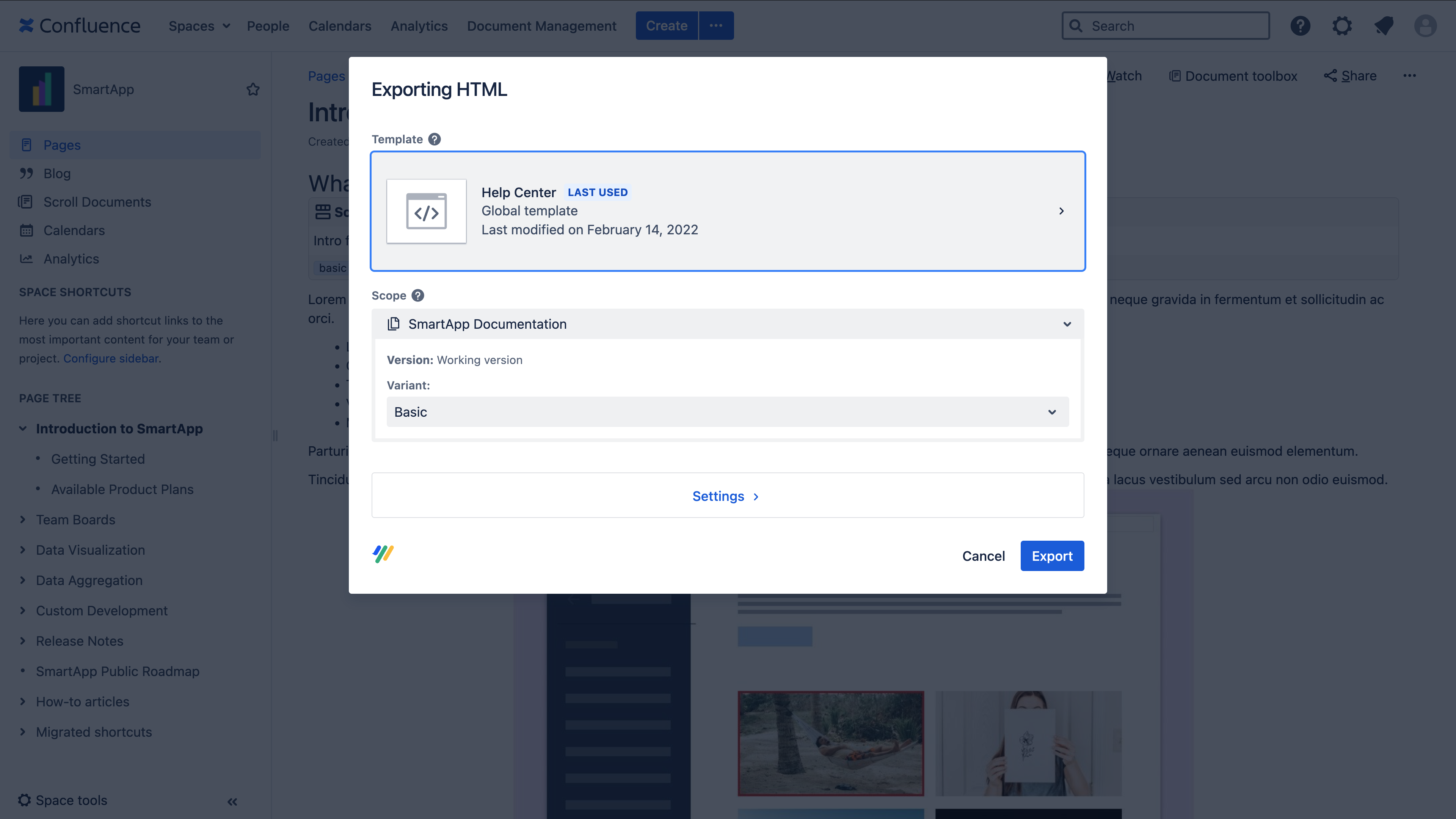
After selecting your desired template and choosing your export scope, you can then click Settings to display further customizable options.
These options are set by default in the chosen template but can be changed prior to exporting and include:
|
Name |
Description |
|---|---|
|
Language & Time zone |
|
|
|
|
Labels |
|
|
Content |
|
|
|
|
|
|
|
|
|
|
|
|
Macros |
|
|
|
|
|
|
|
|
Captions |
|
|
|
|
|
|
|
|
|
|
File options |
|
|
|
|
|
|
|
|
Search Index |
|
After selecting your preferences, simply click the Export button to generate the HTML file.