

February 2026
We’re excited to introduce a brand-new feature that has been requested by many teams who export important or sensitive content.
Scroll PDF Exporter v6.3 introduces watermarks, giving teams an easy and consistent way to mark exported PDFs with document status, confidentiality level, or any custom message - read more below.
Additionally, this release resolves several bugs, including an export error that occurred when exporting specific table content.
TLDR - Watermark Feature;
🆕 New: Add optional watermarks to any PDF export – turn them on or off whenever you need.
🎨 Customizable: Admins can style watermark text, color, size, position, rotation. All users can set custom watermark text during export.
🔐 Use for: Drafting, approvals, compliance, internal-only docs, ownership, and controlled sharing.
✅ Result: Clearer, safer, more trustworthy PDF exports.
Resolved issues in this release
https://k15t.jira.com/issues/?jql=project+%3D+%22EXP%22+AND+type+IN+%28Bug%2C+%22Feature+Request%22%2C+%22Security+Advisory%22%29+AND+status+IN+%28Closed%2C+Released%2C+%22Released+to+Data+Center%22%2C+Resolved%29+AND+component+%3D+PDF+AND+fixversion+%3D+PDF-6.3.0+ORDER+BY+created+DESC+++++++++++++++++++++++++++++++++++++++++++++++
Introducing Watermarks in Scroll PDF Exporter for Confluence
You can now use a watermark to clearly mark your Confluence PDF exports as ‘Draft’, ‘Internal’, ‘Confidential’ – or anything else your workflow requires.
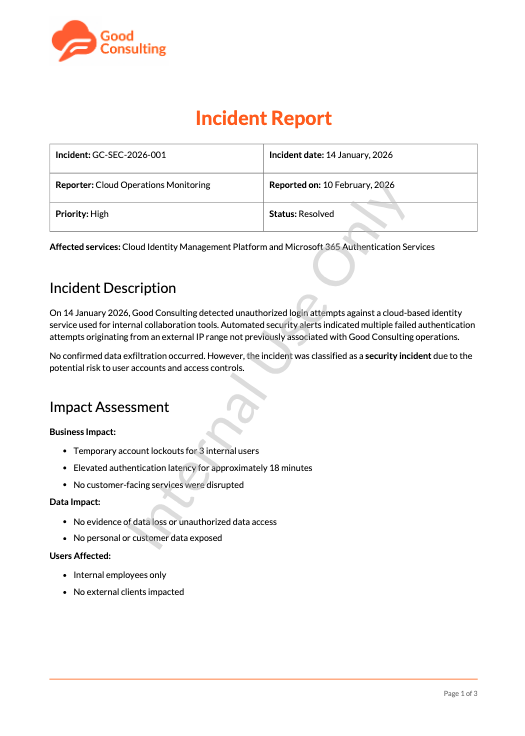

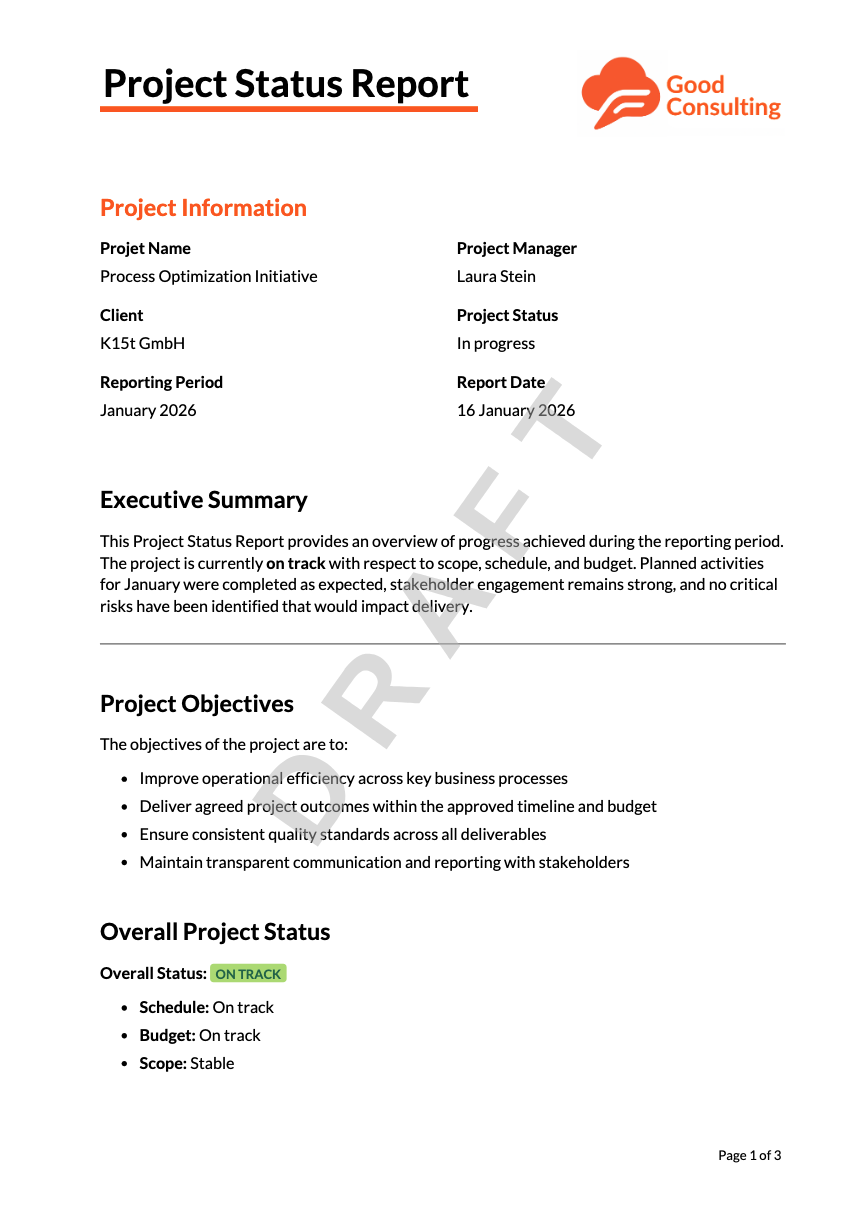
Watermarks can help teams communicate document status at a glance, prevent accidental sharing, and support compliance needs. They’re particularly useful for teams who use structured review cycles, approval workflows, or documentation processes that require clear version control.
No more background-image workarounds, there’s now a simple, flexible way to make your exports clearer and more trustworthy.
Want some inspiration? Check out our Project Status Report and Incident Report templates in our Template Library to see how watermarks can be used.
Whether you're sharing content externally or circulating drafts internally, watermarks help ensure recipients of your PDF exports understand exactly how to use (or not use) the information they’re viewing.
Try the New Watermark Feature Today
Read our documentation to learn more about how to add watermarks to your exports.
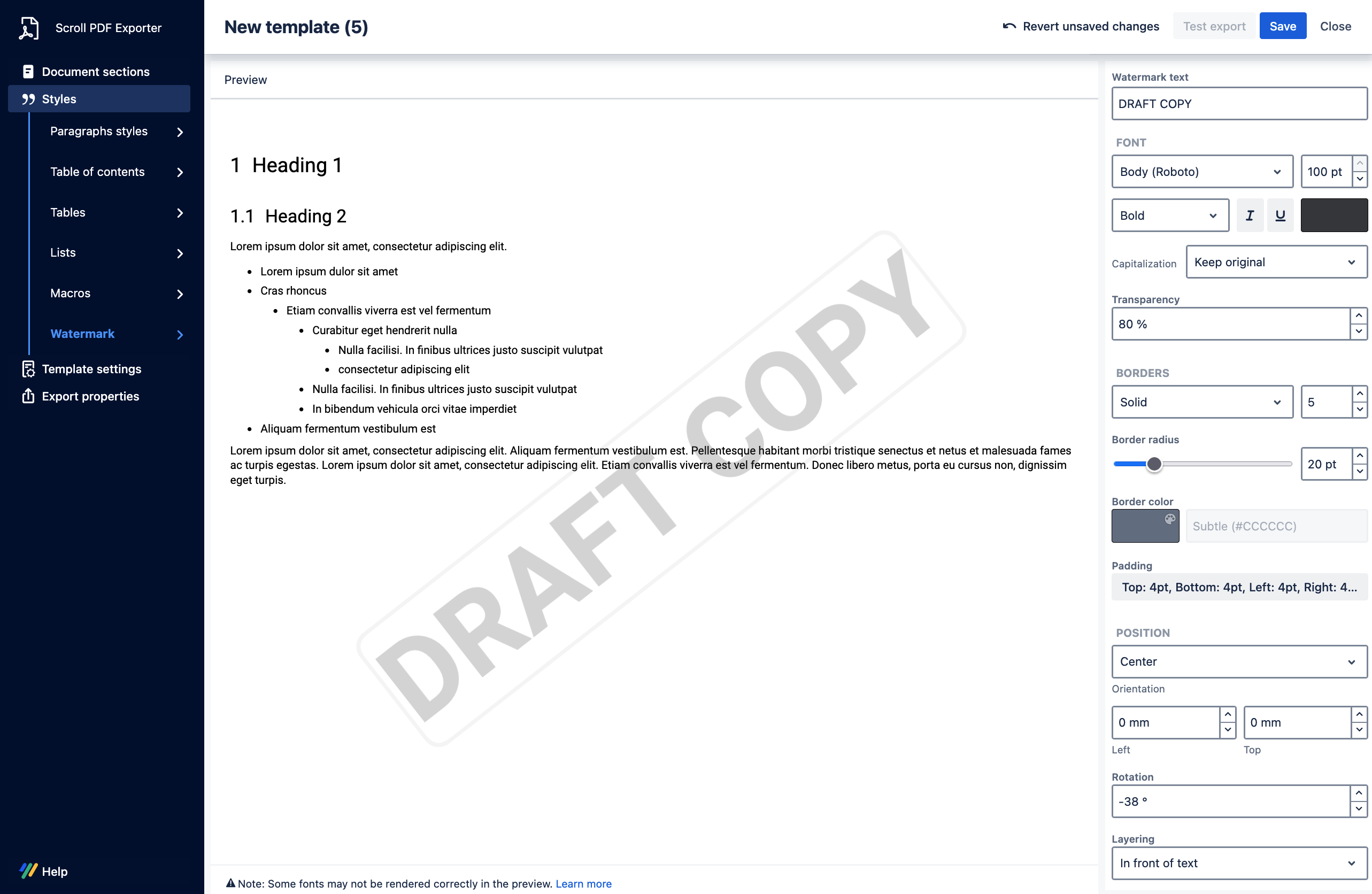
Depending on your permission access will determine how watermarks can be added and/or styled:
-
Admins: Can open the Template Editor to customize watermark appearance and defaults.
-
Users: Can add or adjust watermark text directly in the Export dialog window.
Give it a try on your next export and make your PDFs clearer, safer, and easier to share.
All existing templates will continue to work as before. Watermarks are simply an optional enhancement that you can enable if and when needed.