Attributes control which content appears in which variant. If you no longer need an attribute, you can delete it on Space tools > Scroll add-ons > Attributes screen.
Deleting an attribute cannot be undone. We recommend that you back up the space first. Only Confluence administrators can create space backups.
Before you delete an attribute
Check if any variant still uses the attribute. See Manage Variants.
-
If a variant uses the attribute, deleting it also removes it from that variant.
-
If no variant uses it and you don't need it for historic reasons, you can safely delete it.
Delete an attribute
When you delete an attribute and other attributes remain, Scroll Versions:
-
removes the attribute from all pages
-
removes the attribute from all variants
-
removes the attribute from all conditional content macros
-
deletes the attribute itself
The conditional content macros stay on your pages.
Delete the last attribute
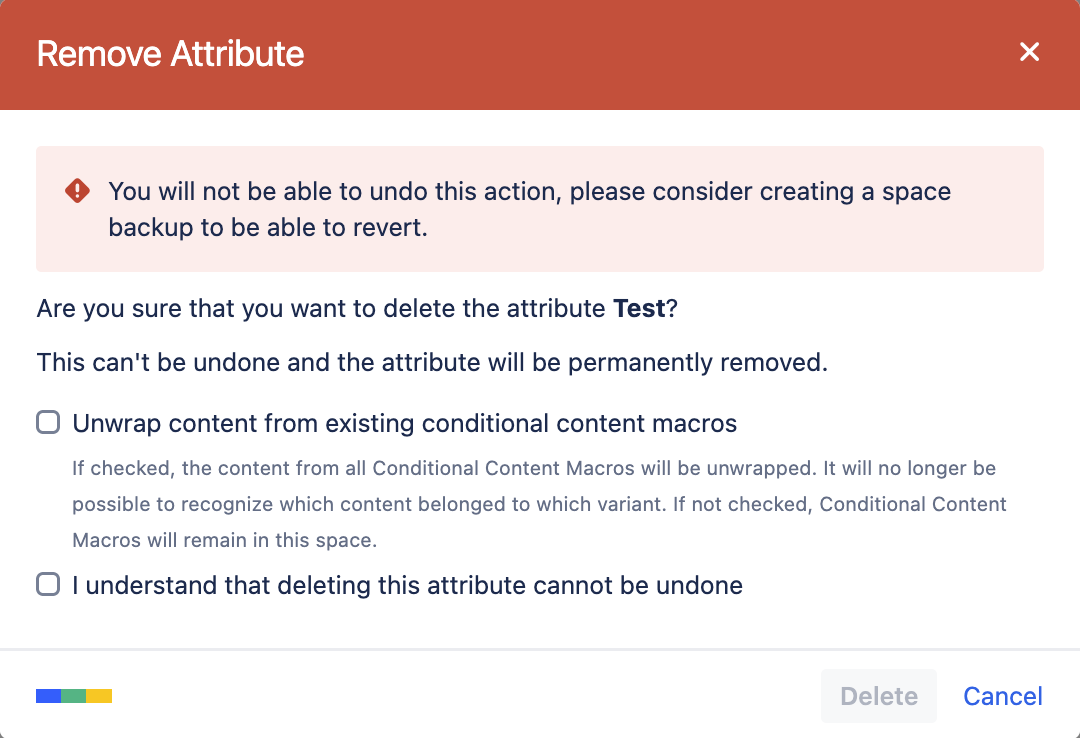
When you delete the last remaining attribute, a dialog opens with two options:
-
Confirm that you understand this cannot be undone. You must check this box to continue.
-
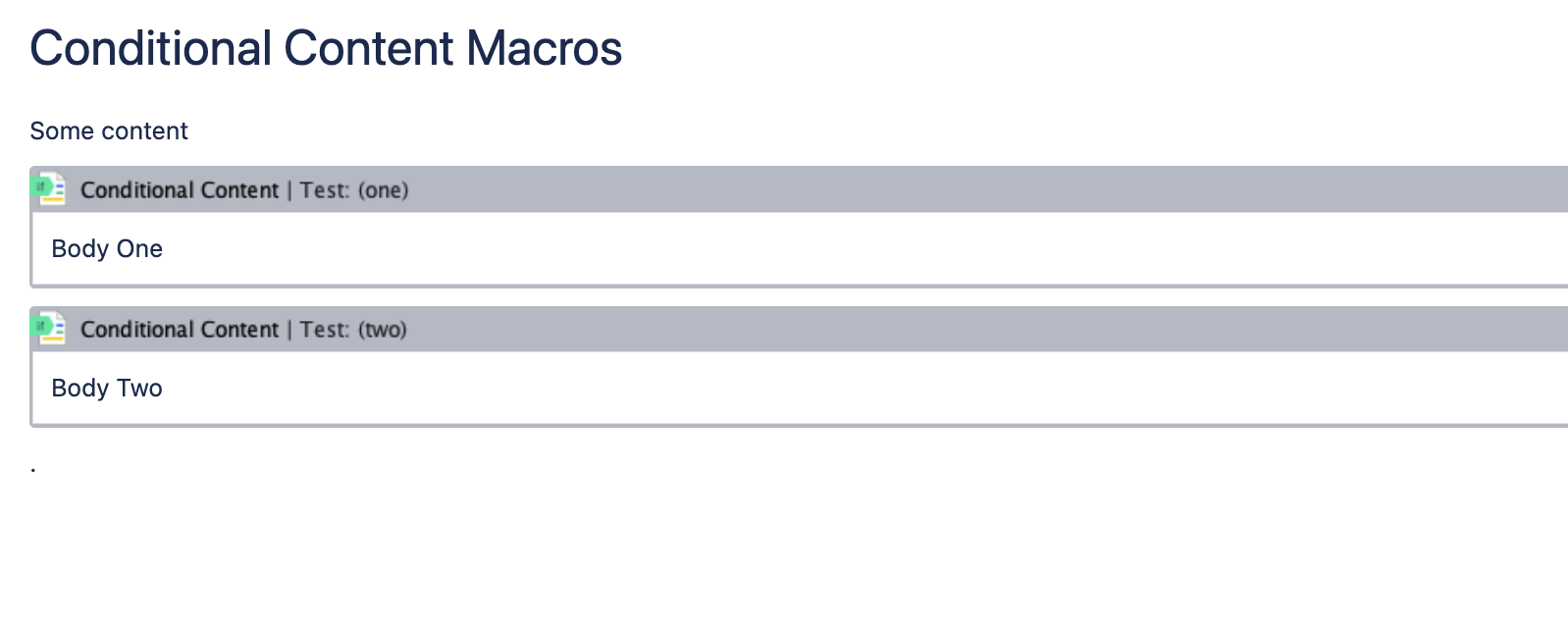
Unwrap conditional content macros. This is optional. If you select it, each macro on your pages is replaced by its content. The content then shows directly on the page and is no longer conditional.
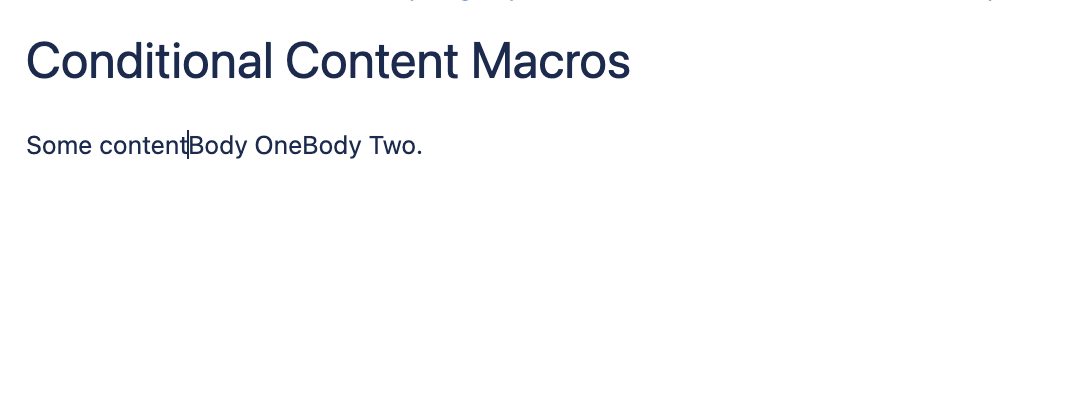
If you chose to unwrap the content, the body of the conditional content macro will be displayed directly on the page as shown in the pictures below:
Before
Unwrapped