
Before moving your Confluence spaces to Cloud you should migrate any Scroll Exporter macros that are not available on Cloud to their respective Cloud compatible version. The affected Scroll Word Exporter specific macros are:
-
Scroll Office Ignore
-
Scroll Office Ignore Inline
-
Scroll Office Only
-
Scroll Office Only Inline
-
Scroll Office Indexterm
-
Scroll Office Title
-
Scroll Export Button
-
Scroll Pagetitle
Admins can use the Macro usage option in the Confluence administration to see which macros are still in use.
Prerequisites
-
Confluence Data Center instance (contains the Scroll Word templates you want to migrate)
-
Confluence Cloud instance with Scroll Word Exporter v5.18 and Scroll Exporter Extensions installed
-
On both instances:
-
Confluence admin permissions if you have global templates you want to migrate
-
Space admin permissions if you have space templates you want to migrate
-
Migration Steps
1. Migrate Export Templates
There remains two ways to migrate created export templates from server/Data Center to cloud:
-
Use the Confluence Cloud Migration Assistant - for Scroll Word Exporter v5.18 users (and newer) you can use the Confluence Cloud Migration Assistant (CCMA) to migrate space templates automatically to cloud when migrating your chosen space(s). Global export templates will automatically be migrated when using the CCMA.
or
-
Download & Import - depending on where the Scroll Word Exporter export templates are created (globally and/or in a space) admins will be required to navigate to the respective template list overview and download the individual export template(s) (downloaded as a *.data file type). These templates can then be imported into the equivalent template overview section in the Confluence Cloud instance via the Upload button.
2. Migrate Scroll Exporter-Specific macros
For users of Scroll Word Exporter 5.18 (and later):
On Data Center, the Scroll Macro Migration Tool is part of Scroll Exporter Extensions, which is bundled with each Scroll Exporter app. On Cloud, Scroll Exporter Extensions is a separate app.
The migration covers the Scroll macros of all Scroll Exporter apps. If you use more than one Scroll Exporter app, you do not need to repeat it for each app. For more details, see migrating Scroll macros with Scroll Exporter Extensions.
Multiple Spaces to Migrate?
If you need to trigger the Scroll Exporter Extensions macro migration tool for multiple spaces you can download and use one of the provided scripts; python-script-scroll-exporter-extensions-migrate-all-spaces.py or js-script-scroll-exporter-extensions-migrate-all-spaces.js
Disable Collaborative Editing mode before you follow the steps below. This is required. Otherwise, you can lose unpublished changes on the pages that the tool migrates.
In the most recent versions of Scroll Word Exporter it is possible to use the integrated Scroll Macro Migration Tool. This tool will automatically detect any pages in a space that contain deprecated Scroll Exporter app specific macros. When pages containing affected macros are identified by the tool, it is possible to easily migrate these macros to the supported Confluence Cloud format.
If the person running the migration only has view permissions in a space, they cannot see the list of affected pages (see Step 1 below). They also cannot convert the macros, because this requires edit permissions.
We recommend that a member of the confluence-administrators group runs the migration. They can see all affected pages and migrate the legacy Scroll macros.
If an admin has enabled read-only mode on the Data Center instance (for example, for site maintenance), the Start Migration button is grayed out and cannot be selected.
To perform this migration in your chosen space please follow these steps:
-
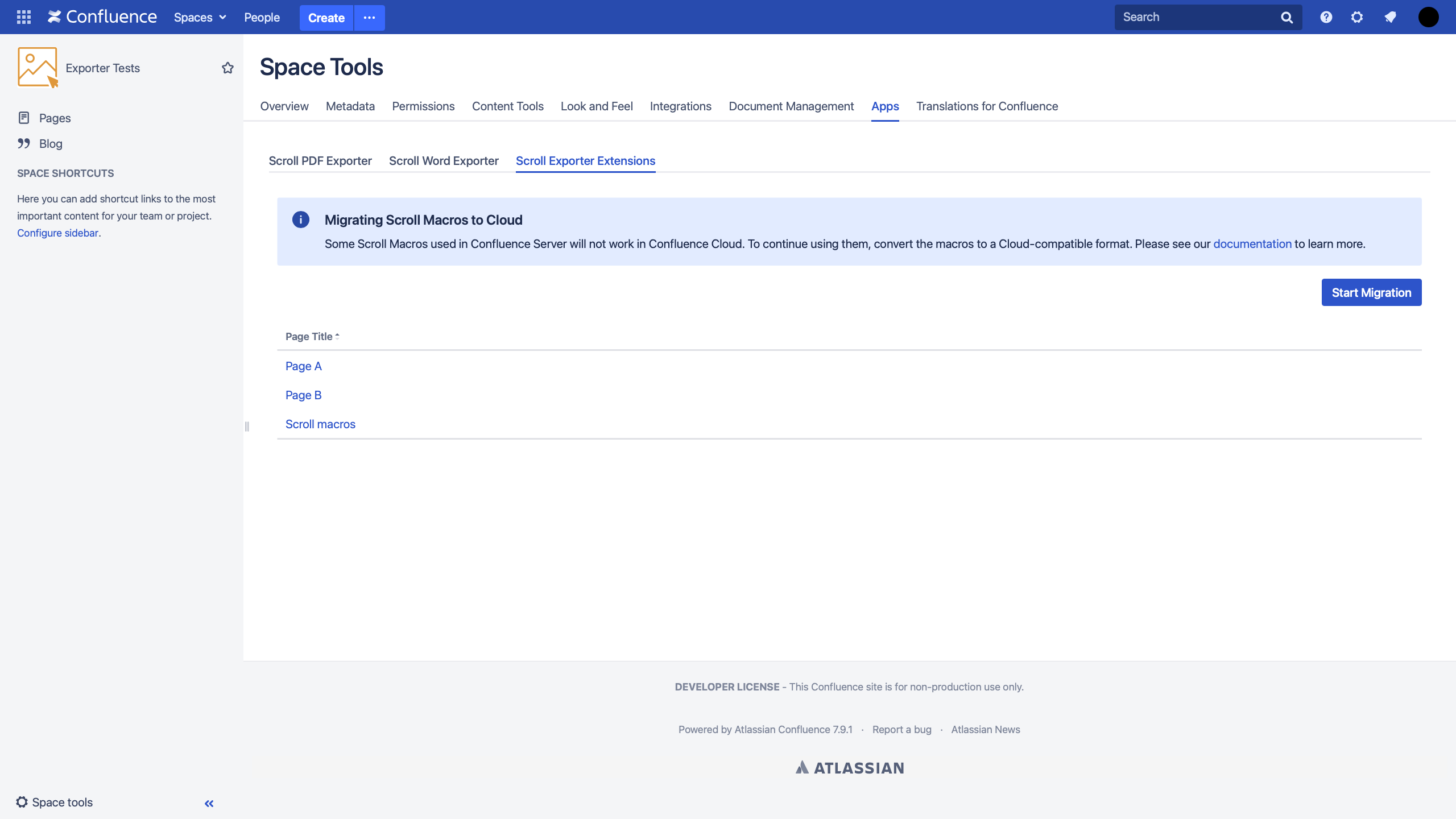
Navigate to; Space Tools > Apps > Scroll Exporter Extensions:
-
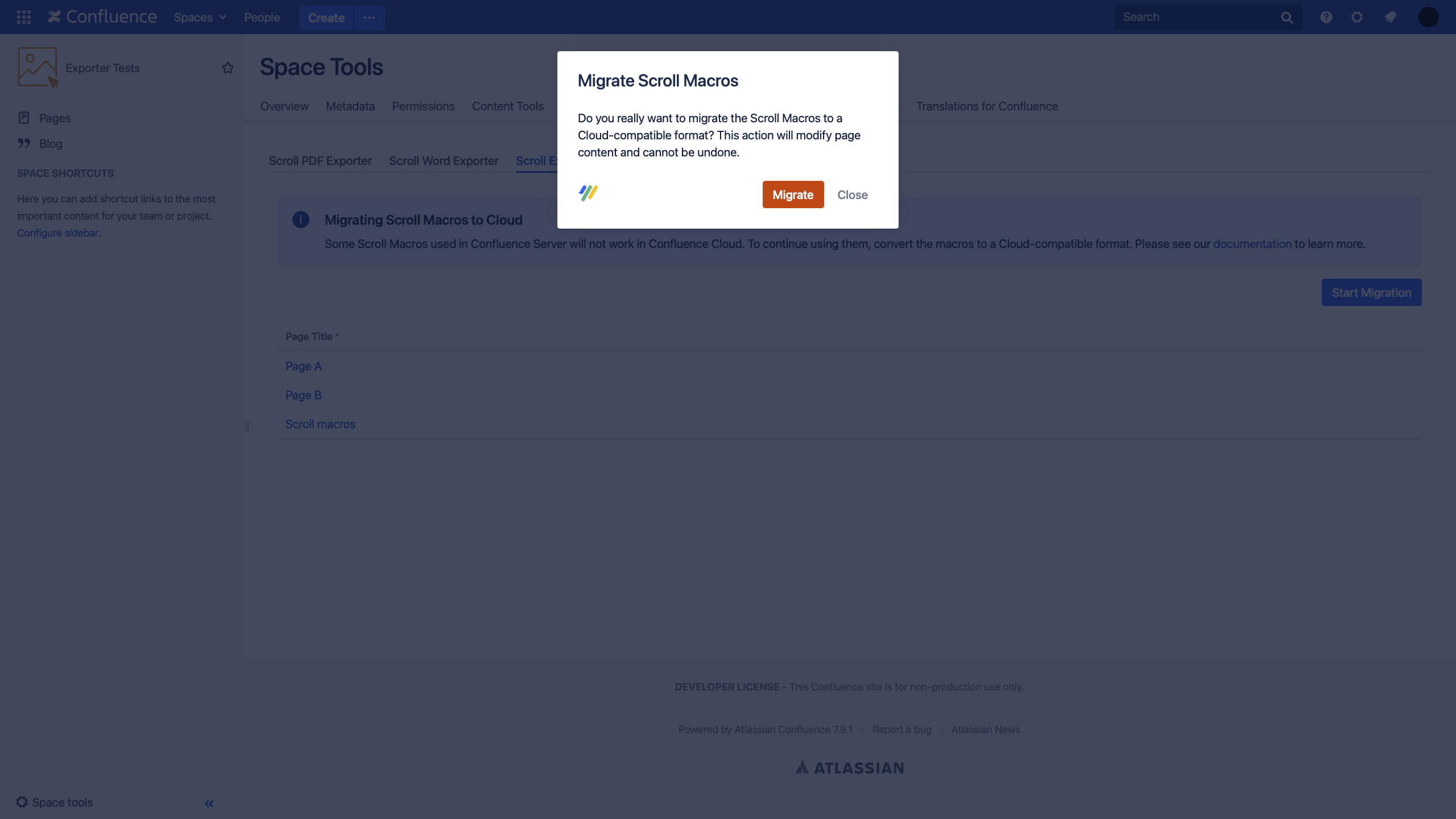
Select the Start Migration button:
-
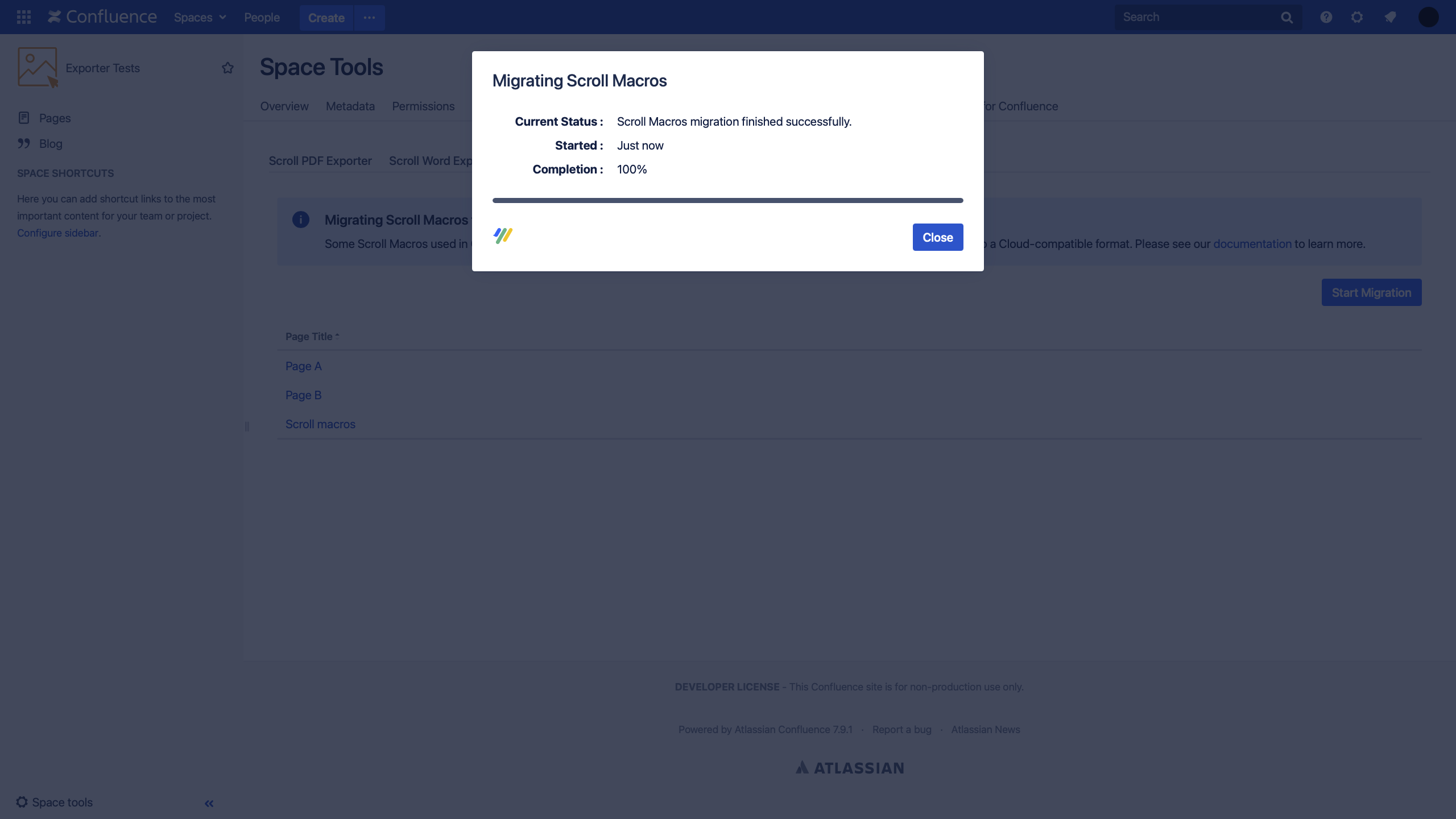
After the migration task has finished, a success confirmation message will display:
-
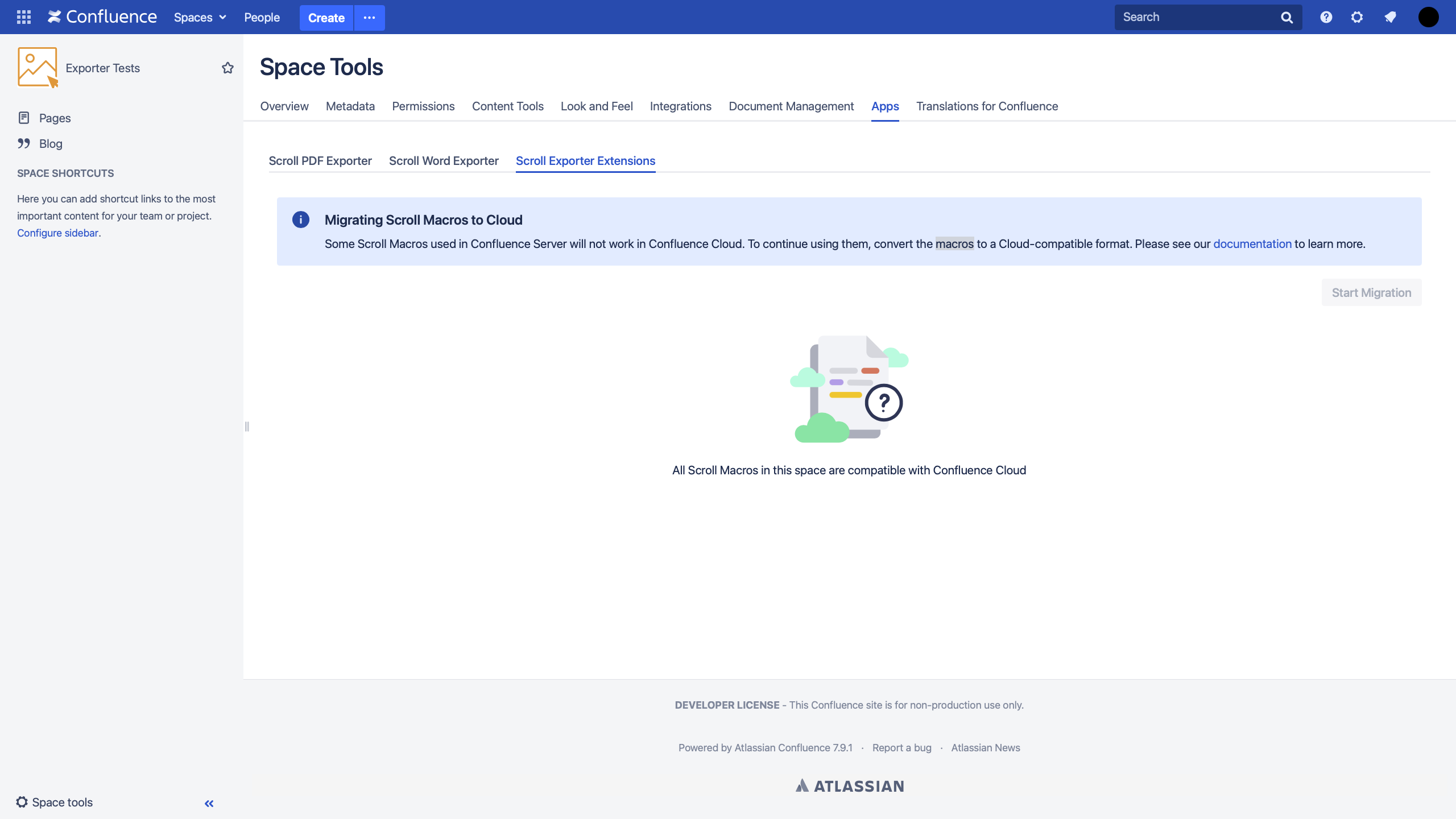
After completing these steps, the Scroll Macro content in the space remains compatible with Confluence Cloud (if imported). An empty state screen will display once all the pages containing the incompatible Scroll Macros have been migrated:
Migration Tool Information
Things to be aware of:
-
Scroll Pagetitle macro: In Confluence Cloud, the Scroll page title is not a macro. It is an action in the page tools menu (•••) called Set Scroll Page Title. The migration tool converts each Scroll Pagetitle macro into this setting. Therefore, the page title functionality will still work in your instance after migration
-
Scroll Export Button macro: If the Scroll Export Button macro uses a customized export template, import that template into Confluence Cloud. Otherwise, the button uses a bundled template that comes with the app. Before you download templates for a manual import, update your Scroll Exporter app to its latest Data Center version.
-
Migration process: After the migration, it can take several minutes until the list of affected pages in the Scroll Exporter Extensions tab updates.
Still Unclear? Reach Out to Us
If you need help with any of these migration steps, reach out to us via help@k15t.com.