
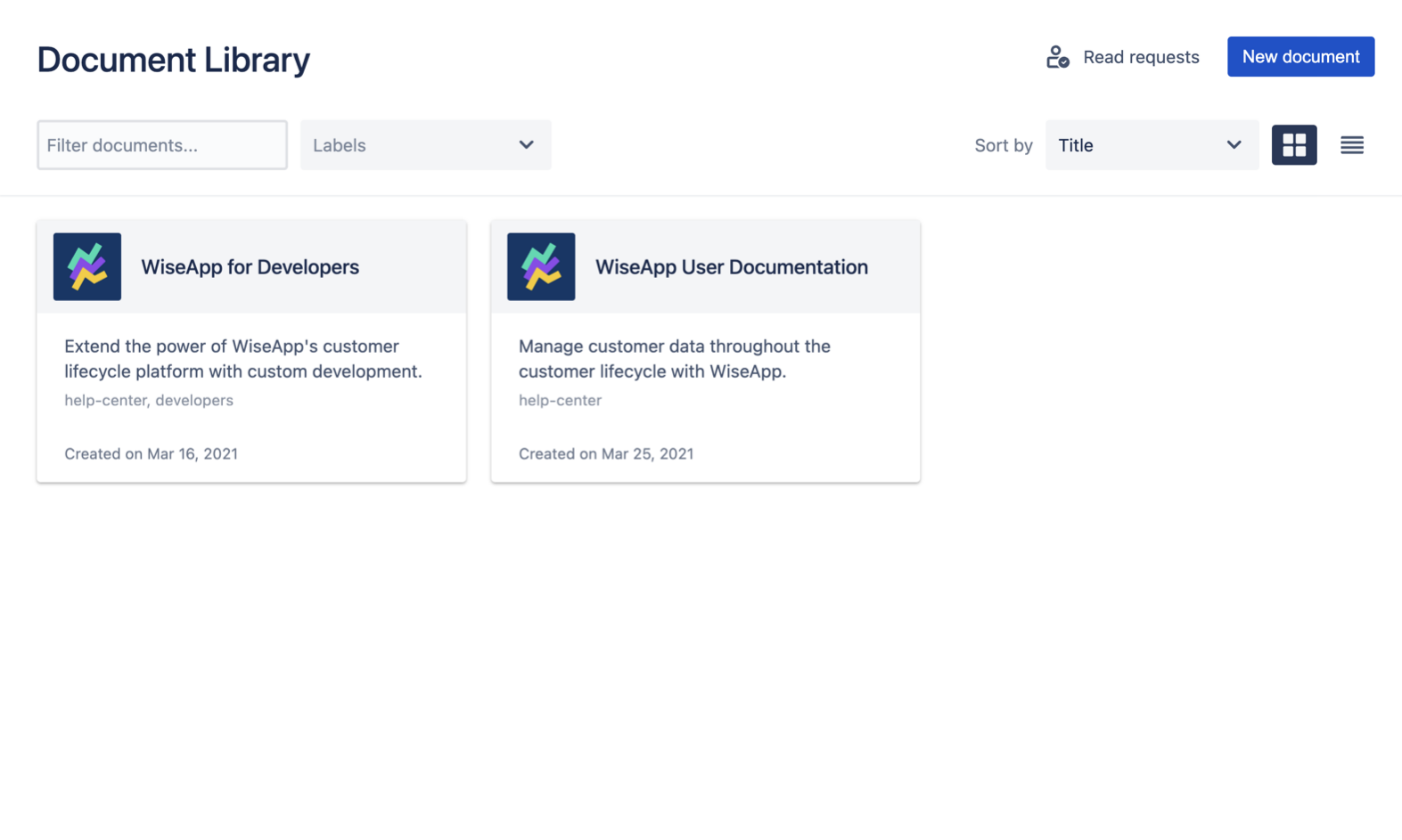
Document Cards
For each of the documents in the space, you will see a document card. On each card, you can see:
-
The document title
-
The document summary
-
The labels that the document has
-
The document creation date
You can access the Document Manager by clicking on the individual document cards.
Scroll Document List Macro
Add the Scroll Document List macro to any Confluence page to display a simplified, read-only view of selected or all documents from your Document Library.
Use it to:
-
Showcase your Document Library on key pages within your Confluence space.
-
Help users easily navigate and discover relevant documentation.
-
Provide direct access to each document’s Document Manager via clickable entries.
Place it in central locations like a space overview page to increase visibility and engagement with your documents.
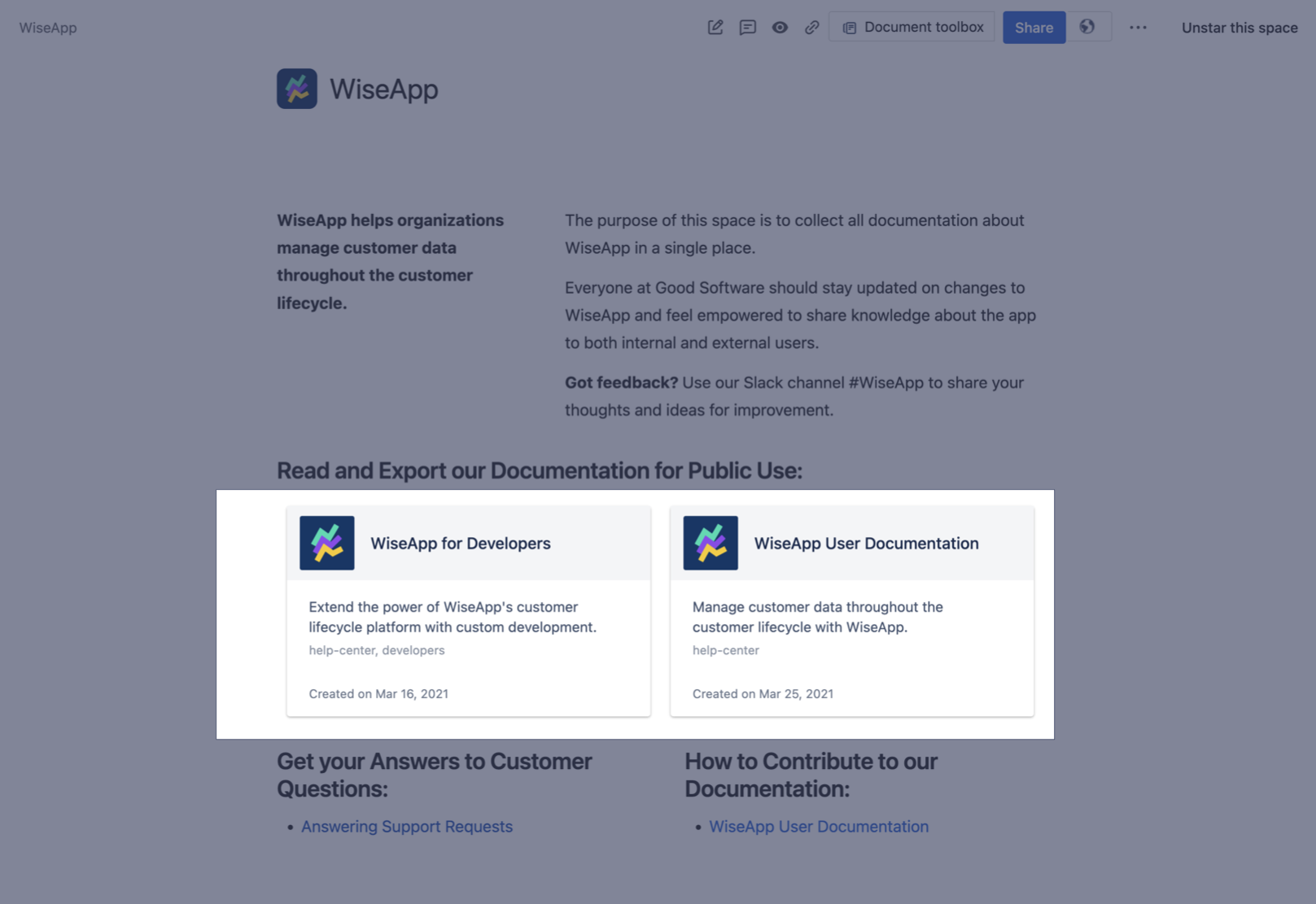
Insert a Document List
To insert the macro, open your selected page in the Confluence editor and from the position on the page where you want to insert the list, start typing /Scroll Document List:
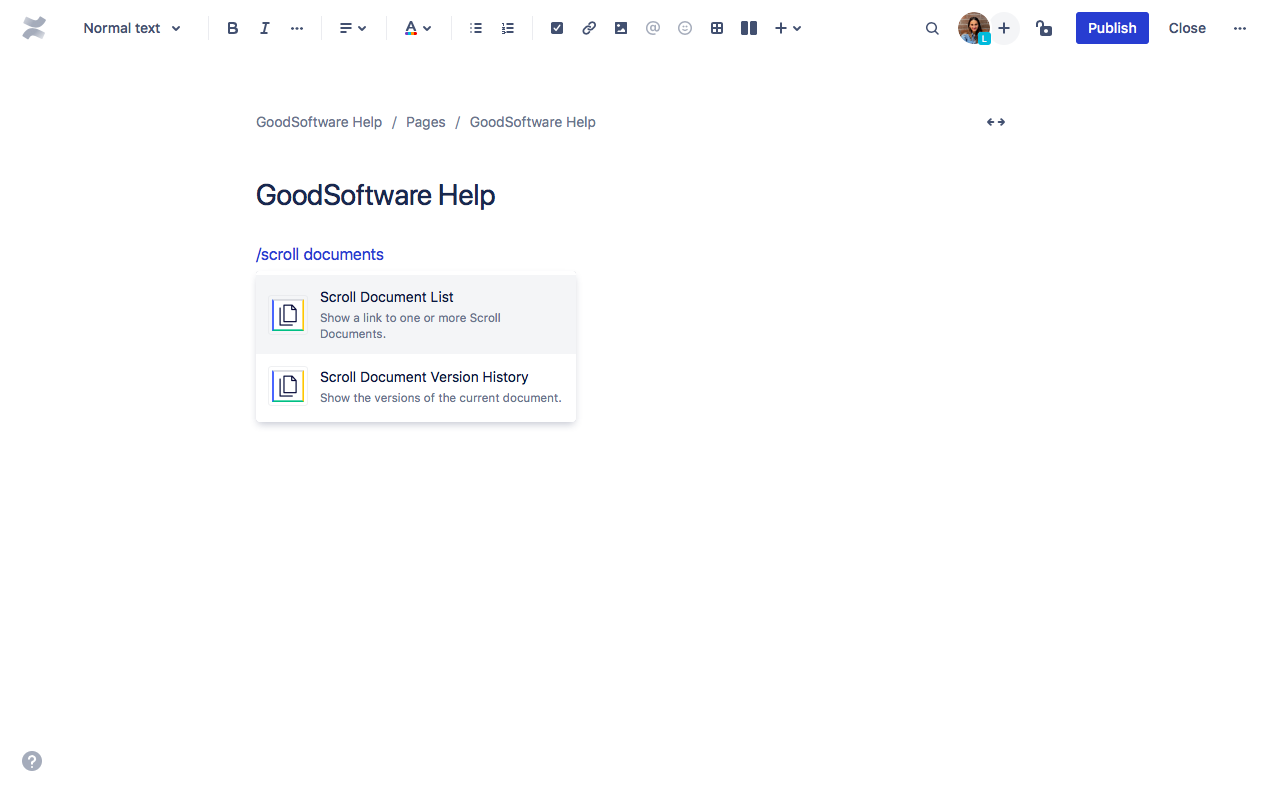
Configure a Document List
You can also configure which documents you want to display in your list:
1. Hover over the inserted macro and click Edit (the pen icon).
2. Using the document filters, choose which documents to include in the macro.
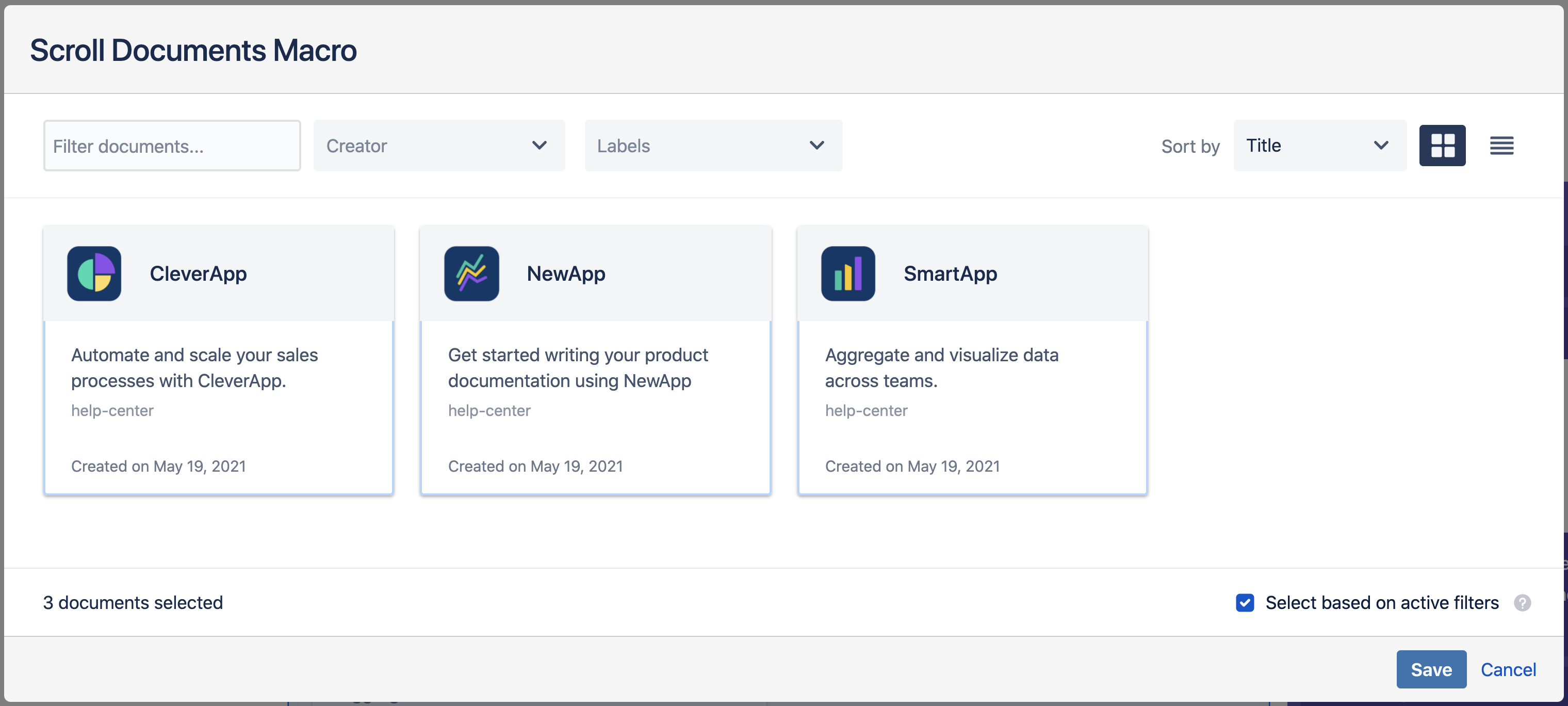
3. Tick the checkbox “Select based on active filters” and click Save.