
Trying to figure out if Confluence has what it takes to manage your product documentation? Looking for guidance on where to start with any of the Scroll Content Tools for Confluence? Well, you’ve come to the right place.
If any of the following points sound familiar, this article will help you move forward with your product docs:
-
You use Confluence as a team collaboration hub and would like to also collaboratively manage your product documentation.
-
You need to manage multiple versions, variants, or translations of your documentation.
-
You need your documentation to be readily available to your users, whether that’s on the web, a mobile device, or in formats like PDF or Word documents.
It’s all possible with Confluence and Scroll.
In fact, the article you’re reading right now was written in Confluence and published to this help center with the Scroll Content Tools. It’s just one of the many examples of how you can manage and publish documentation in Confluence, and this article will help you create the ideal setup for your team.
This article focuses on the setup process for your documentation with Scroll Documents, but will also cover the publishing options available to you. If you haven’t already, we recommend installing a few additional Scroll Content Tools depending on your publishing requirements:
-
Scroll Sites: To publish your documentation as a help center or knowledge base website.
-
Scroll PDF Exporter: To publish your documentation as a PDF manual.
-
Scroll Word Exporter: To export your content into a Word document.
-
Scroll HTML Exporter: To publish your documentation as an offline HTML file.
While these tools introduce new concepts and capabilities, your day-to-day work with Confluence pages remains the same. You will still create and edit content using the standard Confluence editor you already know.
To give you an idea of what’s possible, here are some more examples of help centers created with Confluence and Scroll:
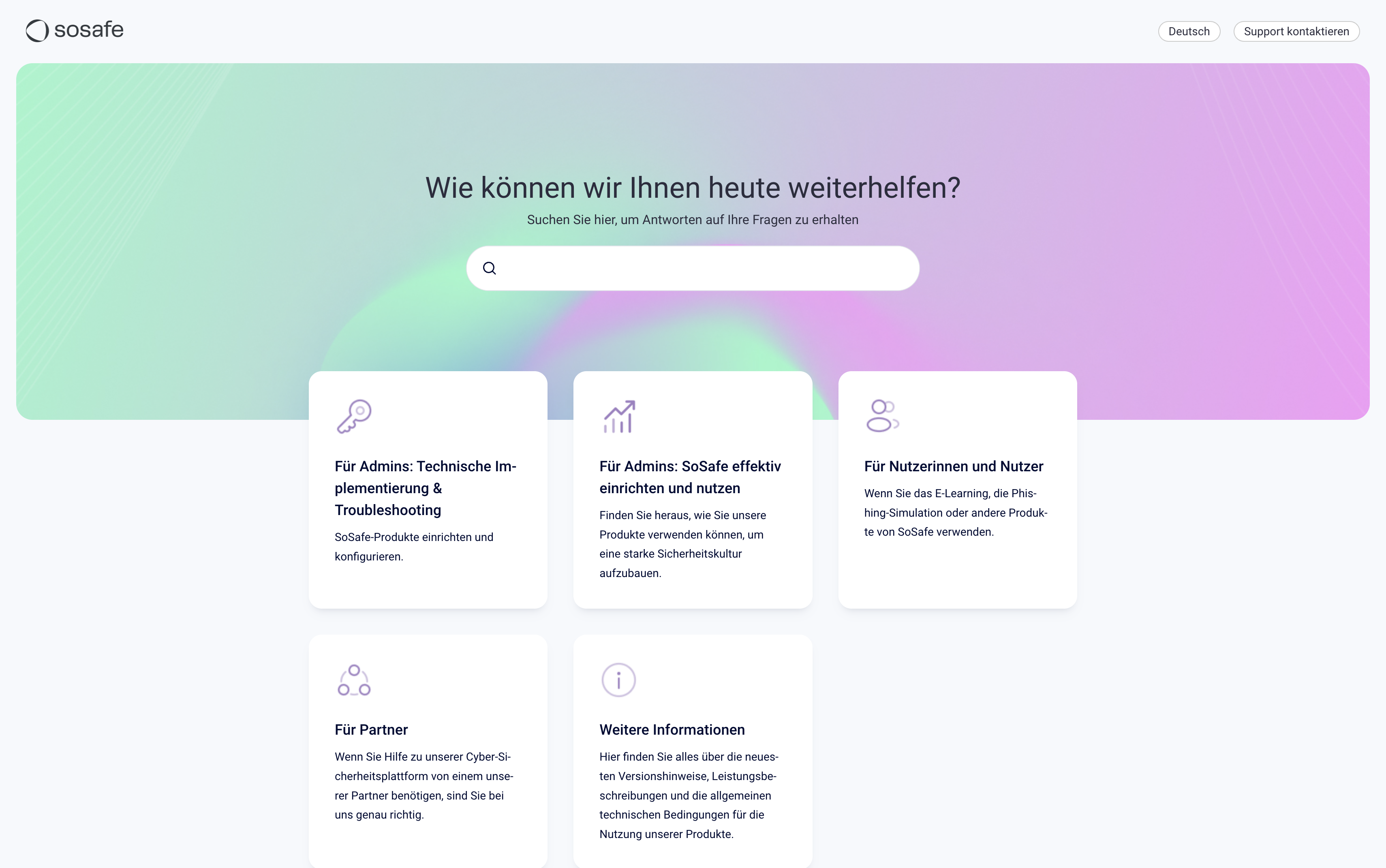
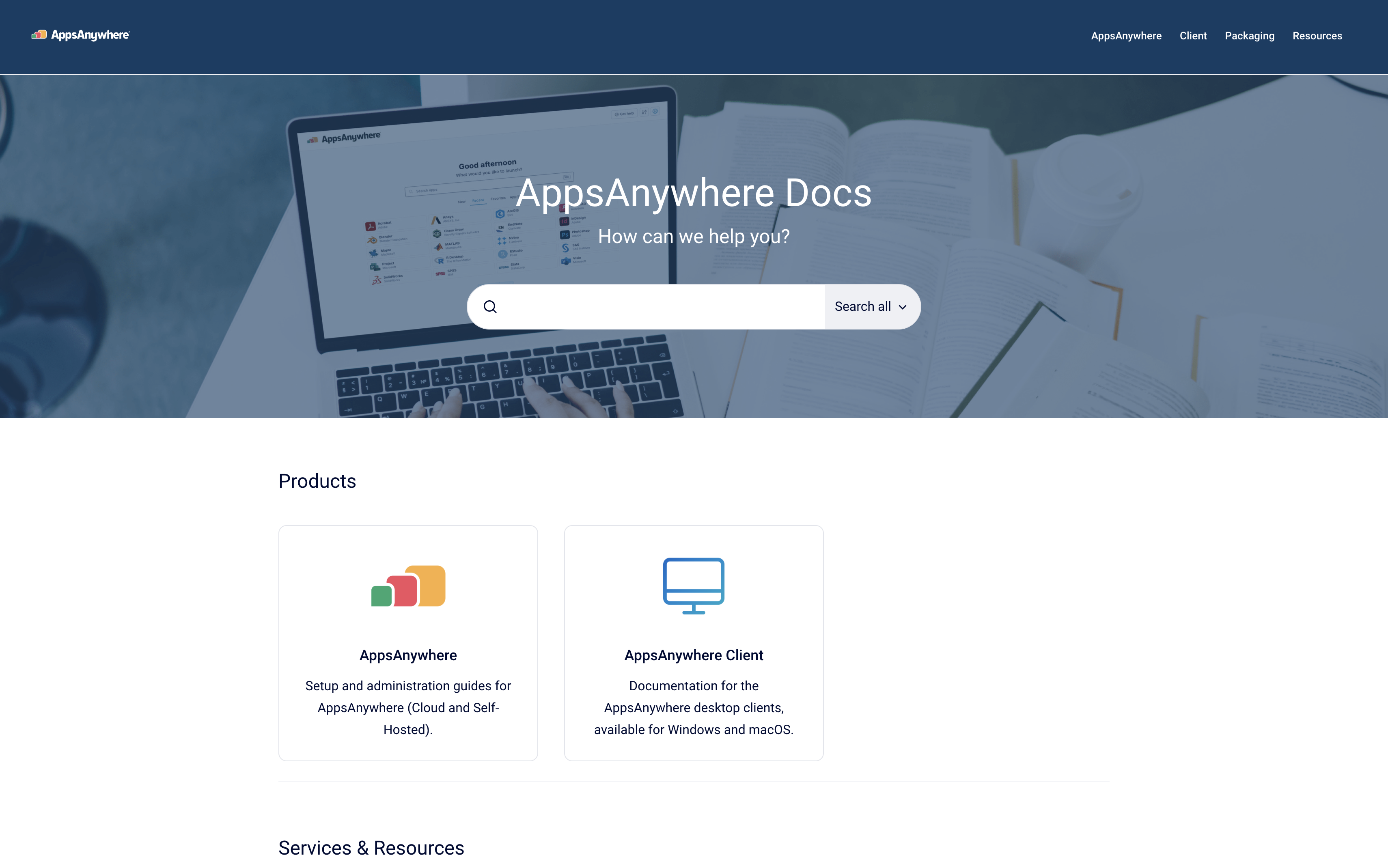
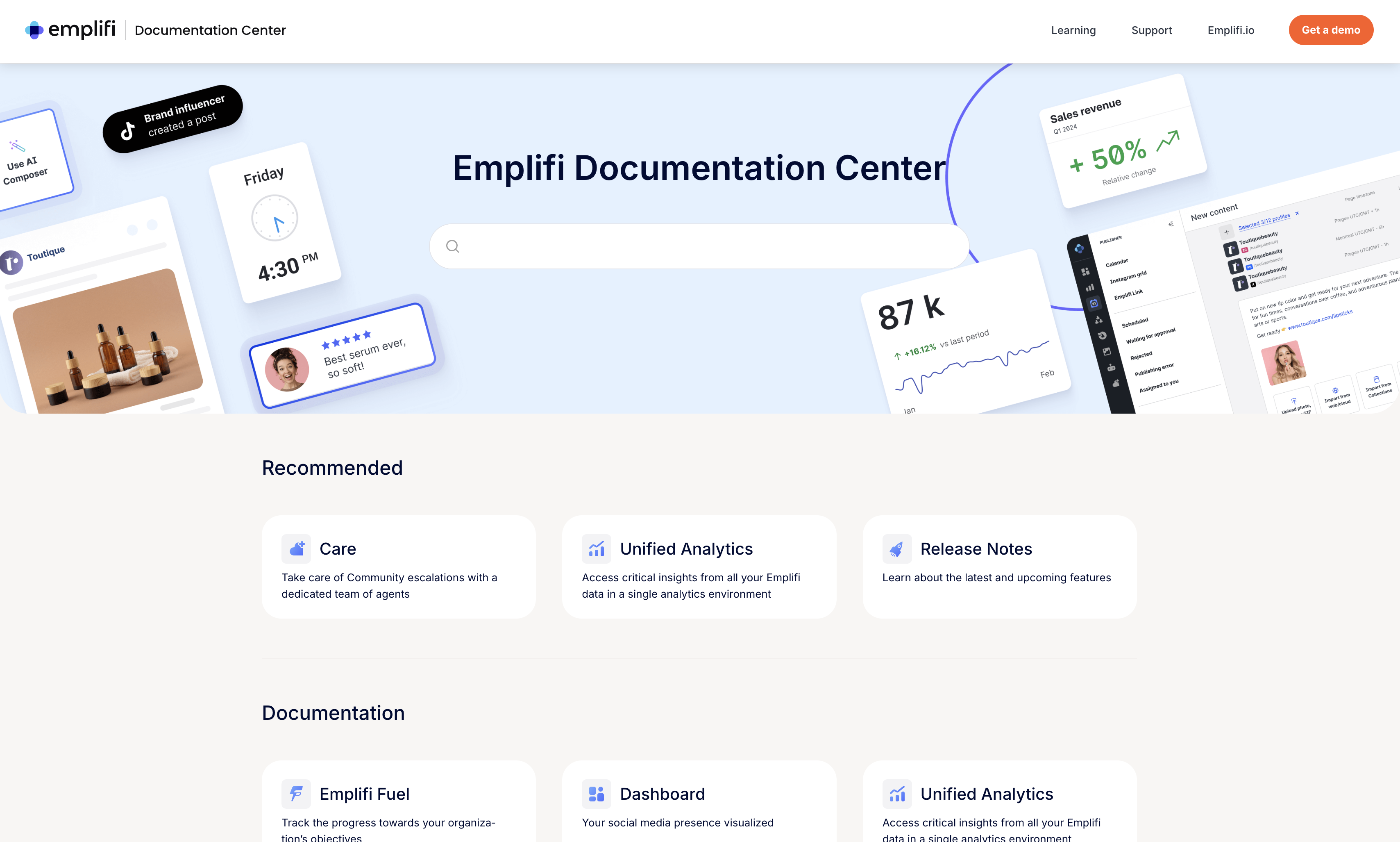
Set up Your First Documentation
In this section you’ll learn about which options to consider when setting up your document. You’ll also get an introduction to Scroll Documents’ versioning functionality.
Establish your Working version
The very first step in setting up your documentation is to establish a Working version. You can think of the Working version as the continuously progressing version of your documentation, which is where you make changes to your content and create new pages.
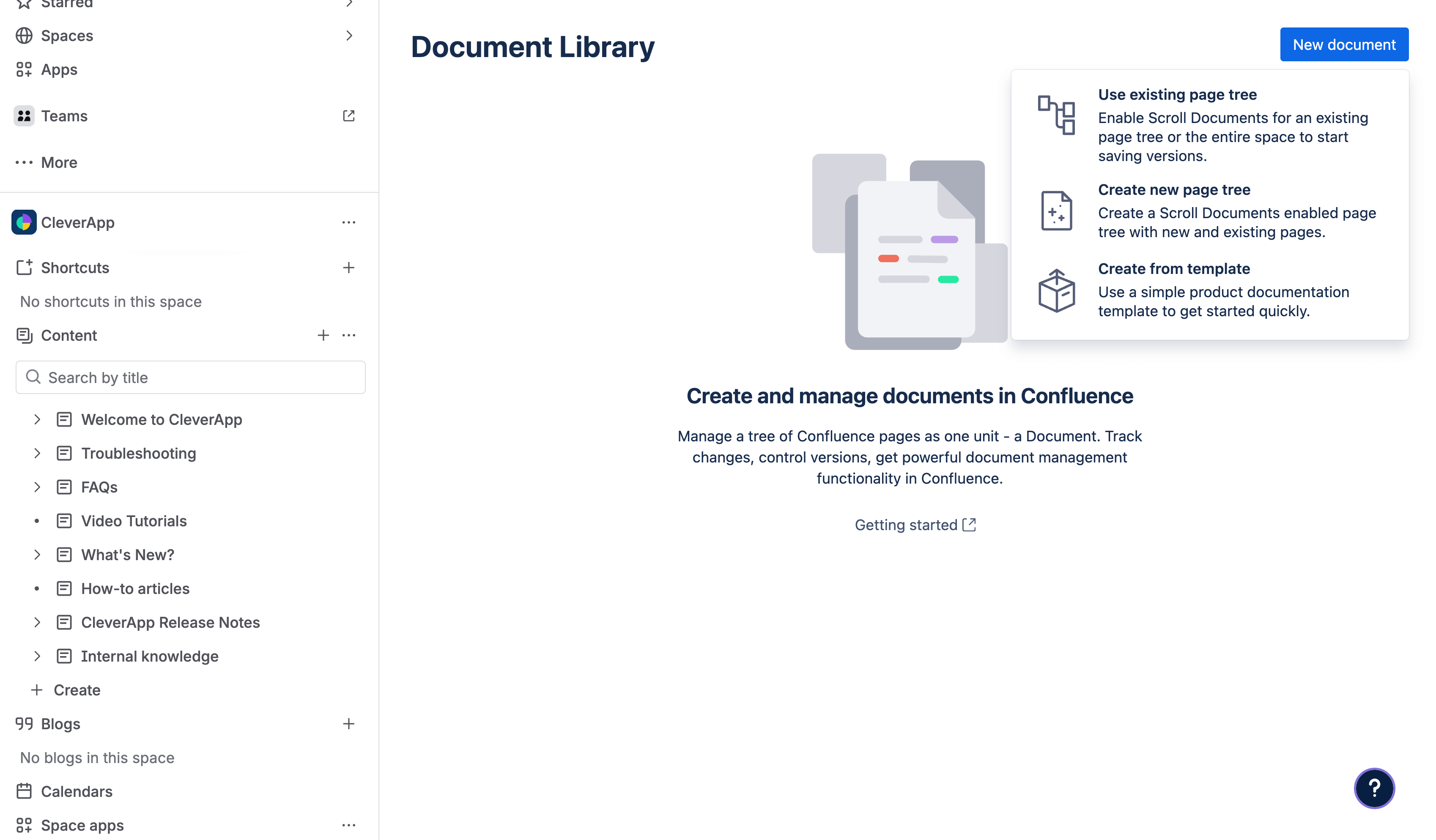
There are two ways to establish your Working version:
-
Use existing page tree
-
Create new page tree
Which one makes most sense for you will depend on whether you will be writing your documentation from scratch or already have content in place that you’d like to start managing with Scroll Documents.
Use existing page tree
Do you already have existing documentation pages you want to start managing with Scroll Documents?
You can establish these pages as your Working version and start managing your documentation from there. To do that, simply select the root page of your existing documentation in the Use existing page tree option when creating your document, or navigate to the root page directly and enable Scroll Documents from the Document toolbox.
Selecting the topmost page in a space (usually the space home page) as the root page for your document will effectively treat the whole space as the Working version of your documentation.
While not required, it makes things simpler and is the recommended approach for this use case. Just keep in mind that all pages in that space will be part of your product documentation, meaning any unrelated pages like authoring notes or task lists would need to be managed elsewhere.
Create new page tree
Starting from scratch? You can use Scroll Documents to build an entirely new page tree.
When you select the Create a new page tree option, you will use the Organize page tree to quickly create and structure multiple pages. You can create entirely new pages, or copy and include existing pages from other locations in your Confluence system.
This setup will become the Working version of your document and serve as the basis for all future versions.
If you need a quick proof of concept, use the Create from template option to generate a predefined page structure with example content.
Save versions of your documentation
A saved version is a snapshot of the pages in your Working version. In other words, when you click Save a version you will copy the page tree from the Working version. The saved version can be managed, edited, or published separately from the Working version.
When saving versions, these are saved within the space your document is in by default. The pages will be added under a new parent page named “Versions of <Document Title>” which you also can rename to whatever you prefer.
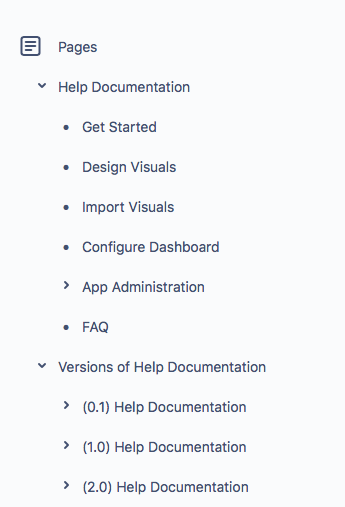
The purpose of the Save a version feature is to enable you to manage and release versioned documentation in different ways, for example:
-
If you are documenting a SaaS product, it’s likely you only want to maintain and publish one single version at a time. With Scroll Documents, you can always work on the most recent version in private without affecting the already published version.
-
If you are documenting an on-premise product, Scroll Documents enables you to work on and publish multiple versions at the same time. That way, users who are still using an older version of your product will have access to the right documentation for them.
If you publish your documentation to the web with Scroll Sites, you can enable your users to switch between versions via a version picker. You’ll learn more in the help center section ↓
Author and Review New Content
Scroll Documents provides several features to help you manage your authoring and review process. This section explains how to use these tools to create and refine your content.
Authoring
As previously noted, the Working version is your continuously progressing draft used for updating and creating pages.
Manage access and prevent accidental changes
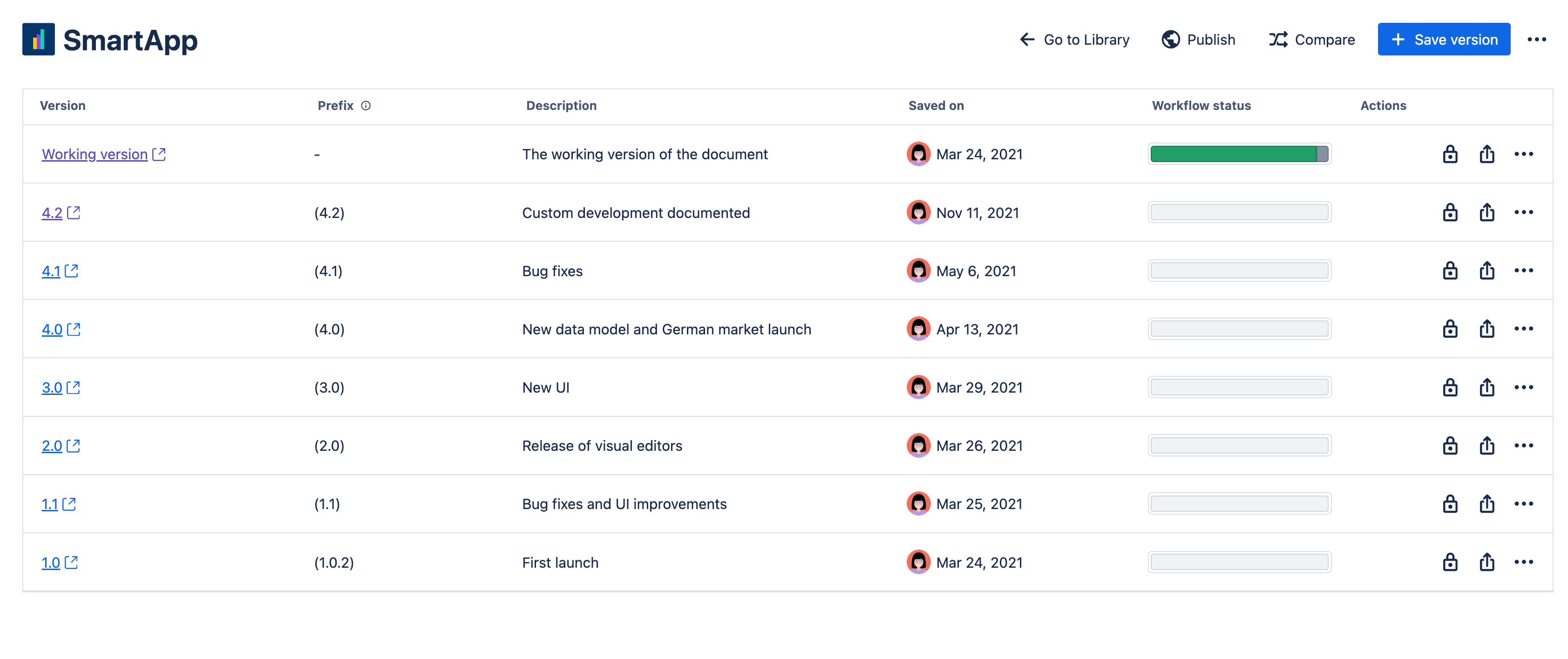
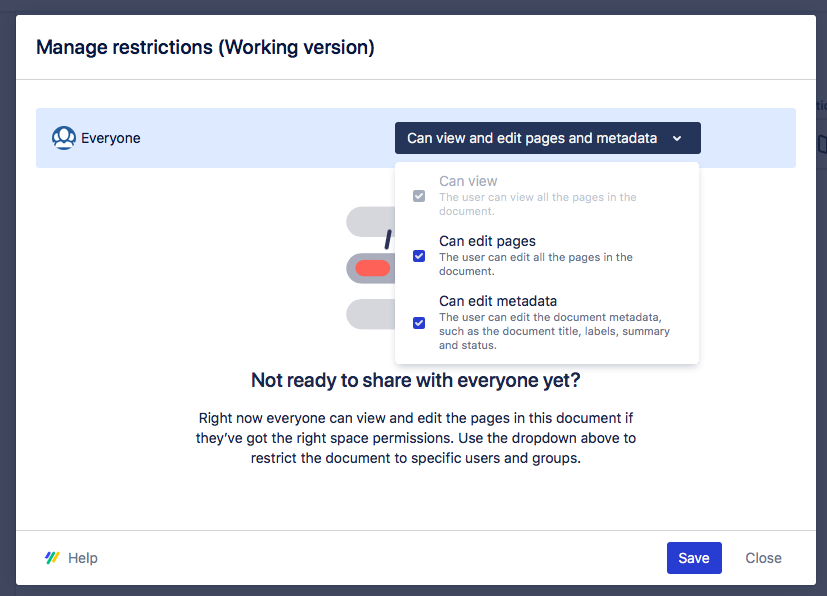
To ensure new content and changes only occur in the Working version, you can add edit restrictions to saved versions:
-
Each document version includes a Manage restrictions feature (indicated by a padlock icon).
-
Use the Manage restrictions dialog to define which users or groups can view or edit pages, preventing accidental changes to finalized versions.
Use workflows for status visibility
Scroll Documents includes page-level workflows to provide visibility into your content’s progress. You can choose between two types:
-
Simple workflow: A two-step process with Draft and Approved statuses.
-
Approval workflow: A three-step process with Draft, In Review, and Approved statuses.
Review and track changes
To monitor updates, manage feedback, and verify content in your Working version, utilize the following features:
-
Activity log: See what has been commented, created, and updated in the documentation version.
-
Workflow report: Check the status of every page to quickly see what is ready for review.
-
Compare versions: Do a page-by-page comparison on a paragraph level to see what has changed between two versions.
Author Content for Specific Audiences
If your product has a diverse user base or a global audience, you may need to adapt or translate your content. In addition to versioning, Scroll Documents integrates with two extension apps to handle these needs:
Conditionalize articles and text
If your product has different feature tiers or subscription plans, some content may only apply to specific audiences. Instead of managing multiple separate documents, you can make specific pages or paragraphs conditional with the help of variants.
With Variants for Scroll Documents, you can:
-
Create audience-specific variants: You can define label-based conditions for pages or paragraphs to be included in a given variant.
-
Preview before publishing: Use the variant preview to see exactly how content will appear and verify which variants a page belongs to.
Translate content
For international audiences, use Translations for Scroll Documents to add languages to your document and translate its content. You can define a primary authoring language and select multiple target languages for translation.
Depending on your workflow, you can manage translations in two ways:
-
Translating saved versions: If you use versioning, we recommend keeping the Working version in your authoring language and adding translations directly to your saved versions.
-
Translating the Working Version: If you do not use versioning, you can add translations directly to the Working version of your document.
You can add these translations either by using a translator directly within Confluence or via an XLIFF-based workflow, which allows you to import files translated by an external agency.
Publish and Release Your Documentation
We’ve covered how Scroll Documents provides advanced content management to your documentation. Now, we’ll cover how to publish within Confluence using Scroll Documents, and how you can use Scroll Sites or the Scroll Exporter apps to share your documentation externally once it’s time for release.
Publish to a Confluence space
If your audience is within Confluence, use Publish to Confluence to deliver specific versions, translations, or variants to a dedicated reader space. This enables you to work in a private authoring space until your content is ready for release.
You can choose from the following strategies:
-
Dedicated spaces per audience: Publish each specific version, translation, or variant to its own individual target space.
-
One continuously updated space: Maintain a single space for all readers in which you always publish the latest content, replacing previously published versions.
-
One space for all content: Publish everything to the same target space so all previous versions, translations, and variants are available in one place.
Use page prefixes to avoid title conflicts when publishing multiple versions to the same space.
Publish to a help center
Scroll Sites enables you to publish your product documentation as an online help center, which can be publicly available or restricted through space permissions.
When publishing to Scroll Sites, you have the following options:
-
One site, multiple versions: Publishing multiple versions of your documentation gives readers of the help center the option to switch between versions using a version picker.
-
Multiple languages or variants: When publishing translated documents or a document with variants, you’re free to either give users access to a language or variant picker or spin up a dedicated site for each language or audience.
-
Documentation portal: When publishing multiple Scroll Documents to a help center, a portal page will be created where users can browse the documentation for the different products or search all documentation.
See Publish to a Scroll Site for steps on how to publish a Scroll Document with Scroll SItes.
Publish to an offline manual
With the Scroll Exporter apps, you can export your product documentation into offline assets such as user manuals. Choose the format that best fits your needs:
-
PDF format with Scroll PDF Exporter
-
Word document with Scroll Word Exporter
-
HTML file with Scroll HTML Exporter
When exporting, you can select any combination of version, language, or variant. For step-by-step instructions, see Export to PDF, Word, or HTML.
If you are creating custom templates for Scroll PDF Exporter, visit our PDF Template Library to browse a wide range of use cases showcasing the many ways you can export your Confluence content.