
Workflow statuses are applied to every page within a document with a workflow assigned. The status of individual pages can be viewed directly in the Confluence page byline or in the Document Manager.
How Page Statuses Are Updated
There are three ways to update a page’s workflow status:
-
Automatically: If a page is in a Approved state and you make edits in the Confluence editor, the status will automatically reset to Draft.
-
Manually: In Confluence page view, click the workflow status in the page byline to open the workflow picker and select a new status.
-
In bulk: Use the Workflow Report in the Document Manager to view and apply statuses to multiple pages at once.
No notifications are triggered when you change the workflow status of a page.
Who Can Set Workflow Statuses?
When you enable workflows for your document, you can use content approvers to decide exactly which users or groups are authorized to change the status of your pages.
When setting Content approvers, you can choose from the following options:
-
Anyone with access to edit content: This includes anyone with edit permissions in the space.
-
Specific users: Assign individual users by name to act as your dedicated approvers.
Note
-
When you first enable workflows, the Anyone with access to edit content option is selected by default.
-
Users assigned as Content approvers must have both view and edit access for the specific pages they are reviewing in order to update the status.
To learn more about content approvers, see: Add Content Approvers
How to View and Change Statuses
Page byline
In the page view, the workflow status is displayed in the page byline, which is the area directly under the page title. The byline includes an icon representing the current workflow status along with the status name.
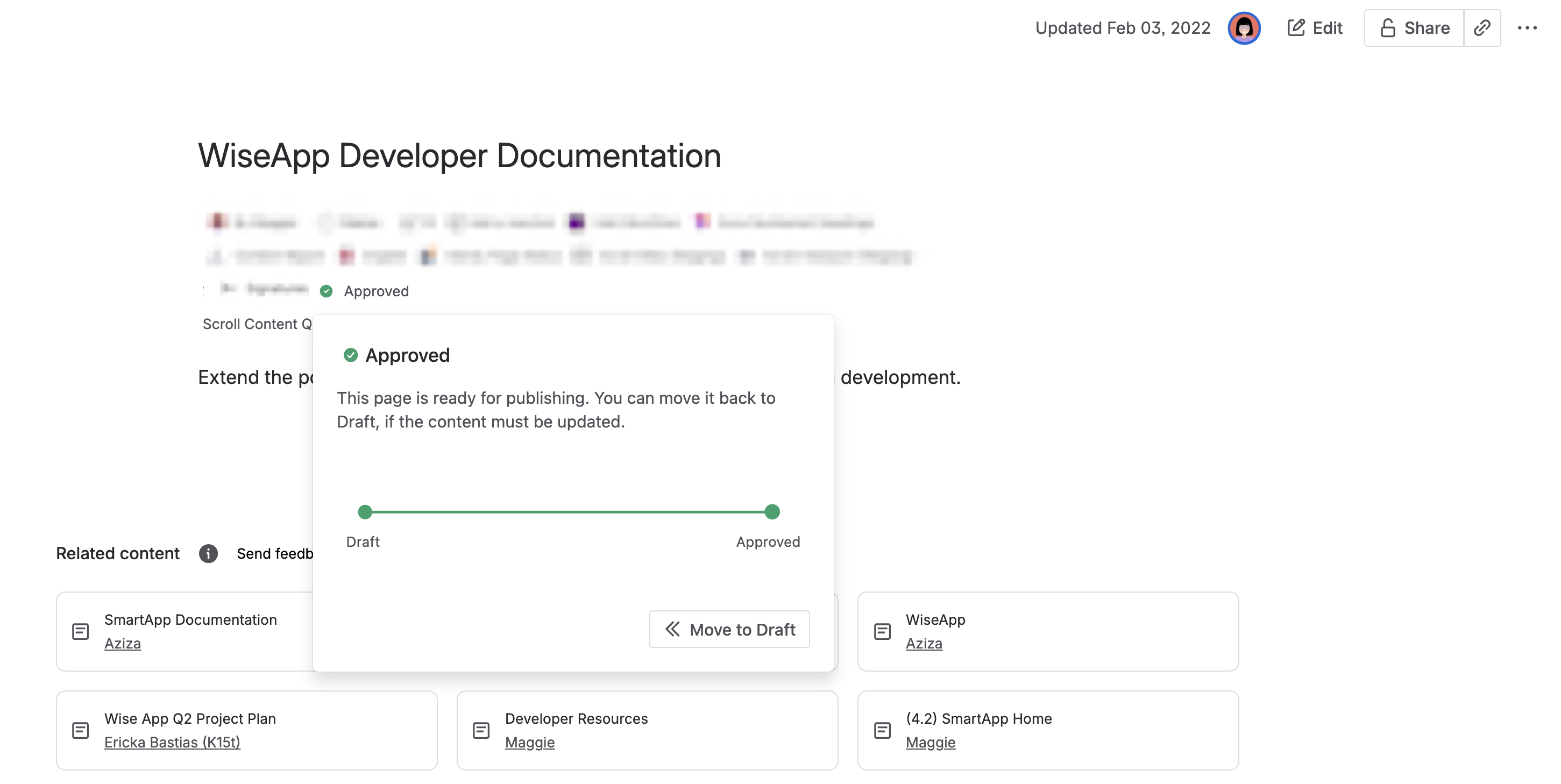
To change the workflow status of a page in Confluence page view:
-
Click the workflow status in the byline.
-
In the dialog that appears, open the workflow status dropdown.
-
Select a new status.
The new status update is applied immediately.
Document Manager
The Document Manager lists all versions and translations of your document. If a workflow is assigned, it displays a workflow status indicator, a lozenge-shaped icon colored based on the statuses of pages in that version.
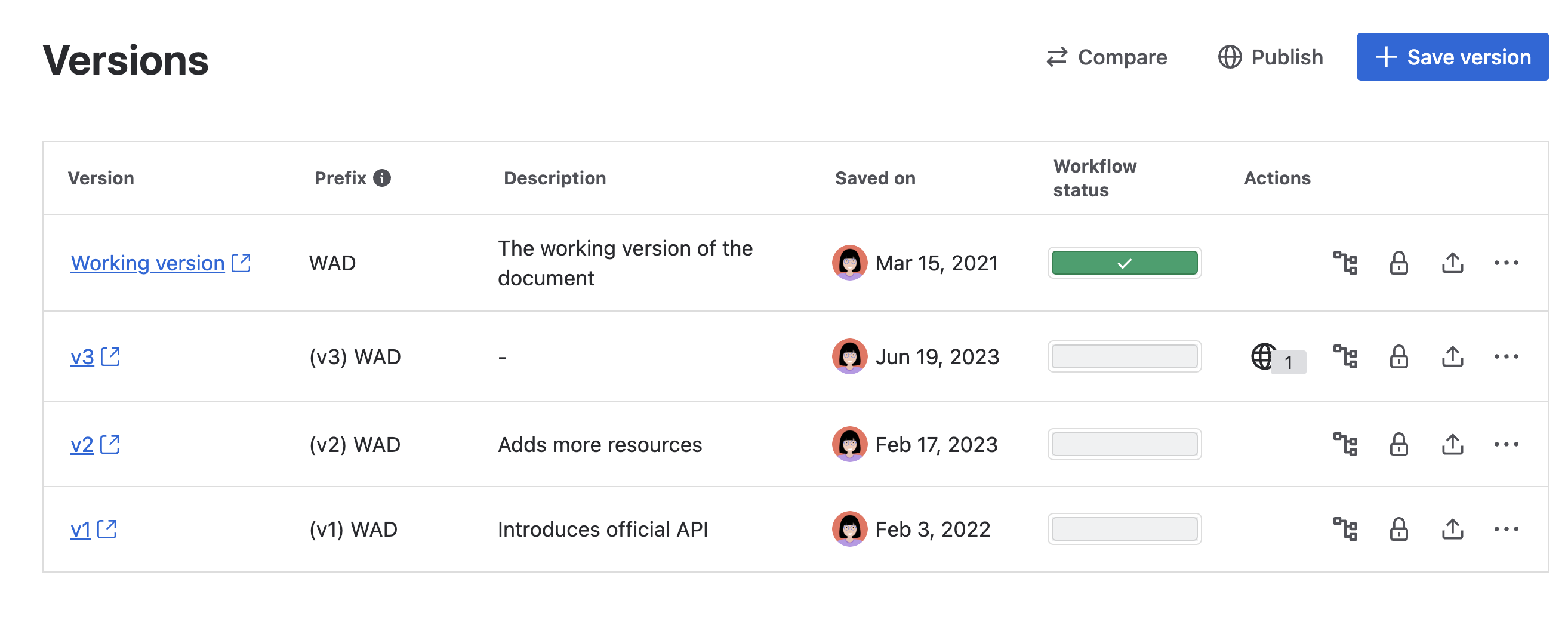
By default, this indicator is only shown for the Working version. The colors correspond to the workflow statuses:
-
Green: Approved
-
Blue (Approval Workflow only): In Review
-
Gray: Draft
For example, if 50% of the pages in the Working version are in Approved, then 50% of the indicator will be green.
You can click the grayed-out workflow indicators for non-working versions to load their statuses.
Workflow report
This Workflow report is planned to be replaced by Scroll Content Manager’s new Content Manager. In the future, you will manage your workflow directly within the Content Manager.
To learn more, see: Manage Page Trees
Clicking a loaded workflow indicator opens the Workflow Report, which displays all pages in the selected version in a tree structure along with their workflow statuses.
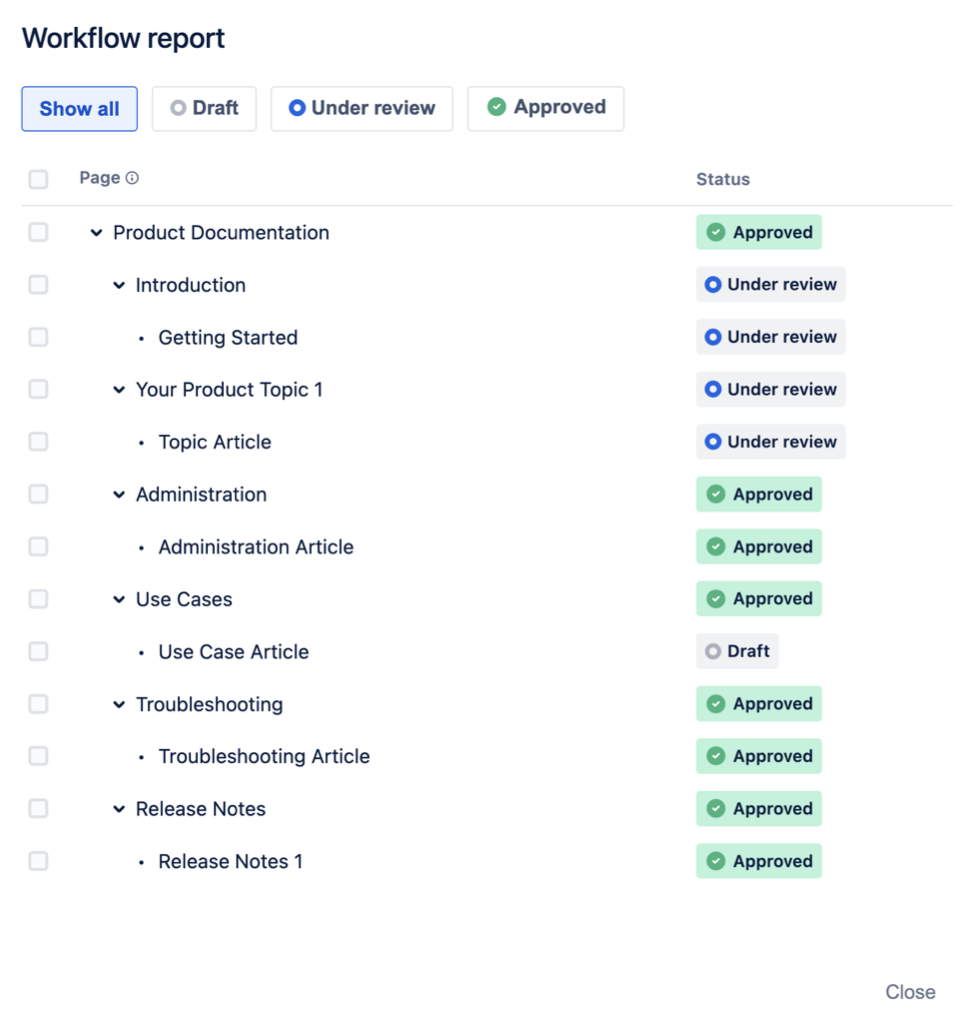
In the Workflow report, you can:
-
Get an overview of the statuses for all pages in a version.
-
Select one or multiple pages to change their workflow status in bulk.
Holding Alt/Command while selecting a page only selects the page clicked, without its children.