
Export templates may fail to import into their respective template lists in Confluence if the uploaded .data file fails security validation checks.
Templates accepted by earlier versions may now be rejected due to new file content checks, file size limits, or file count limits. This can occur, for example, when re-importing an older template.
When an import fails, an error message explains the reason and outlines possible solutions.
Types of Template Import Error
|
Error Message |
What it means |
|---|---|
|
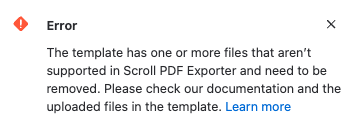
A file type is not allowed, or its content doesn't match its extension. Learn more. |
|
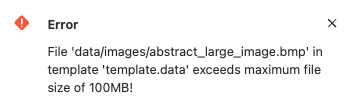
A single file in the archive exceeds the size limit. Learn more. |

|
The template contains too many files. Learn more. |
|
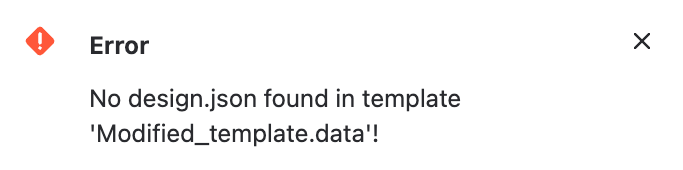
The template file that was attempted to be uploaded is not a valid exported template archive. Learn more. |
Resolution
Why does it say "The template has one or more files are not supported…"?
This error indicates that the .data template contains a file that is not supported by the app or whose actual file format does not match its file extension.
This can happen if the template was created before file validation was introduced and contains a disallowed file type, such as a PDF, in the image section. It can also occur if a file has been renamed without converting its actual format - for example, a PNG file renamed with a .jpg extension.
Scroll HTML Exporter supports the following file types in export templates.
-
Images:
.png,.gif,.svg,.apng,.avif,.jpg,.jpeg,.jfif,.pjpeg,.pjp,.webp,.bmp,.ico,.cur,.tif,.tiff -
Fonts:
.ttf,.otf,.ttc,.otc -
Cascading Style Sheets:
.css -
JavaScript:
.js
How to fix the issue
If the template is still available on your Confluence site:
-
Edit the template, and navigate to the Template Customization section in the Template settings
-
Identify and remove any unsupported files, such as PDFs, or files whose extensions do not match their actual formats
-
Download the template and import the template to your chosen site.
If the issue persists or you can no longer access the template in Confluence, contact help@k15t.com for further assistance.
Why does it say “File '{name}' exceed maximum file size…”?
This error indicates that the .data template contains a file that exceeds the maximum allowed file size of 100 MB.
This could have occurred if the template was created before file size validation checks were implemented. As a result, the template may contain a file that exceeds the current size limit, such as a high-resolution image, or a large font file.
How to fix the issue
If the template is still available on your Confluence site:
-
Note the file name displayed in the error message.
-
Edit the template, and navigate to the template’s Template customization section in the Template settings.
-
Remove the file, and replace it with a smaller version that meets the size limit.
-
Download the template and import the template to your chosen site.
If the issue persists or you need further assistance, contact help@k15t.com.
Why does it say “The template archive contains too many files”?
This error indicates that the .data template file contains more than the maximum allowed number of 50 files. As a result, the template may contain more files than currently permitted, for example, due to images, fonts, or other resources accumulated over time.
How to fix the issue
If the template is still available on your Confluence site:
-
Edit the template, and navigate to the template’s Template customization section in the Template settings.
-
Identify and remove any unused files eg. images or font files
-
Download the template and import the template to your chosen site.
If the issue persists or you need further assistance, contact help@k15t.com.
Why does it say “No File '{name}' found in template”?
This error indicates that the uploaded .data template file does not match the expected format of a template archive for the app.
This could have occurred if the template was created or modified outside the app, before archive validation checks were implemented. For example, the template file may have been modified, re-compressed after being unpacked, and is missing specific file types.
How to fix the issue
If the original template is still available in your Confluence site:
-
Open the template editor for the affected template by editing the template.
-
Save and download the template.
-
Import the resulting
.datafile without modifying it. Do not unpack, edit, or re-compress the archive. -
If you need to modify any files, make the changes in the app before exporting the template again.
If the issue persists or you need further assistance, contact help@k15t.com.