
When Scroll PDF Exporter finds problems during an export, it lists them in the issue report. This page explains each issue, what it means for your PDF document, and how you can fix it.
Issue code: Each issue has a unique code in capital letters, for example URL_RESOURCE_NOT_FOUND. The code appears in the issue report and in diagnostic files. Each section on this page is named after the issue label shown in the export dialog and lists its issue code.
Find an Issue in the Issue Report
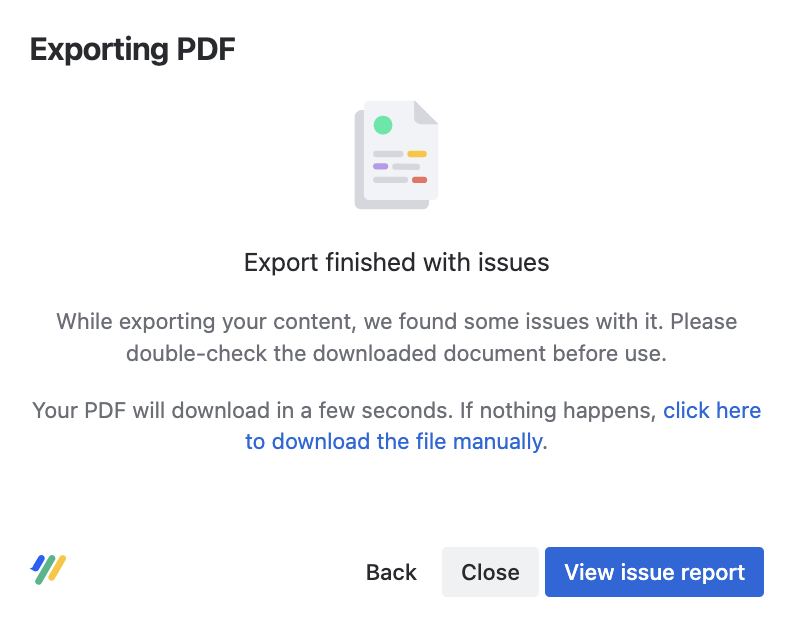
The issue report will cover problems related to page content, images, attachments and links, export templates and placeholders, as well as the export process and application setup. If an export finishes with issues, the export dialog shows a message and a link to the issue report.
To find the explanation for an issue, follow these steps:
-
In the export dialog, select View issue report.
-
Find the issue label in the Issue column. The Origin column shows where the issue occurred, for example the affected page.
-
Find the same label in the issue overview on this page and select it.
If you downloaded the issue report with Download issue report, the TYPE column of the issue-log.csv file shows the issue code. In the issue-report.jsonl file of an error ZIP or debug ZIP file, the issue code is the first type value on each line.
Severity levels
Each issue has one of these severity levels:
-
Fatal: The export stopped and no file was created (shown in
issue-report.jsonlvia error ZIP) -
Error: The export finished, but some content is missing or doesn't look as expected.
-
Warning: The export finished. Check the affected content before you use the file.
Issue Overview
The following table lists all issues Scroll PDF Exporter can report. Select an issue to jump to its explanation.
Fatal
|
Issue |
Issue code |
Severity |
Applies to |
|---|---|---|---|
|
|
FATAL |
Cloud and Data Center |
Error
|
Issue |
Issue code |
Severity |
Applies to |
|---|---|---|---|
|
|
Error |
Data Center only |
|
|
|
Error |
Cloud only |
|
|
|
Error |
Data Center only |
|
|
|
Error |
Data Center only |
|
|
|
Error |
Cloud and Data Center |
|
|
|
Error |
Cloud and Data Center |
|
|
|
Error |
Cloud and Data Center |
|
|
|
Error |
Cloud and Data Center |
|
|
|
Error |
Cloud and Data Center |
|
|
|
Error |
Data Center only |
|
|
|
Error |
Cloud and Data Center |
|
|
|
Error |
Cloud and Data Center |
|
|
|
Error |
Cloud and Data Center |
|
|
|
Error |
Cloud and Data Center |
|
|
|
Error |
Cloud and Data Center |
|
|
|
Error |
Cloud only |
|
|
|
Error |
Cloud and Data Center |
|
|
|
Error |
Cloud and Data Center |
Warning
|
Issue |
Issue code |
Severity |
Applies to |
|---|---|---|---|
|
|
Warning |
Data Center only |
|
|
|
Warning |
Cloud and Data Center |
|
|
|
Warning |
Cloud and Data Center |
|
|
|
Warning |
Cloud and Data Center |
|
|
|
Warning |
Cloud and Data Center |
|
|
|
Warning |
Cloud and Data Center |
Blocked by allowlist
Issue code: BLOCKED_BY_ALLOWLIST | Severity: Error
What happened: A page shows an image or other file from another website. The Confluence allowlist, which controls which websites Confluence can connect to, doesn't include this website.
Effect on your export: The image or file is missing from the export. The issue report usually also shows URL not found for the same address.
How to fix it: Ask your Confluence administrator to add the website shown in the Origin column to the Confluence allowlist.
Communardo Metadata value could not be loaded
Issue code: COMMUNARDO_METADATA_INTEGRATION_ERROR | Severity: Error
What happened: Your export template uses a placeholder from the Communardo Metadata for Confluence Cloud app, but the metadata couldn't be read from that app. Common reasons are that the app isn't licensed, its export integration is turned off, or you don't have permission to view the metadata.
Effect on your export: The metadata value is missing from the export. In the issue report, this issue might appear without a label or explanation.
How to fix it: Ask your Confluence administrator to check that Communardo Metadata for Confluence Cloud is licensed and that its integration with export apps is turned on. If the problem continues, contact Communardo support.
Custom placeholder failed to execute
Issue code: UNSUPPORTED_CUSTOM_PLACEHOLDER | Severity: Error
What happened: Another app installed in Confluence provides placeholders for export templates. That app reported an error when the export started, so its placeholders couldn't be loaded.
Effect on your export: Placeholders from that app are empty in the export.
How to fix it: Contact the vendor of the app that provides the placeholder. The placeholder is shown in the Explanation column.
Custom placeholder not resolved
Issue code: INVALID_CUSTOM_PLACEHOLDER | Severity: Error
What happened: Your export template uses a placeholder that another app installed in Confluence provides. That app reported an error while the placeholder was being filled.
Effect on your export: The value is missing from the export or replaced by an error message.
How to fix it: Contact the vendor of the app that provides the placeholder. The placeholder name is shown in the Explanation column.
Editor error placeholder found
Issue code: ERROR_PLACEHOLDER_IN_CONTENT | Severity: Error
What happened: A page contains an element that Confluence couldn't display, for example a broken image or macro. Confluence shows an error placeholder instead.
Effect on your export: The error placeholder is left out of the export.
How to fix it: Edit the page shown in the Origin column and correct or remove the broken element.
Fallback value for page property unavailable
Issue code: PAGE_PROPERTY_FALLBACK_NOT_AVAILABLE | Severity: Warning
What happened: Your export template uses a page property placeholder. The page property isn't set on the exported page. It also couldn't be found on the root page of the document or on the space homepage, which are used as fallbacks.
Effect on your export: The placeholder is empty.
How to fix it: Add the page property named in the Explanation column to the root page of the document or to the space homepage. Alternatively, set a default text in the placeholder settings, so the export shows that text when the property is missing.
Invalid date format
Issue code: INVALID_DATE_FORMAT | Severity: Error
What happened: A date placeholder in your export template uses a date format that can't be read, for example because it contains unsupported letters.
Effect on your export: The date is shown in the standard format yyyy-MM-dd HH:mm:ss instead.
How to fix it: Edit the date placeholder in your export template and enter a valid date format, for example dd.MM.yyyy or MMMM d, yyyy. The format that caused the issue is shown in the Explanation column.
Invalid external conversion JVM arguments
Issue code: EXTERNAL_CONVERSION_INVALID_JVM_FLAGS | Severity: Warning
What happened: Large exports can be converted in a separate process on the Confluence server. A Confluence administrator can set options for this process, such as how much memory it can use. At least one of these options isn't valid or isn't allowed, so all custom options were ignored.
Effect on your export: The export was created with standard settings. Large exports might be slower or run out of memory.
How to fix it: Ask your Confluence administrator to review the JVM arguments for the external conversion. Memory settings such as -Xmx2048m, -XX: options, and logging options are accepted. File paths aren't allowed.
Missing alternative text
Issue code: MISSING_ALT_TEXT | Severity: Error
What happened: The export setting Make document PDF/A-3 and PDF/UA compliant is turned on, but an image on a page has no alternative text. Compliant PDF documents need a short text description for every image.
Effect on your export: The PDF document is created, but it might not pass a PDF/A or PDF/UA compliance check.
How to fix it: To add the missing alternative text, follow these steps:
-
Open the page shown in the Origin column.
-
Edit the page and select the image named in the Explanation column.
-
Add alternative text that describes the image.
-
Publish the page and export it again.
If you don't need a compliant PDF document, turn off Make document PDF/A-3 and PDF/UA compliant in the export settings instead.
Missing external attachment
Issue code: MISSING_EMBEDDED_ATTACHMENT | Severity: Error
What happened: A page shows or links to an attachment that is stored on another page or in another space, and that page or space couldn't be accessed. For example, the space was deleted or you don't have permission to view it.
Effect on your export: The attachment is missing from the export.
How to fix it: Check that the page or space with the attachment named in the Explanation column still exists and that you can view it. If it doesn't exist anymore, upload the attachment to the page you export or update the link. Links to attachments are only included when Embed referenced attachments is turned on in the export settings.
Missing included content
Issue code: MISSING_INCLUDED_CONTENT | Severity: FATAL
What happened: A page uses an Include Page or Excerpt Include macro, and the included page couldn't be processed.
Effect on your export: The export stops.
How to fix it: Open the page shown in the Origin column and check that the included page still exists and that you can view it. Update or remove the macro, then export again. If the problem continues, contact K15t support and include the error ZIP file.
Missing included content
Issue code: MISSING_INCLUDED_CONTENT_PLACEHOLDER | Severity: Error
What happened: Your export template includes a page with a placeholder, but the space or page couldn't be loaded. For example, the space key is wrong or you don't have permission to view the space.
Effect on your export: The page isn't included in the PDF document.
How to fix it: Check the placeholder settings in your export template. Make sure the space and page exist and that you can view them.
Multimedia macro contains invalid height parameter
Issue code: INVALID_MULTIMEDIA_MACRO_HEIGHT_PARAM | Severity: Warning
What happened: A Multimedia macro has a height value that can't be read, for example 300px or 50 %.
Effect on your export: The default height is used instead.
How to fix it: Edit the macro on the page shown in the Origin column and enter the height as a plain number, for example 300, or as a percentage, for example 50%.
OAuth setup is incomplete
Issue code: OAUTH_SETUP_INCOMPLETE | Severity: Error
What happened: To load images and other files, the app connects back to your Confluence site. The connection settings it needs for this are missing.
Effect on your export: Images or other files might be missing from the export. The issue report often also shows URL not found.
How to fix it: A Confluence administrator can restore the connection settings. To restore them, follow these steps:
-
Go to Confluence Administration > Scroll PDF Exporter > Connection Settings.
-
Export the content again.
Opening the Connection Settings page restores the missing settings automatically.
Orphaned Scroll Table Layout
Issue code: ORPHANED_SCROLL_TABLE_LAYOUT | Severity: Warning
What happened: A page contains a Scroll Table Layout macro, but there's no table directly below it.
Effect on your export: The macro is ignored, so its layout settings aren't applied to any table.
How to fix it: Edit the page shown in the Origin column and move the Scroll Table Layout macro directly above the table it should format. If you don't need the macro, remove it.
Page Orientation macro not applied
Issue code: ILL_POSITIONED_ORIENTATION_MACRO | Severity: Error
What happened: A Scroll Landscape or Scroll Portrait macro is placed inside a table, a page layout section, or another macro. A page break can't be added in these places, so the page orientation can't change.
Effect on your export: The page orientation stays the same. The PDF document shows a warning box where the macros were placed.
How to fix it: Edit the page and move the Scroll Landscape and Scroll Portrait macros so they sit directly on the page, outside of tables, layouts, and other macros. Make sure both macros of a pair are on the same level.
Page property not found
Issue code: PROPERTY_RENDERING_ERROR | Severity: Error
What happened: Your export template uses a page property placeholder. The property isn't set on the exported page, and the property couldn't be loaded from the fallback page either.
Effect on your export: The placeholder is empty or shows its default text.
How to fix it: Check the page property named in the Explanation column on the exported page and on the fallback page shown in the Origin column. Make sure the Page Properties macro is set up correctly and that you can view both pages.
Placeholder parameters could not be parsed
Issue code: PLACEHOLDER_PROPERTY_NOT_PARSEABLE | Severity: Error
What happened: The settings of a placeholder in your export template are damaged and can't be read.
Effect on your export: The placeholder uses its default settings.
How to fix it: Remove the placeholder from the export template and add it again. If the problem continues, contact K15t support and include the affected export template.
Translation missing
Issue code: MISSING_TRANSLATION | Severity: Warning
What happened: The page is part of a Scroll Content Manager translation that isn't finished yet. Some content on the page isn't translated.
Effect on your export: The page is exported as it is, including the parts that aren't translated yet.
How to fix it: Finish the translation of the page in Scroll Content Manager, then export it again.
Unknown attachment found
Issue code: UNKNOWN_ATTACHMENT_IN_CONTENT | Severity: Error
What happened: A page refers to an attachment, for example an image, that doesn't exist anymore. Confluence shows a broken attachment placeholder instead.
Effect on your export: The broken attachment placeholder is left out of the export.
How to fix it: Edit the page shown in the Origin column, then upload the missing file again or remove the reference to it.
Unknown macro found
Issue code: UNKNOWN_MACRO_IN_CONTENT | Severity: Error
What happened: A page contains a macro that Confluence doesn't recognize, for example because the app that provides it was uninstalled. Confluence shows an unknown macro box in its place.
Effect on your export: The unknown macro box is left out of the export.
How to fix it: Edit the page shown in the Origin column and remove the macro or replace it with a working one. If the macro belongs to an app that was removed, ask your Confluence administrator whether the app should be installed again.
Unknown placeholder
Issue code: UNKNOWN_PLACEHOLDER | Severity: Warning
What happened: Your export template contains a placeholder that isn't recognized. This happens, for example, when the placeholder comes from another app that isn't installed or isn't available on Confluence Cloud.
Effect on your export: The placeholder is left out of the export.
How to fix it: Open the export template, find the placeholder named in the Explanation column, and remove or replace it.
Unsupported content type
Issue code: UNSUPPORTED_CONTENT_TYPE | Severity: Error
What happened: The page tree you export contains a type of content that can't be exported. Pages, blog posts, folders, embeds, databases, and whiteboards are supported.
Effect on your export: The unsupported item and everything below it in the page tree are skipped.
How to fix it: Check the content type named in the Explanation column. Consider moving pages you need in the export so they're no longer below the unsupported item in the page tree.
URL not found
Issue code: URL_RESOURCE_NOT_FOUND | Severity: Error
What happened: An image or other file couldn't be downloaded from the address shown in the Origin column. The address might no longer exist, the website might be too slow to respond, or access to it might be blocked.
Effect on your export: The image or file is missing from the export.
How to fix it: Open the address in your web browser to check that it still works. If it doesn't, update or remove the image or link on the page. If it works in your browser, the export might not be able to reach the website, for example because it's on a private network. In this case, contact your Confluence administrator.
Widgets not supported
Issue code: WIDGET_NOT_SUPPORTED | Severity: Error
What happened: A page uses the Widget Connector macro to show content from another website, for example a video or a social media post. This type of content only works in a web browser.
Effect on your export: The widget isn't included in the export. In most cases, its web address is shown instead.
How to fix it: Widgets can't be exported. Consider adding a link or a screenshot of the content to the page, so readers of the export can still find it.