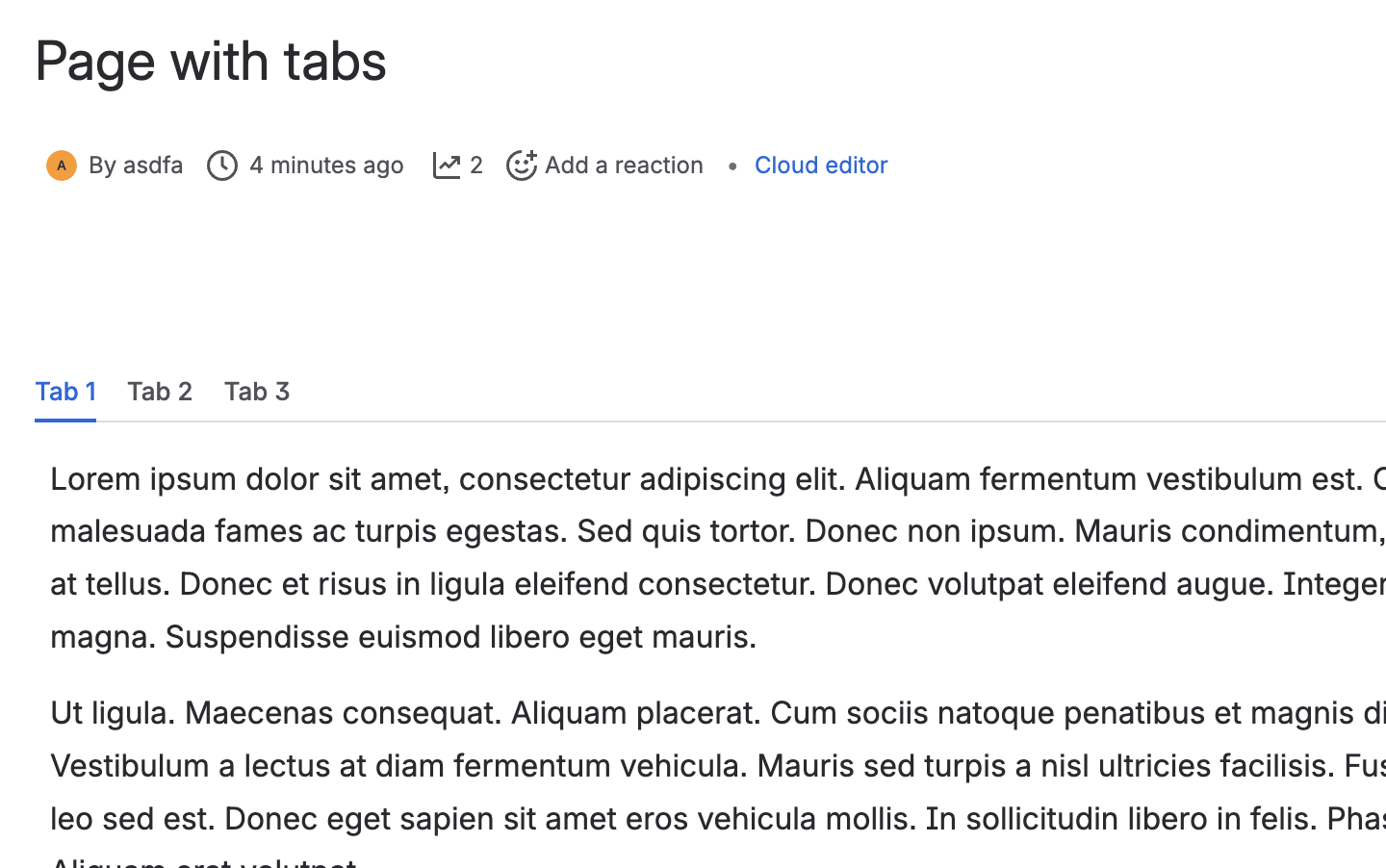
If your Data Center content uses viewport macros such as tabs, forms, slides, or URL redirects, run a macro conversion in Confluence Cloud after migrating your content. This ensures that content from these macros renders correctly.
Currently, only tab macro conversion is supported. We are working with high priority to support conversion for the remaining macros. For the latest timeline, contact K15t Support.
Requirements:
Before you begin, make sure you have:
-
The free Scroll Exporter Extensions app installed from the Atlassian Marketplace
-
Global administrator permissions for your Confluence Cloud site
What you'll see after migration to cloud
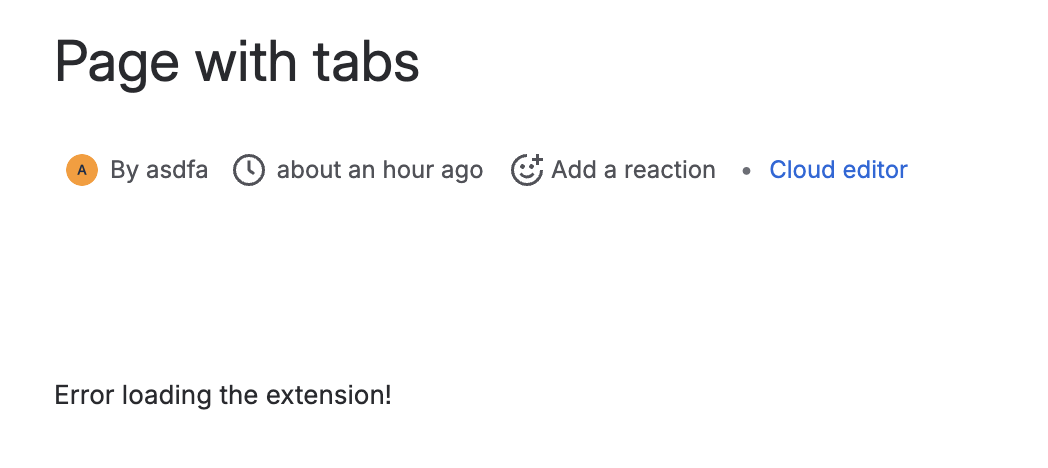
After you migrate a space containing pages with legacy viewport macros to Confluence Cloud, the macro content won't render. Instead, Confluence shows the error message "Error loading the extension!"
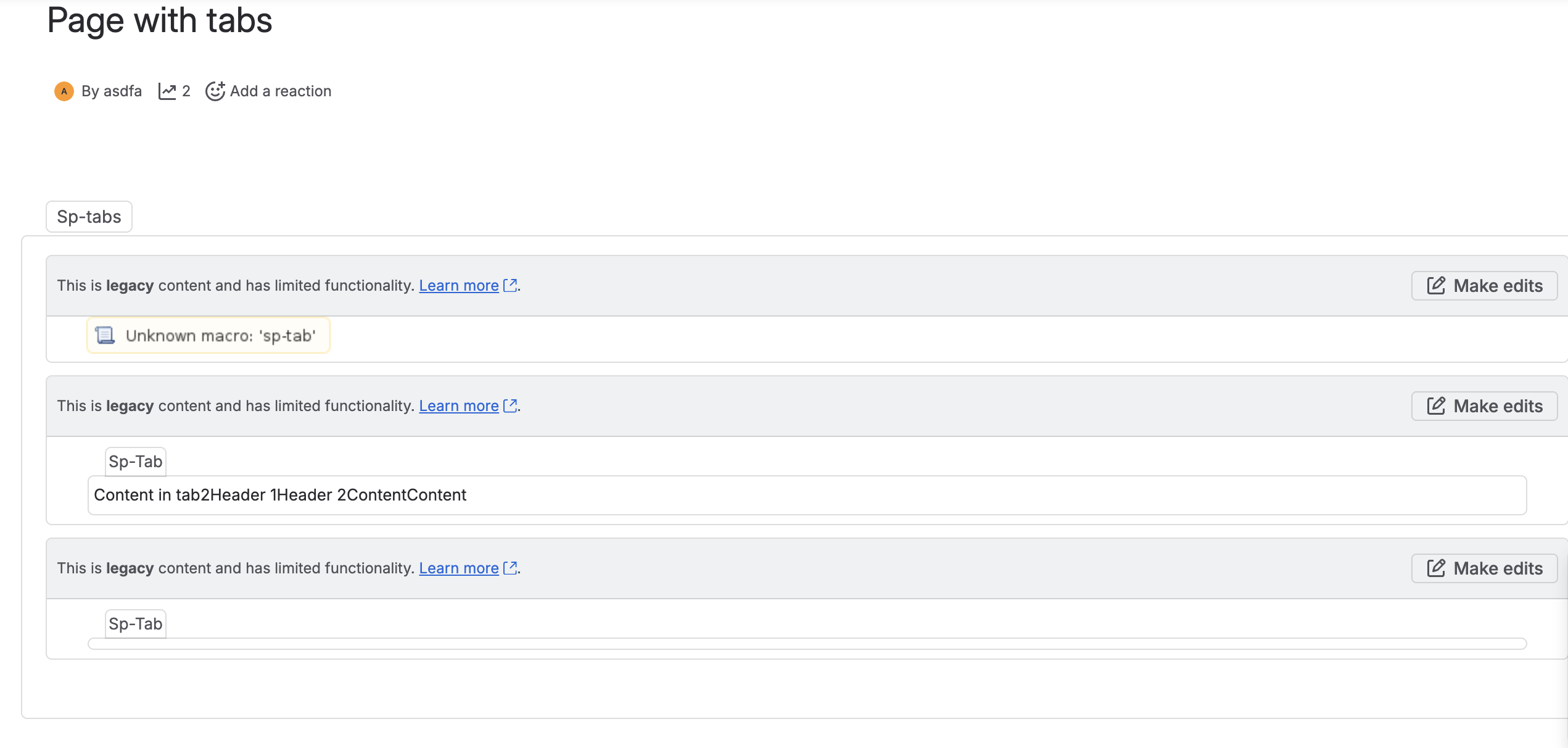
In edit mode, you can still view and edit the macro content, but it won't render on the page until conversion is run.
How to convert legacy viewport macros
Our conversion tool relies on Confluence's own search index to detect spaces. After a migration to cloud, Confluence needs to finish indexing the new cloud space before it becomes visible here. This can take from minutes to hours depending on space size. You can contact Atlassian support to request that they trigger indexing manually.
-
Go to General Configuration > Apps > Scroll Exporter Extensions Macro Conversion Tool.
-
You will be displayed general overview of the legacy macro situation allowing you to Review conversion to start the process

General overview of macros waiting to be converted. -
By default, the tool lists all legacy viewport macros waiting to be converted. To narrow the scope, filter by space or by page using Confluence CQL.
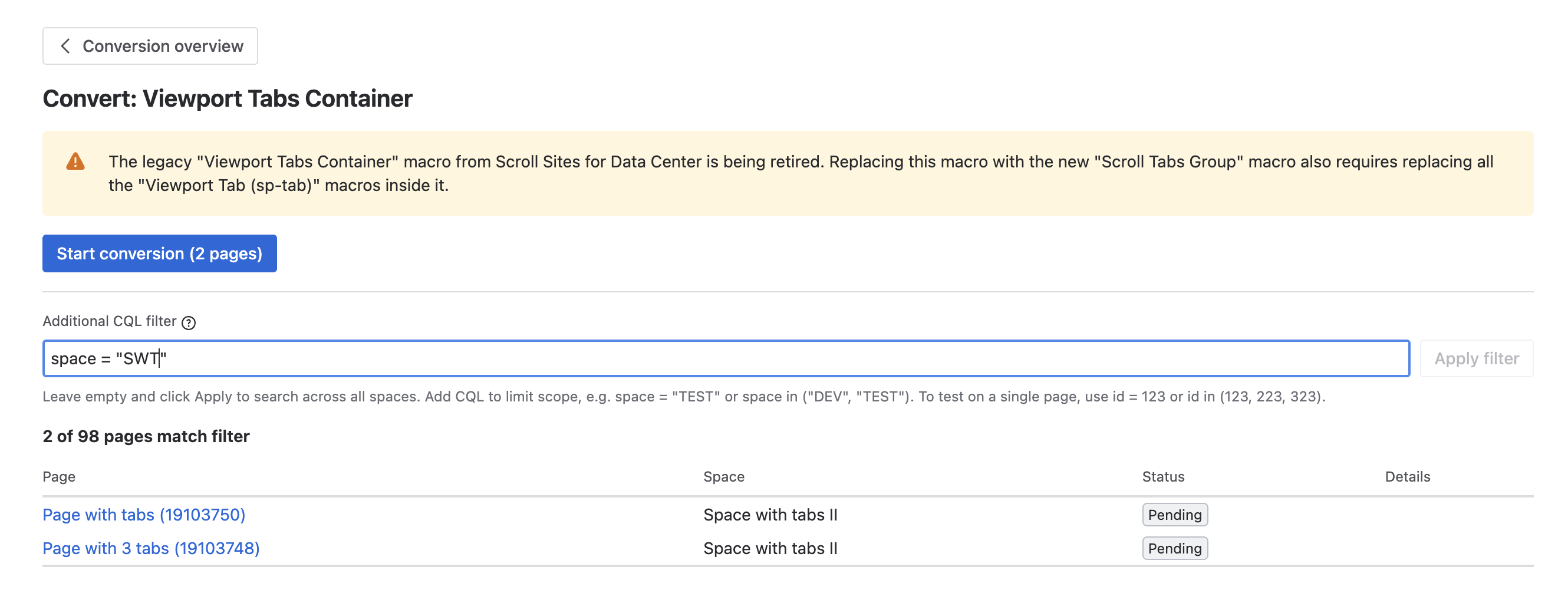
Choose the scope of spaces or pages in conversion tool -
Once you've defined the spaces or pages to migrate, select Start conversion. The tool converts the legacy macros within your selected scope and shows the conversion status as it runs.
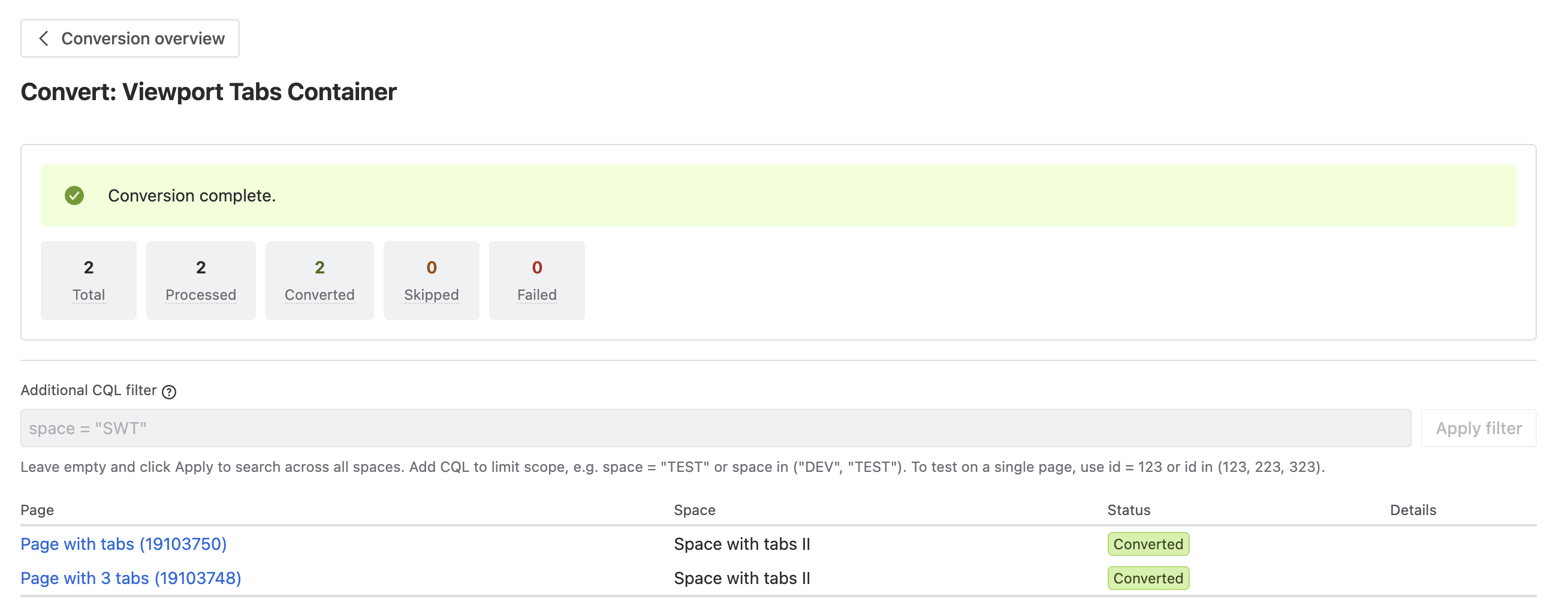
Macro migration status after migration is completed.
-
From the tool, you can open affected pages directly to verify the macros converted successfully. Once conversion is complete, the content displays in tabs, exactly as it did in Data Center.