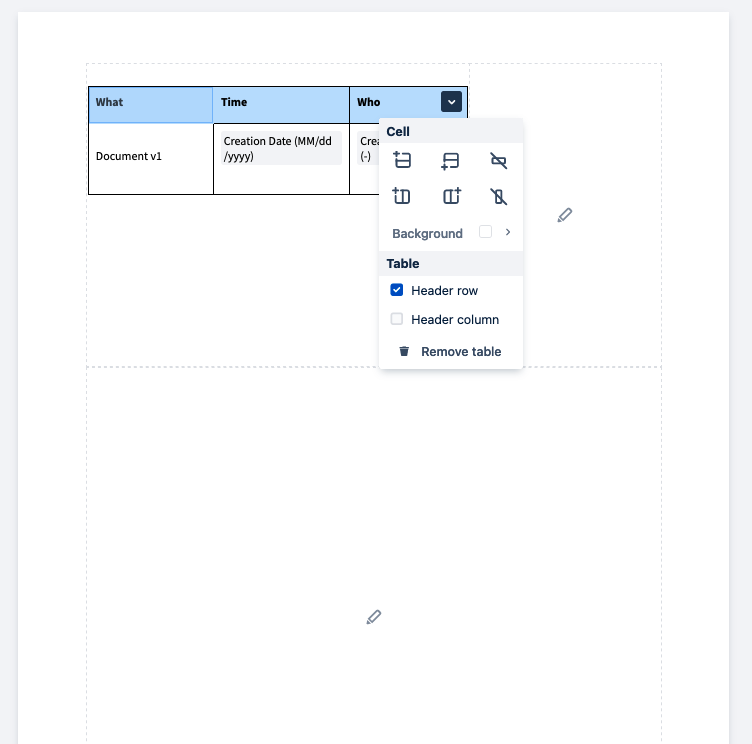
Within the Document Sections you can add tables to your pages and apply configured custom table styles.
Add a Table
To do this, select the table symbol and define the size of the table that you want to add:
.png?cb=a56abf7e8a5c001c423daac990e79a4e)
Style a Table
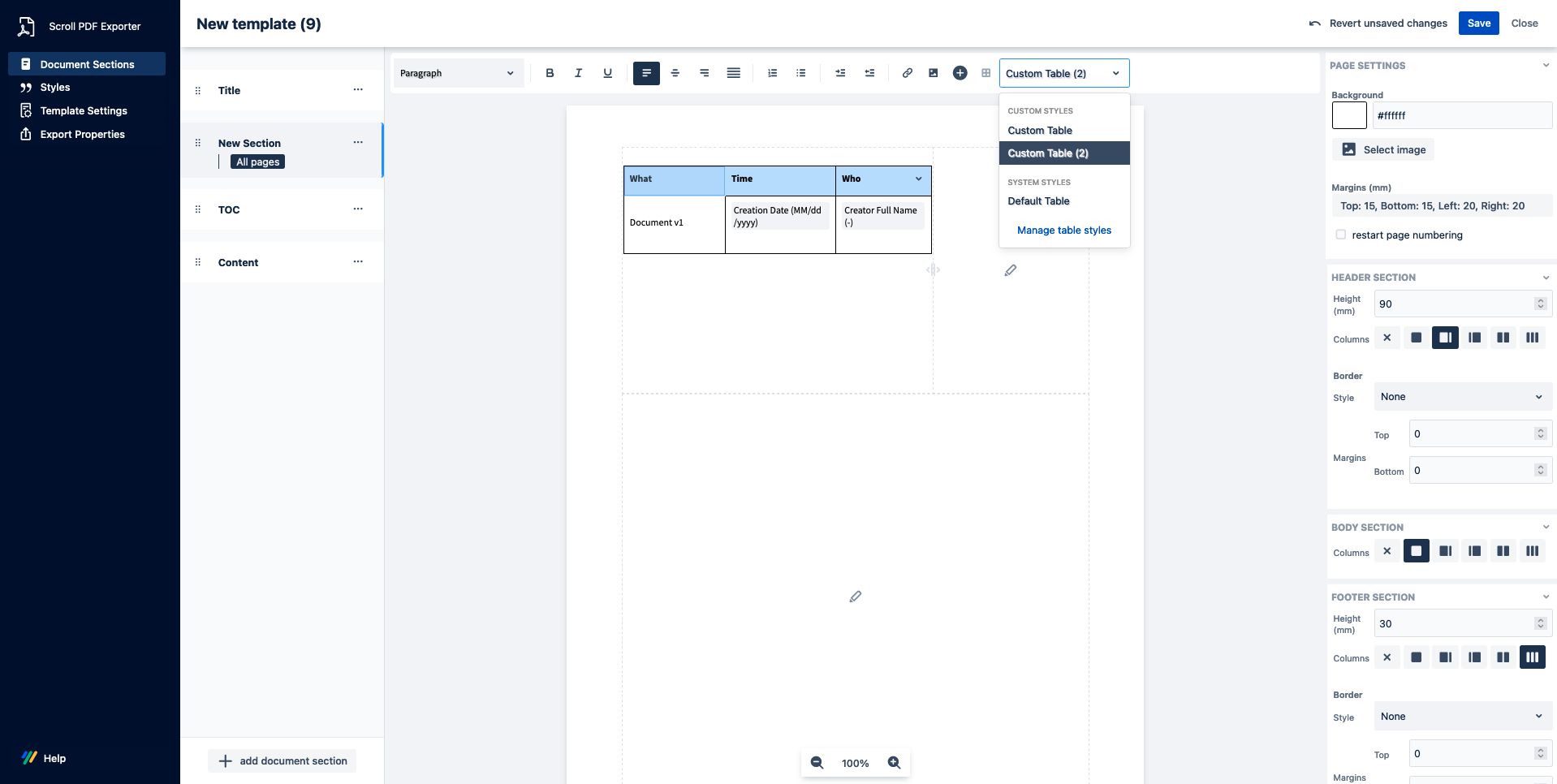
Once the table is added to the page you can choose the appropriate table style for the added table from the style drop-down menu (this menu will only appear when the the table is selected):
Within each cell for the added table it is possible to select the drop-down icon to further format the cells and the general table. This includes;
-
adding/removing table rows
-
adding/removing table columns
-
defining a background color for the table cell
-
defining a table header row/column
-
deleting the whole