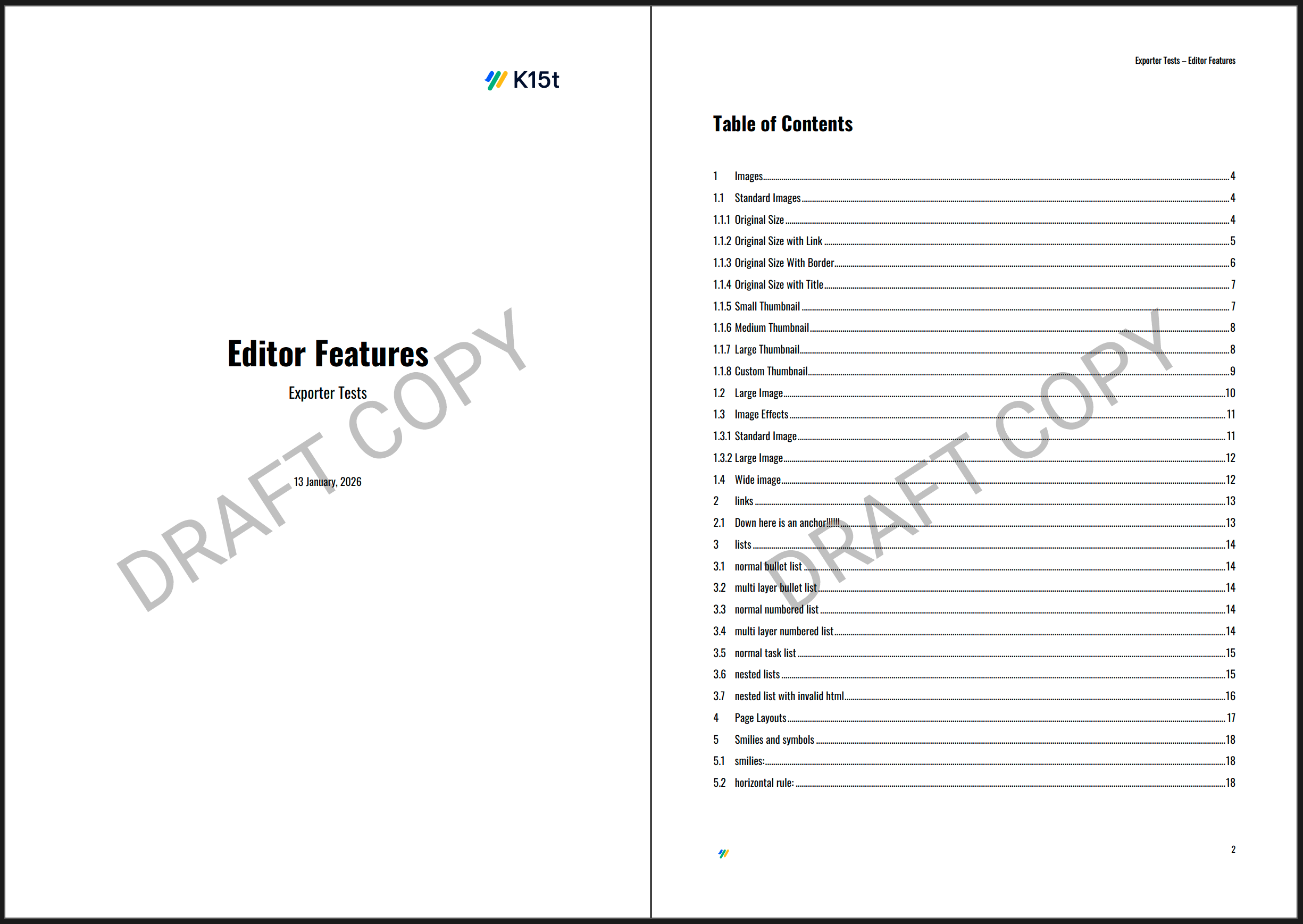
Apply Watermark Style
Scroll PDF Exporter allows you to add and fully customize a watermark on your exported PDFs. The style for the watermark is configured directly within the export template.
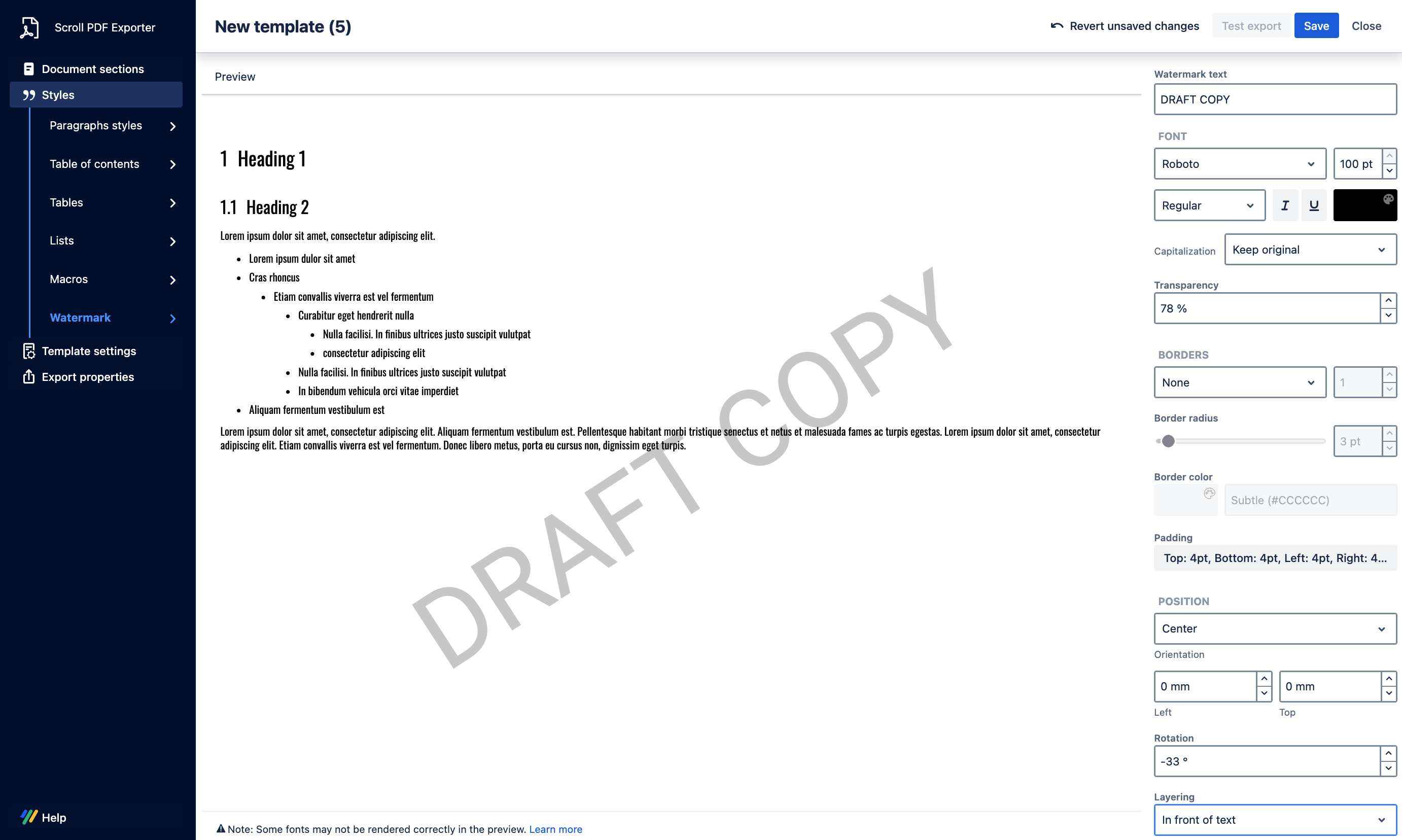
In the Watermark section of the template editor via Styles, you can define the default styling for the watermark. Simply enter your desired text for the watermark into the Watermark text field.
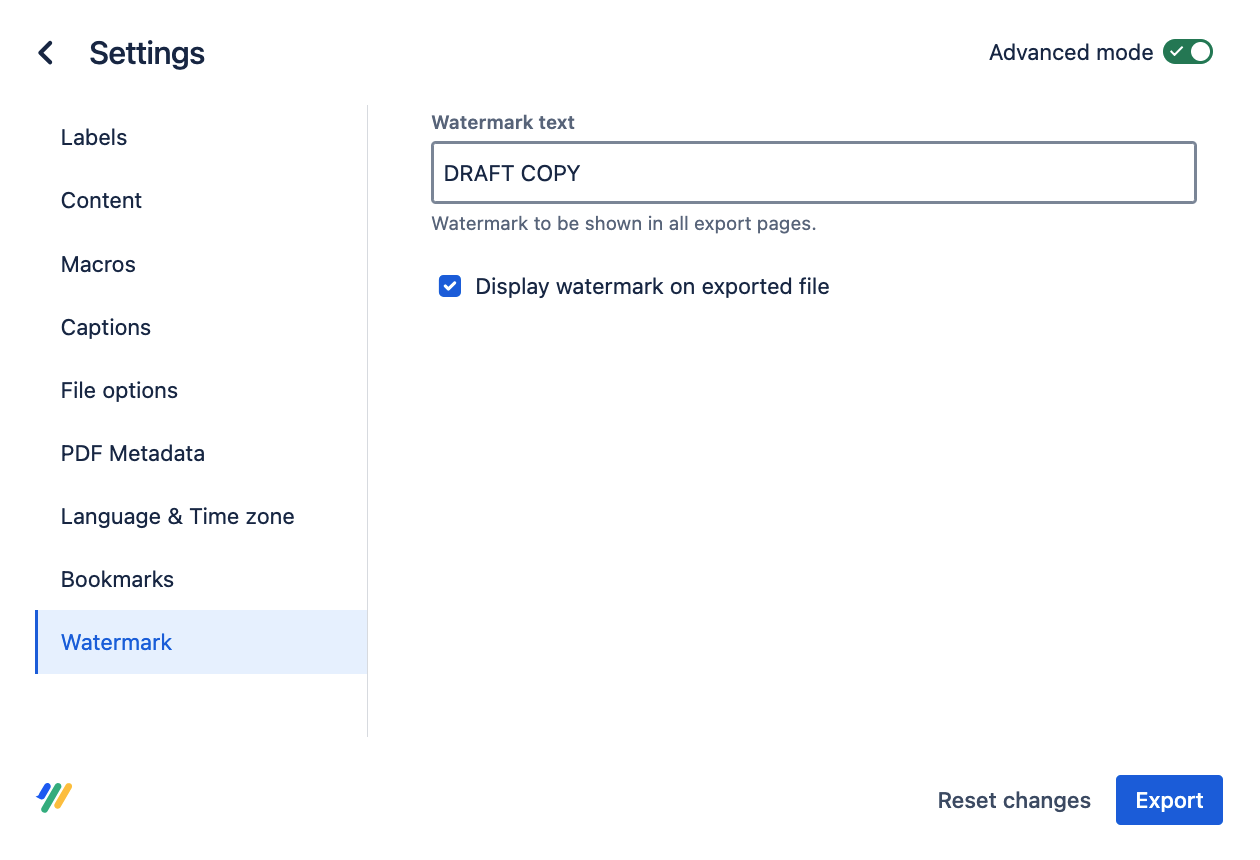
The text you enter here will be used as the watermark across the exported PDF and can be toggled on or off from the export dialogue prior to exporting.
Customize the Watermark Style
Once the watermark text has been added, you can adjust its appearance using the available options in the Watermark template style. Any changes to the settings will be displayed via the central preview, showing exactly how the watermark will be reflected in the generated export.
You can configure:
-
Font settings - define the font related settings used for the watermark text
-
Transparency - set the opacity so the watermark is subtle or prominent
-
Border - add a border around the watermark text
-
Positioning - define where the watermark appears on the page
-
Orientation - rotate the watermark (for example, horizontal or diagonal)
Generate the PDF
Once you’re satisfied with the watermark appearance for the configured style, you can save the export template and generate an export using that template.
The watermark will be applied to the exported PDF exactly as shown in the preview, depending on whether the export property to Display watermark on exported file is enabled or disabled.