
In order for your branded templates to use your brand assets, a brand first needs to be set up. After this, your brand can be applied to all newly created templates.
For existing templates – created before the brand was setup – all brand assets (ie. logos, colors, fonts) will be available for selection when editing the template, but they will not be automatically applied (learn more).
Depending on your preference, a brand for your templates can either be set up globally and/or in a specific space.
Steps to Set Up a Global Brand
Individual steps during the creation of a brand can be skipped if you do not want to upload specific items such as a logo, colors or a font.
-
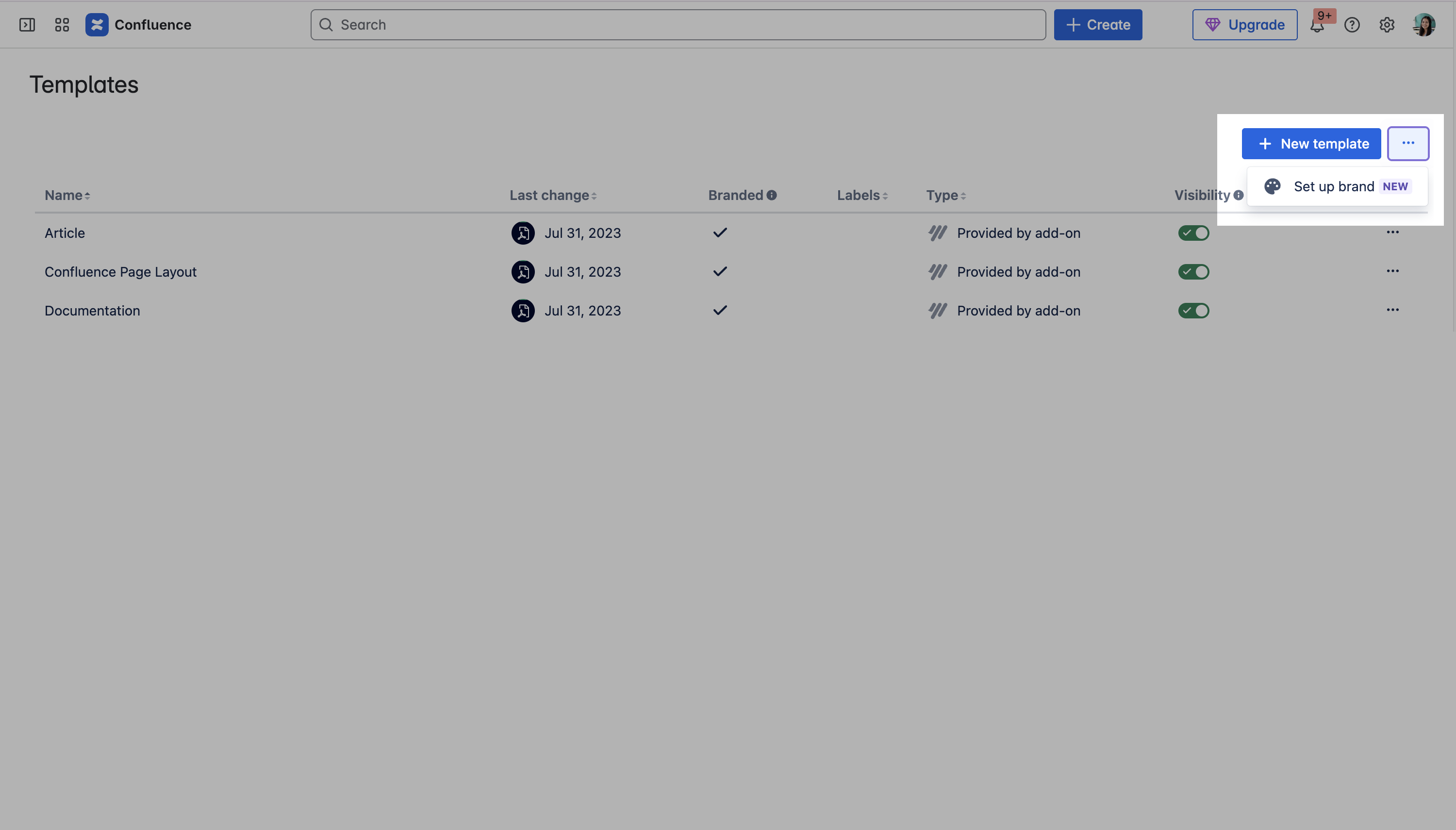
Navigate to the global Scroll PDF Exporter template list (requires global Confluence admin permission) and select the ••• menu in the top right and choose Set up brand.
-
The setup screen will then appear and you can begin the steps to create a brand.
.png?cb=8e6d674207369ba587610e1fbf864af5)
-
Begin by uploading your company logos for the brand.
.png?cb=55d12a82e8322c6f861c7f7251b9c68d)
-
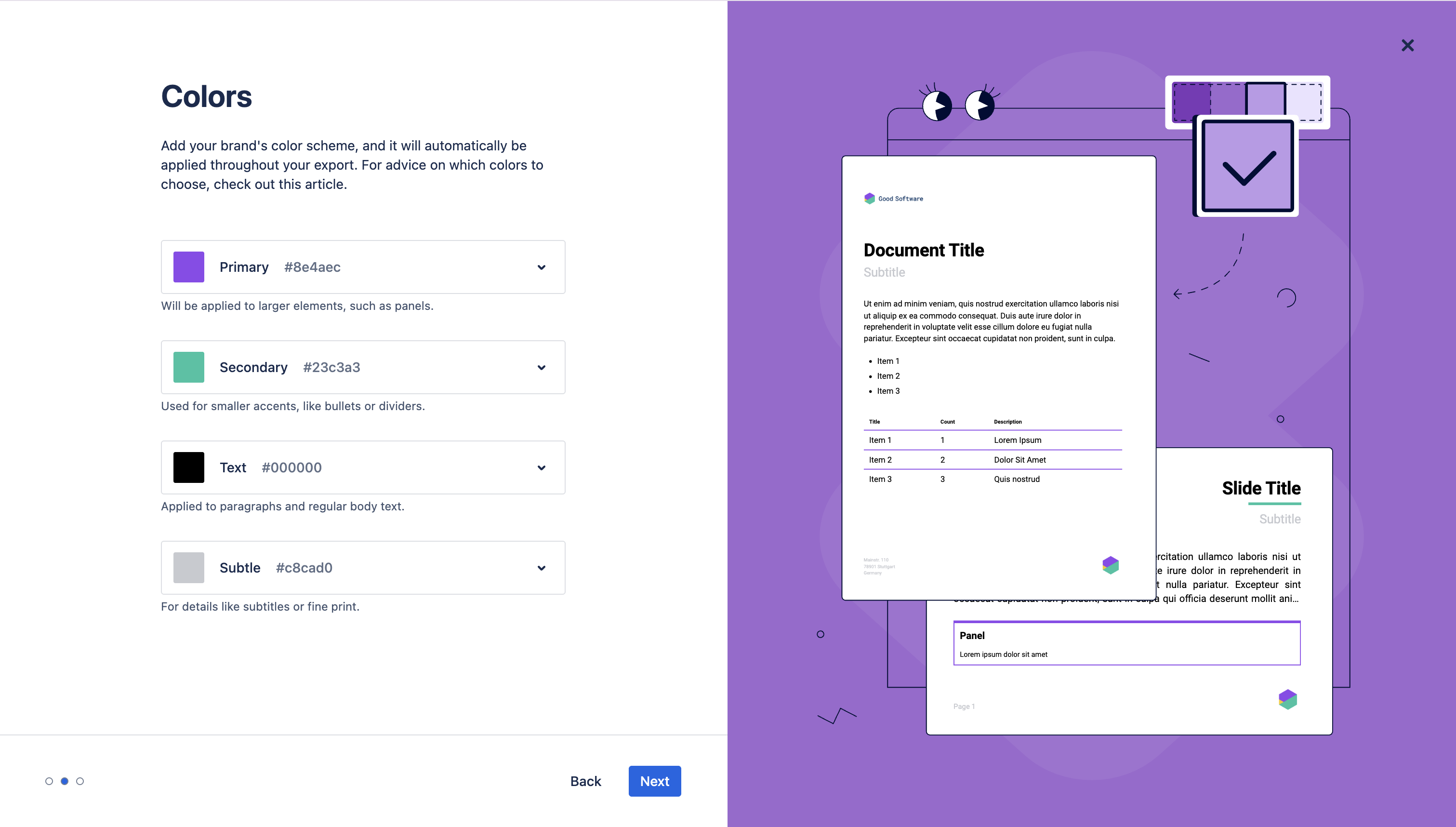
Then, define your colors for the brand.
-
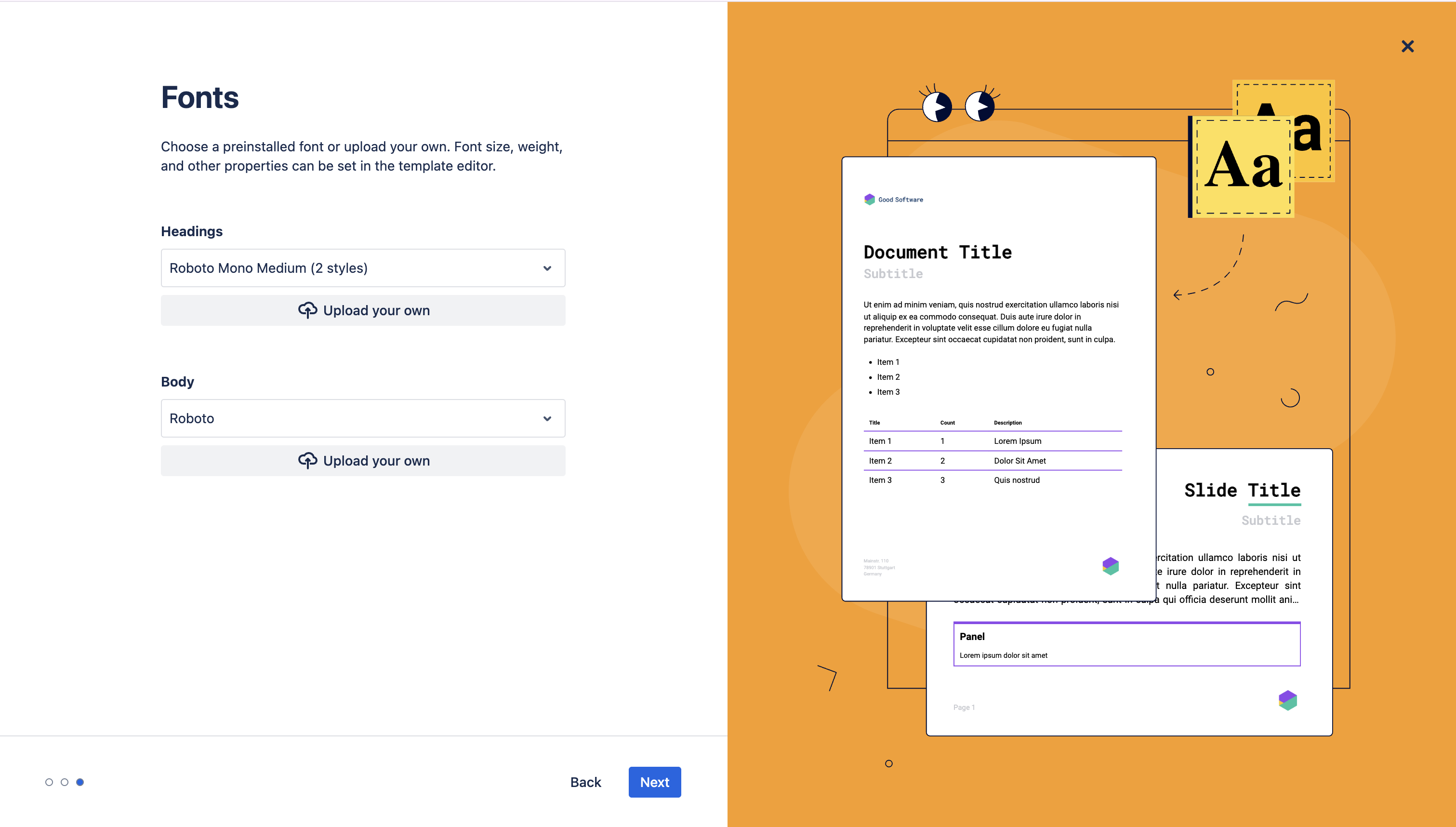
Finally, choose or upload your fonts for the brand.
-
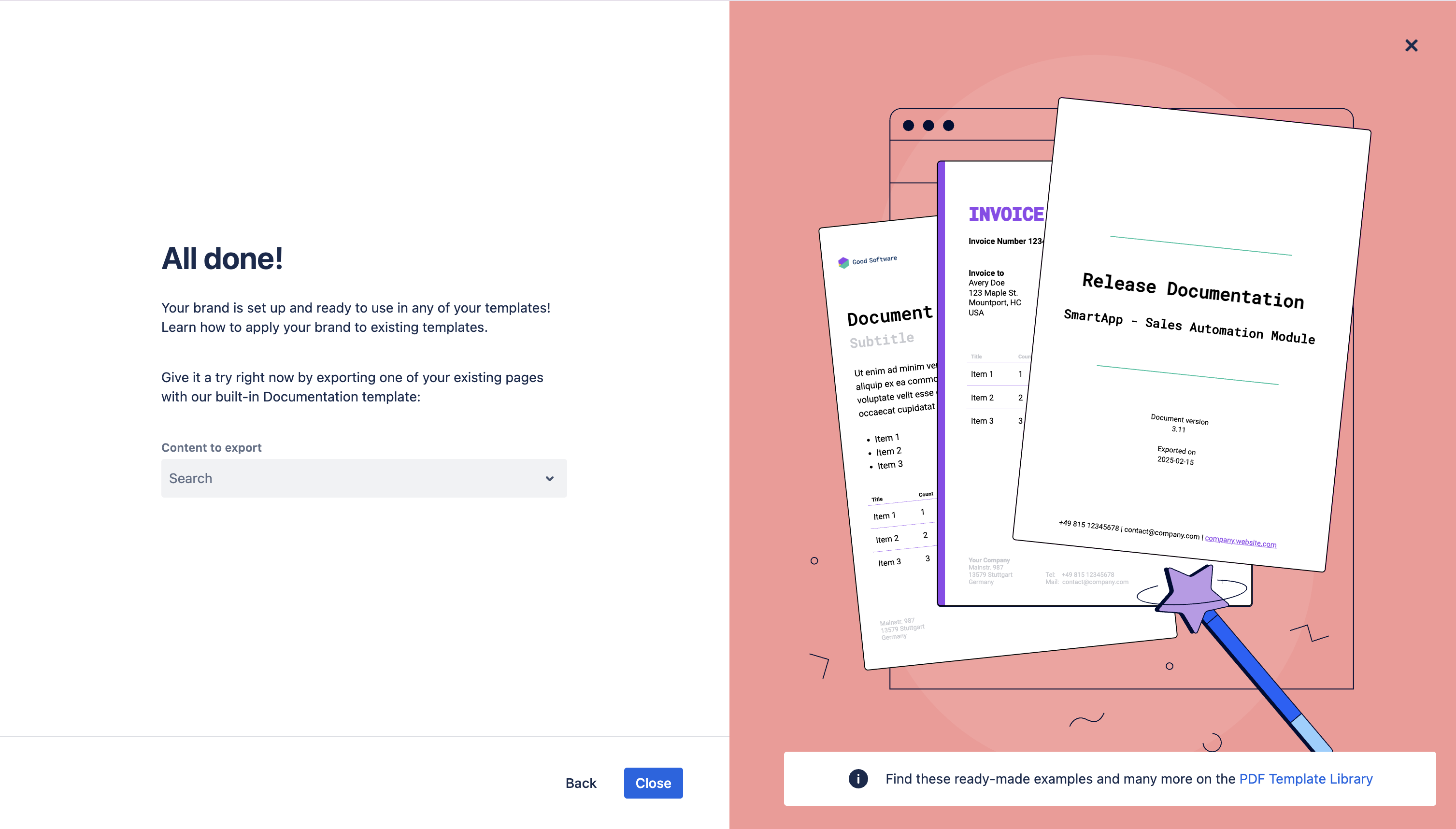
At the end of the setup, you can generate a test export using a Branded Template with all your brand assets - simply search for a page to generate the export.
Want to edit a created brand?
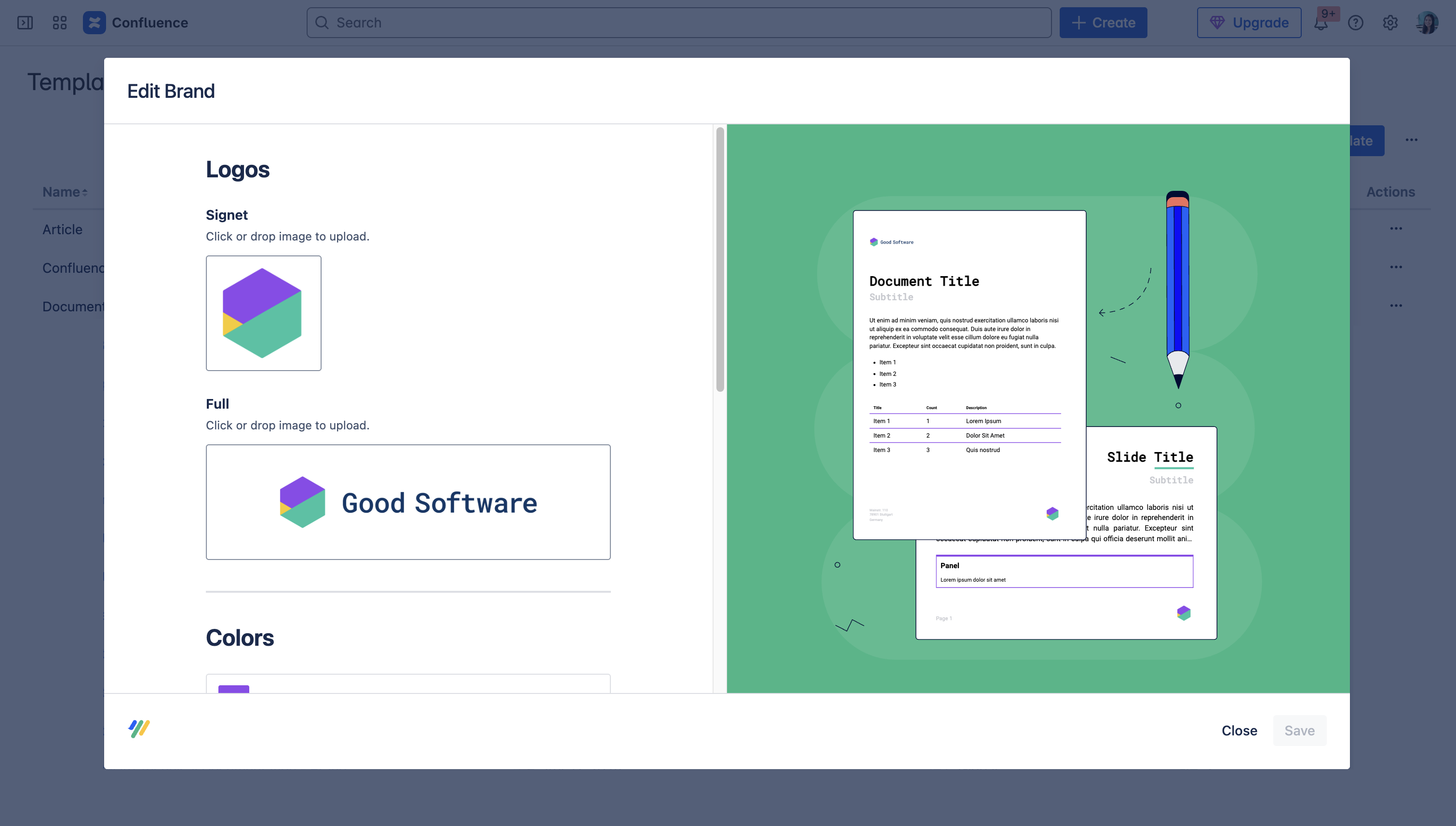
Once your brand has been created, you can easily make changes to any of your choices by navigating to the global template list > ••• > Edit brand.
The brand editor will then appear where changes can be applied:
Steps to Set Up a Space Brand
In addition to defining a brand globally, you can configure a brand at the space level. This allows individual spaces to use their own logos, colors, and fonts without affecting the global brand or other spaces.
If a space-level brand is configured, it takes precedence over the globally defined brand for that space. Templates in the space use the space-level brand instead of the global brand.
If no space-level brand is configured, the global brand is used (if configured). This allows you to define a common global brand while still giving individual spaces the flexibility to use their own branding when needed.
To set up a brand for a specific space:
-
Navigate to the required space and navigate to Space settings > Integrations > Scroll PDF Exporter Templates to open the Scroll PDF Exporter template list.
-
Select the ••• menu in the top right and choose Set up brand.
-
Configure the logos, colors, and fonts for the space
-
Save the brand settings.
When setting up a space-level brand, the settings from the global brand are used to pre-fill the space brand editor. You can then customize these settings for the space. Changes made to the space brand do not affect the global brand.