
Scroll PDF Exporter turns your Confluence Cloud pages and spaces into PDF files that you can share, print, or archive. Compared to standard Confluence export options, Scroll PDF Exporter features advanced formatting and customization options that don’t require any coding.
On this page, you will learn how to create your first PDF export using a bundled template in a few minutes.
Prefer to watch the video?
Have a look at the Scroll PDF Get Started video
Create Your First PDF File with Scroll PDF Exporter
-
Open the Confluence page that you want to export.
-
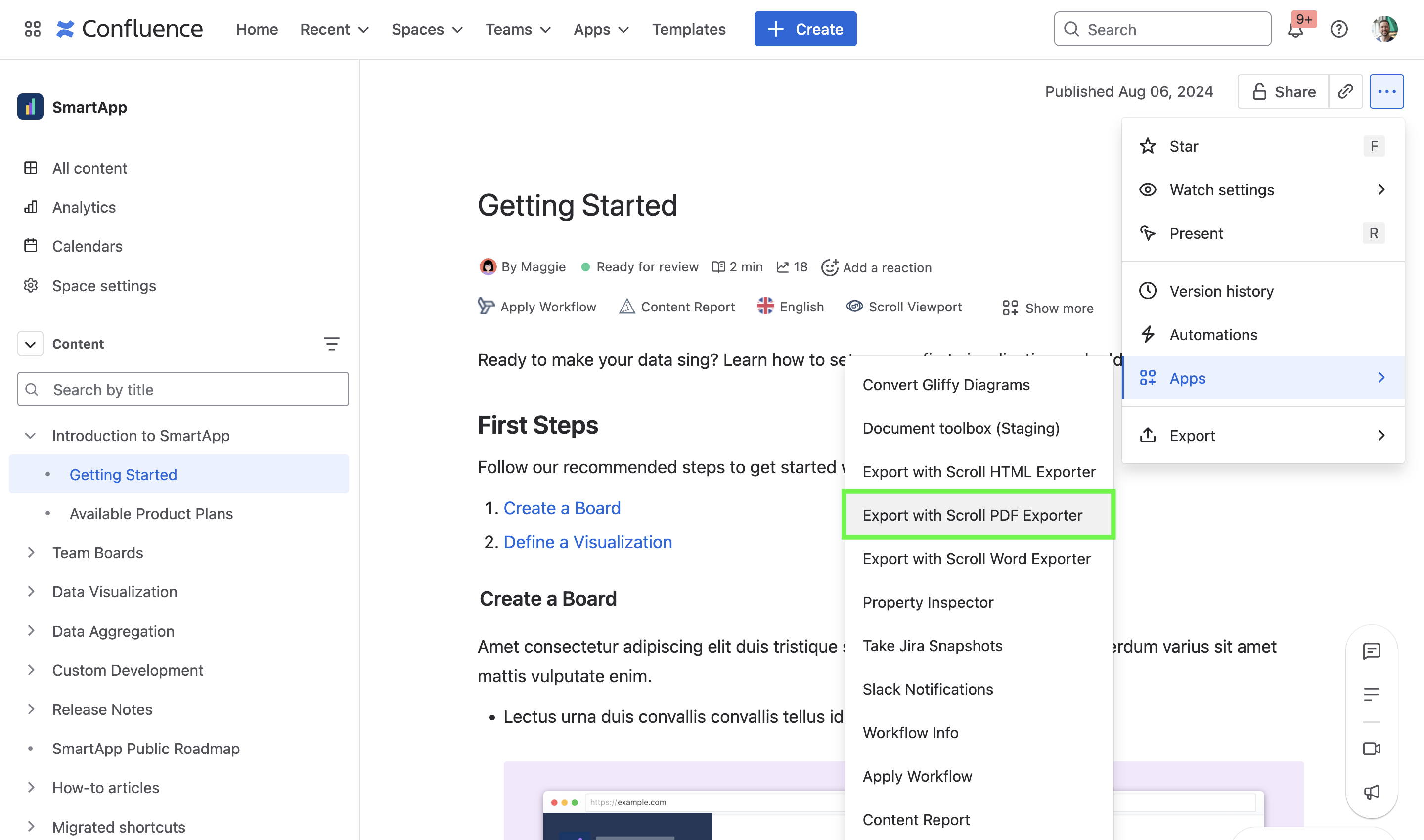
Open the ••• (More actions) menu.
-
Click Apps, then click on Export with Scroll PDF Exporter.
-
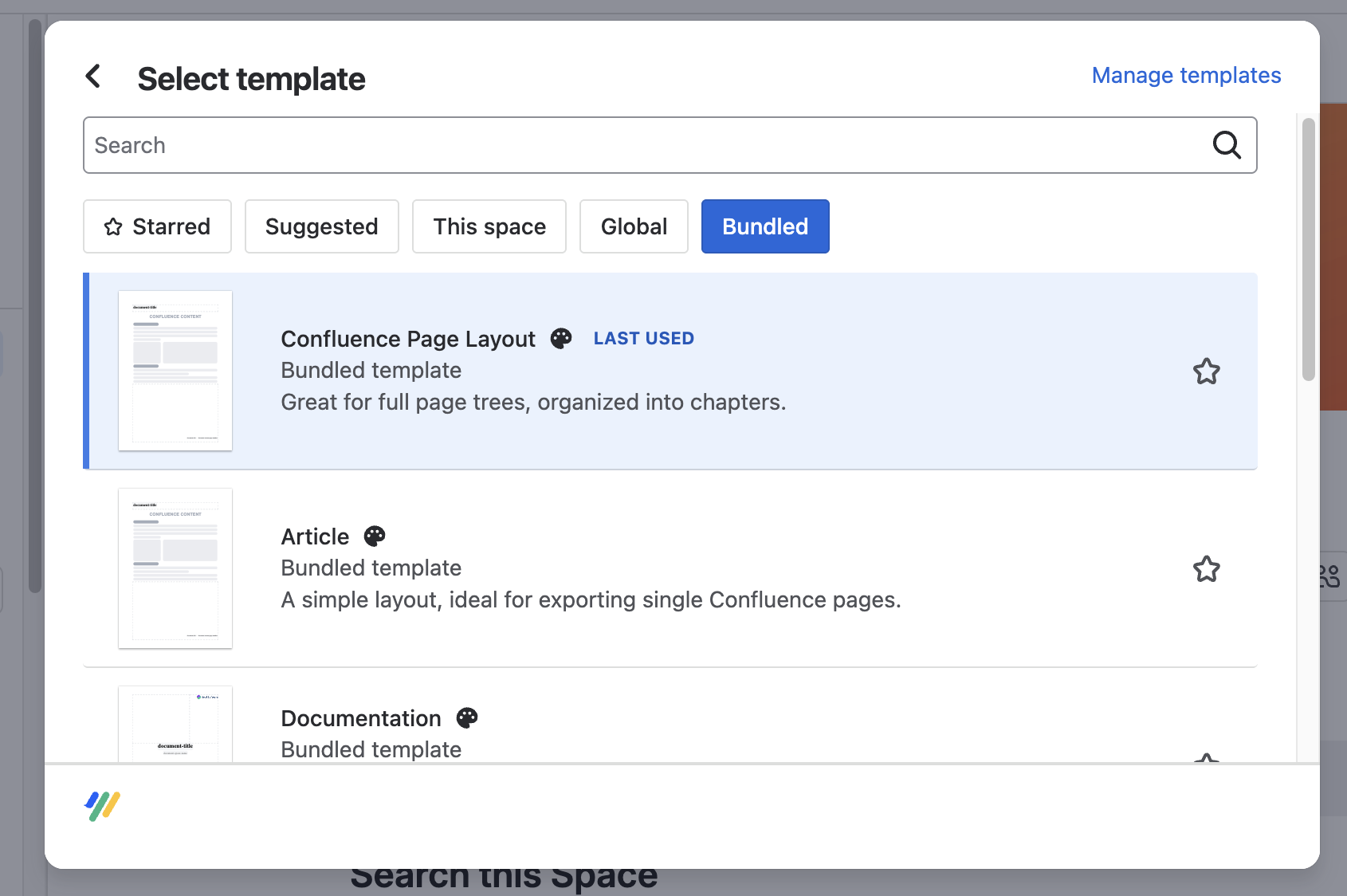
Select one of the bundled templates.
-
Documentation template is selected by default – it’s designed for multi-page content that needs a cover page and table of contents
-
Confluence Page Layout is ideal for a single page.
-
To compare all bundled templates, see Using Different Templates to Export PDFs.
-
-
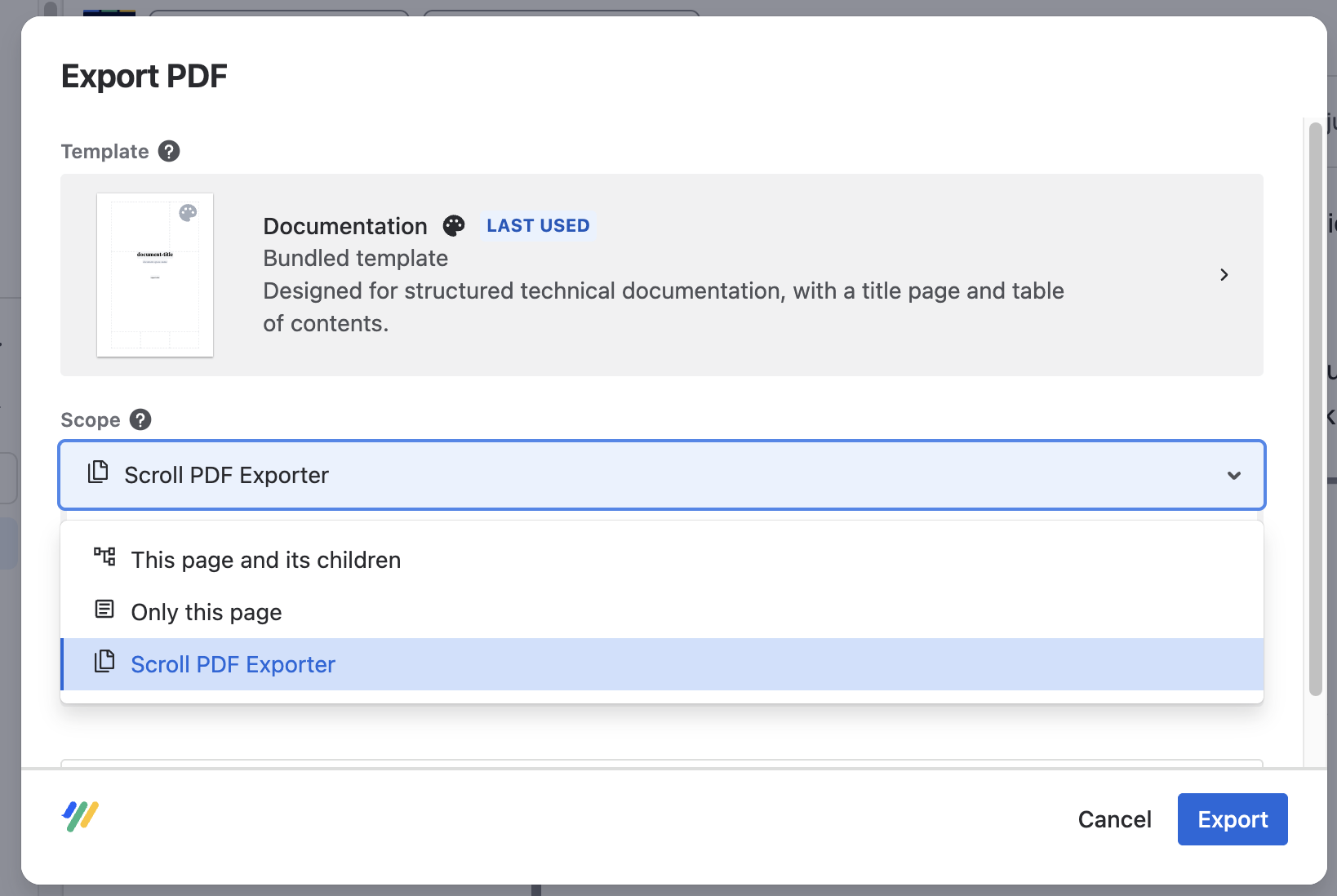
Click Scope dropdown to change the scope of your export (single page or parent page + child pages).
Note: Feel free to explore the Settings option for more advanced customization of your first export. See the Customize Your Export section below.
-
Click Export.
-
When the PDF is ready, a success message appears and your download should start automatically. You can also trigger the download manually by clicking the link.
Customize Your Export
You can change how your PDF looks and behaves before you export it by clicking Settings.
-
The basic Settings menu shows the most commonly used export options.
Example:-
Numbered headings
-
Multi-column layouts
-
Watermark text
-
-
The Setting’s Advanced Mode toggle shows all available export options.
Example:-
Make links clickable.
-
Add PDF bookmarks for easier navigation.
-
Create a PDF/A-3 and PDF/UA compliant file.
-
PDF/A-3 supports long-term archiving.
-
PDF/UA improves accessibility, for example for people who use screen readers.
-
-
For a comprehensive description of every Setting’s option, see overview of export properties.
Next Steps
-
To apply your layout to every export, head over to create custom templates.
-
To apply your own branding to every export, read create branded templates.
-
To find templates for reports, manuals, letterheads, and more, browse the PDF Template Library.
To explore use cases for your PDF Exporter, see our guide to offline documentation in Confluence from our Learning Hub.