
Scroll PDF Export offers a wide range of export settings and customization options that impact how your PDF looks and behaves.
This page describes every option in the Scroll PDF Exporter export dialog, so you can adapt each export to its purpose. For example, you can include or exclude child pages by label, add bookmarks to long documents, or create a PDF/A-3 and PDF/UA compliant file for archiving and accessibility.
If this is your first export, we recommend that you start with our Get Started page that shows the basic steps with a bundled template.
Export a Page with Your Own Settings
Simply open the page you want to export, then click:
-
More actions menu (•••) > Apps > Export with Scroll PDF Exporter
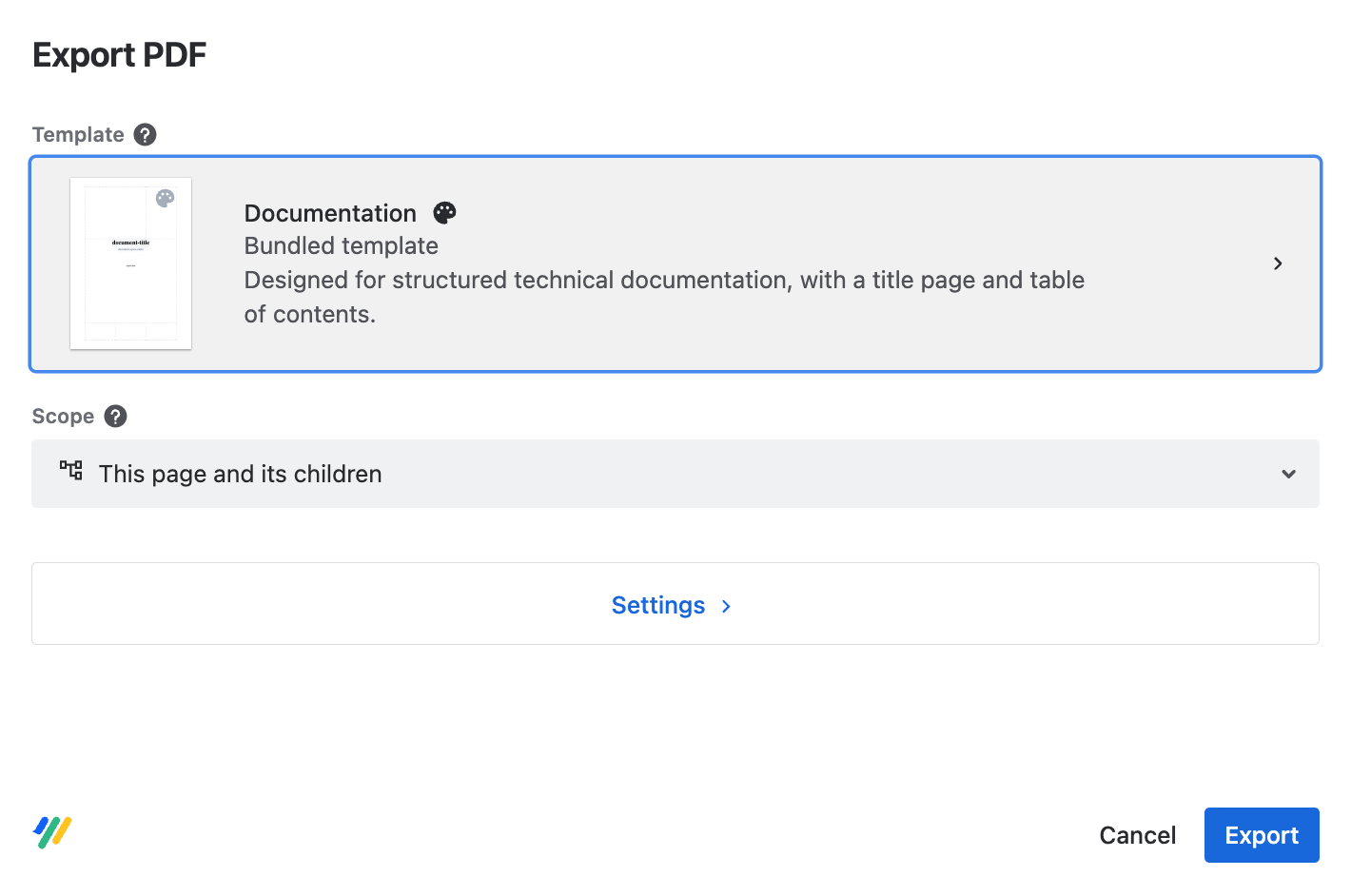
This opens the export dialog, where you can choose which template you want to use:
Select the scope
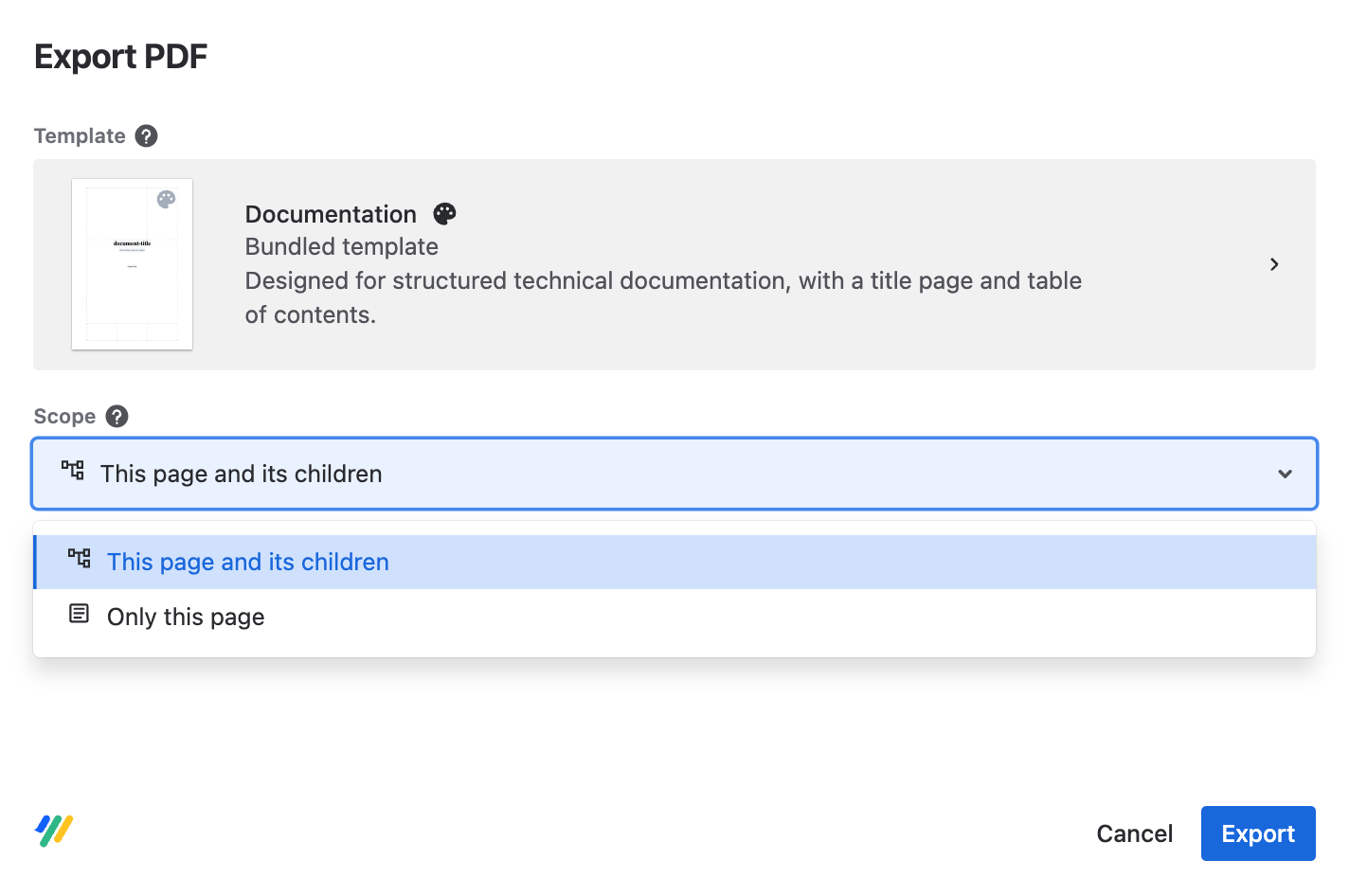
You can set your export scope to either:
-
This page and its children – export the page you start the export from and all the saved child pages.
-
Only this page – export only the page you start the export from.
-
Document – export the entire document associated with the selected page (only available when using Scroll Content Manager). This also applies to Variant, Version, and Language information.
Want to export an entire space?
To export all pages in a space to PDF:
-
Go to the space home page.
-
Open the export dialog from the More actions menu (•••).
-
In the export dialog, set the scope to This page and its children.
Adjust the settings
After selecting your desired scope and template, click Settings to display options to further customize the export:
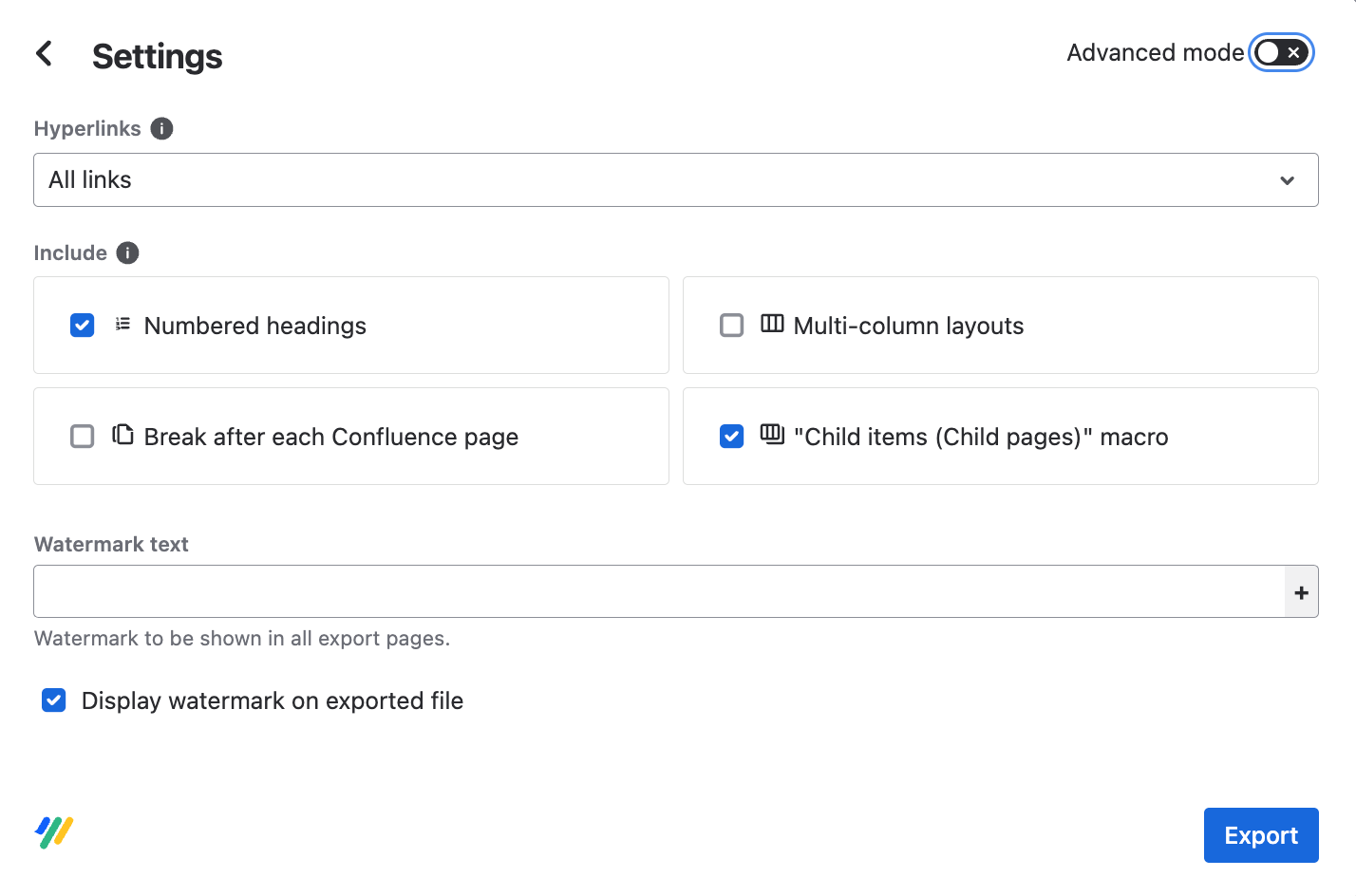
Alternatively, toggle the Advanced mode to display the full range of available export options:
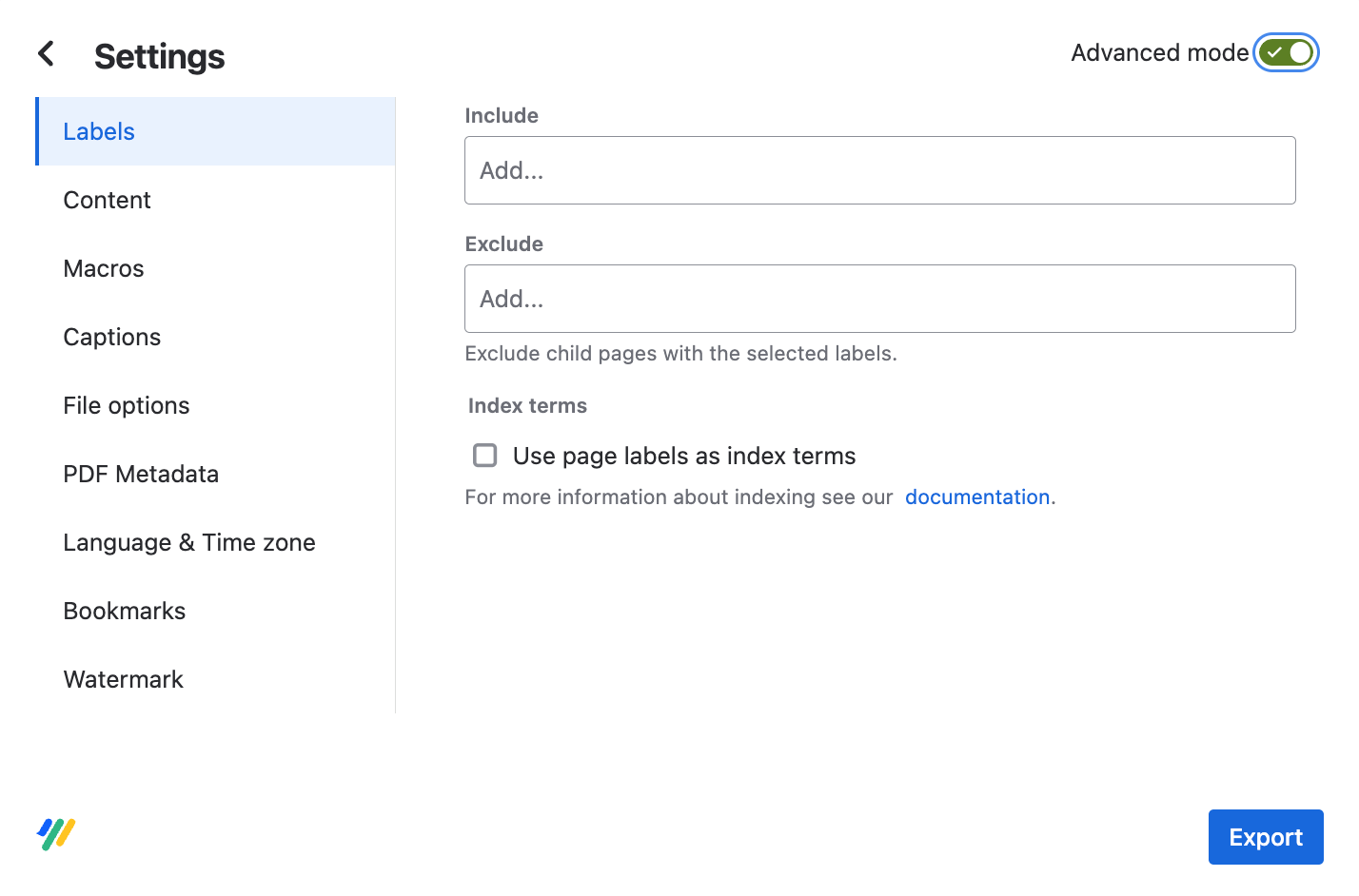
After you have selected the customization options you want, click Export.
Automate exports with the REST API
You can also start PDF exports from a script or another tool, without opening the export dialog. The REST API supports the same export scopes as the export dialog: a page and its child pages, a single page, or a whole Scroll Content Manager document. To learn how to create an API token and start an export, see Export content via REST API.
Overview of Export Properties
|
Tab |
Name |
Description |
|---|---|---|
|
Labels |
Include/exclude |
Define page labels to include/exclude child pages |
|
Labels |
Index terms |
If checked, page labels will be used as index terms |
|
Content |
Enable numbered headings |
If checked, headings will use the numbering defined in the export template |
|
Content |
Keep multi-column page layouts |
If checked, the export uses the Confluence page layout |
|
Content |
Enable links to external websites |
If checked, web links in the PDF will be clickable |
|
Content |
Enable links to Confluence |
If checked, links to your Confluence site will be clickable |
|
Content |
Repeat table header if table breaks to a new page |
If checked, table headers will be repeated if the table breaks onto a new page. |
|
Content |
Insert a page break after every Confluence page |
If checked, a page break will be inserted after every Confluence page in the PDF export. |
|
Content |
Attachments |
If the option Embed referenced attachments is checked, the generated PDF export will contain the attachments included on the exported pages. |
|
Macros |
Show Page Properties macro output |
If checked, the contents of the Confluence Page Property macro will be included in the export. |
|
Macros |
Show Table Of Content macro output |
If checked, the Confluence Table of Contents macro (if added to the page) will be included in the export. |
|
Macros |
Show Child pages macro output |
If checked, the Confluence Child items macro – formerly known as Child pages or Children Display – (if added to the page) will be included in the export. |
|
Macros |
Convert image gallery tables to lists |
If checked, images in gallery macros are displayed in a list rather than a grid. |
|
Macros |
Convert Office macros to file thumbnails |
If enabled, Office Excel, Office Powerpoint, and Office Word macros will be replaced by thumbnail images of the corresponding files. Otherwise the macro output will be exported. |
|
Captions |
Figure captions |
If an image is assigned a caption using the Scroll title macro, you can select whether to display that caption before or after the image. |
|
Captions |
Table captions |
If a table is assigned a caption using the Scroll Title macro, you can select whether to display that caption before or after the table. |
|
File Options |
Optimize links for printing |
If checked, a footer section displaying the full URLs of all links on the page is added. Further customisation options remain available for link suffixes, see Define template settings for additional information. |
|
File Options |
Make document PDF/A-3 and PDF/UA compliant |
If checked, the export creates a PDF that meets two ISO standards. PDF/A-3 supports archiving and the long-term preservation of electronic documents. PDF/UA improves accessibility, for example for people who use screen readers. |
|
File Options |
Image compression |
Define whether images are compressed in the export. Reducing the image quality (e.g. Low quality), increases the compression for exported images and will reduce the size of the exported file. As a result, images may appear distorted. |
|
PDF Metadata |
Title, Author, Subject, Keywords |
Define metadata within the available fields to include in the generated PDF export. |
|
Bookmarks |
PDF Bookmarks |
Define the number of heading levels used to create bookmarks in the generated PDF Export. After choosing a specific heading level, PDF bookmarks will be created for the selected and all previous heading levels. e.g. Choosing Heading 3 will create bookmarks for heading levels 1, 2 and 3. |
|
Bookmarks |
Expanded levels |
Define how many bookmark heading levels are displayed in the export. Bookmarks will be expanded up until the selected heading level. |
|
Bookmarks |
Bookmarks Panel |
If checked, the bookmark panel will automatically be displayed when the export is opened in the PDF reader (eg. Adobe). |
Customize your PDF’s Layout and Style
You can export your Confluence content to PDF by using one of the default templates included with the app, or your own custom template.
To learn more about templates, see Using Different Templates to Export PDFs.