
Templates are the blueprint behind every PDF that you export. They control everything from cover pages and tables of contents to how headings, links, and Confluence macros appear. Choosing the right template ensures that your content looks clear, consistent, and compliant every time.
With export templates, you can:
-
Apply consistent branding and layouts across all your exports.
-
Add sections such as cover pages, table of contents, annexes, and more.
-
Customize headings, links, macros, and more with precise styling.
Types of Templates You’ll Find
Scroll PDF Exporter offers several ways to work with templates:
-
Bundled templates
These come preloaded with the app (marked Provided by add-on in your template list) and are ready to use right away. They’re a quick way to see how your content looks using different export templates. You can copy or adapt them if needed. -
Template Library
A broad collection of downloadable templates, with sample PDF exports and instructions to guide you. You’ll find everything from letterheads, to user manuals, to presentation templates here. -
Custom templates
Create your own export templates from scratch, or customize existing ones to fit your needs.
Why Use More Than a Single Export Template?
It’s tempting to rely on one all-purpose template, but different kinds of content often benefit from different formatting and layouts. A technical guide, a step-by-step tutorial, and a formal letter each serve unique purposes – and each can be clearer and more effective when the right template is used to export the content.
Here are three examples from the Template Library:
|
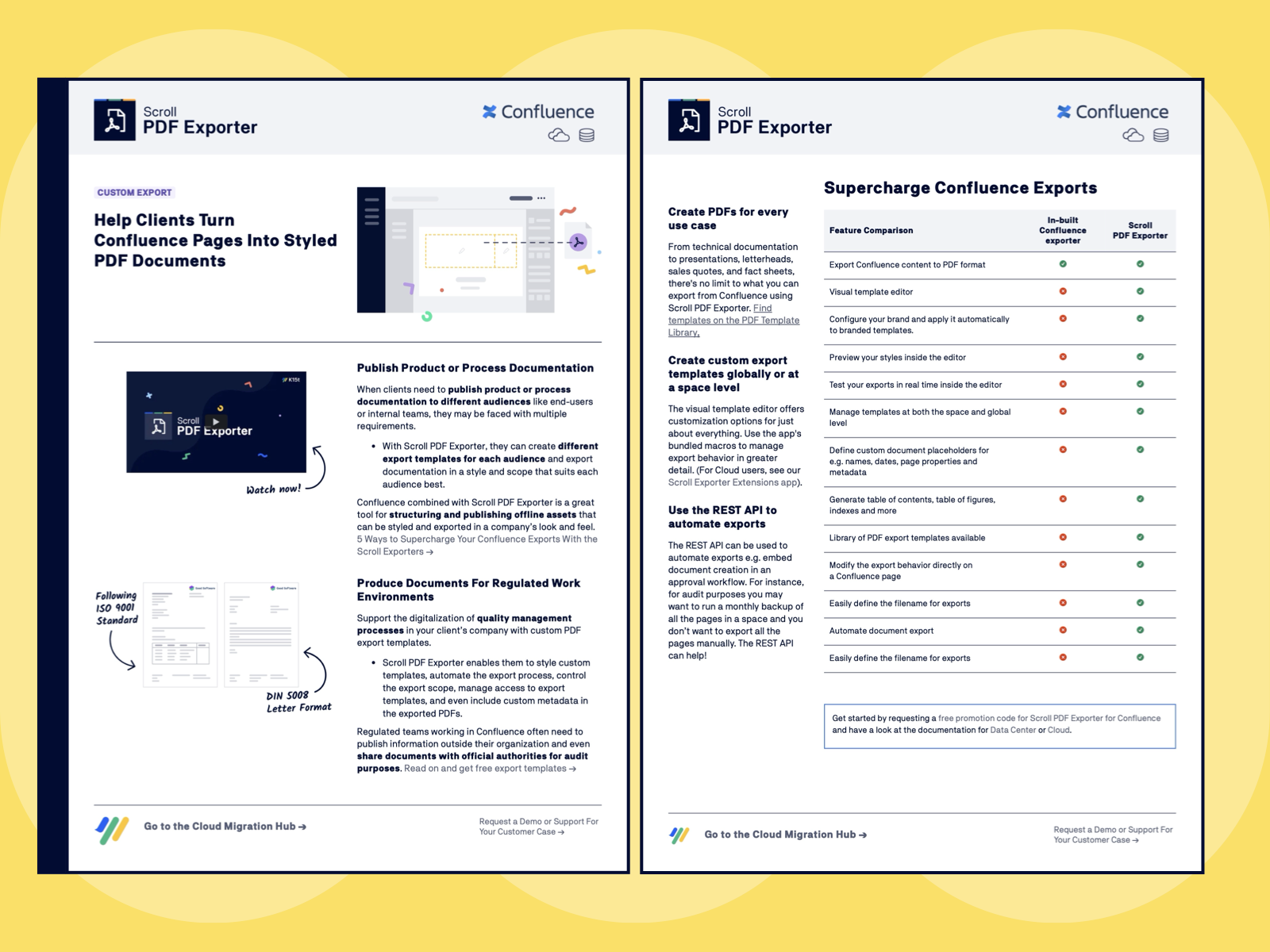
Used to present comprehensive product information in a concise, visually engaging way. This template helps partners and customers quickly understand product details with confidence. |
|
|
Professional Letterhead Template Perfect for official correspondence, this template integrates branded headers and footers to deliver polished, business-ready documents. |
.png?cb=54a8c8847af4407ad6a200ff473f0388)
|
|
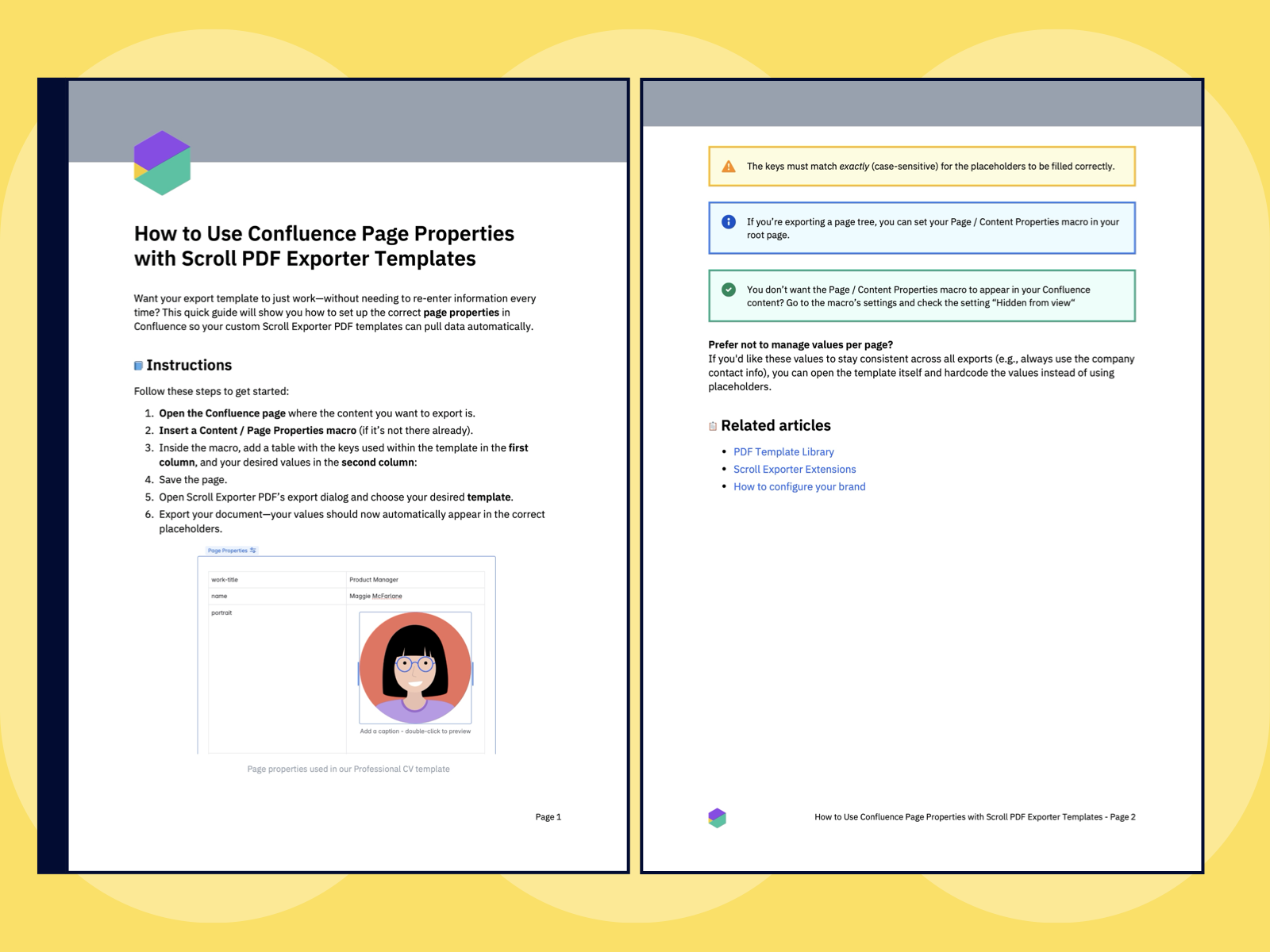
Ideal for tutorials and process documentation, this mirrors Confluence’s How-To page styling while adding your brand elements automatically. |
|
Bundled Templates That Come With the App
These templates are included with Scroll PDF Exporter and ready for you to use. You can try them as they are, or copy and adapt them to fit your needs.
|
Name |
Description |
|---|---|
|
Confluence Page Layout |
Exports your content as it appears in Confluence. |
|
Article |
Exports only the page content (no title, etc.). Best for single-page exports. |
|
Documentation Layout |
Creates exports with a cover page and table of contents (ToC), suited for structured docs. |
|
A professional documentation template with cover, ToC, version/confidentiality fields, and space for disclaimers. |
|
|
A 16:9 brand-forward slide layout with cover, content slides, and an end remark. |
|
|
Compact, two-column landscape layout for short, branded content. |
|
|
Meeting notes export with branding and last modified date. |
Some bundled templates are also available in the Template Library. Use the links in the table above to preview fully rendered example PDFs, each including an instruction page at the end.
Next Steps
-
Apply your brand to every export.
If you are a Confluence administrator, you can set up a brand at the global level, in the global Scroll PDF Exporter template list. Define your logo, colors, and fonts once, and Scroll PDF Exporter applies them to the bundled templates and to all branded templates on your Confluence site. If you are not an administrator, ask your Confluence administrator to set up the brand. For more information, see Create Branded Templates. -
Find a template for a specific purpose.
Browse the PDF Template Library (external page on http://k15t.com ) for templates such as letterheads, user manuals, and fact sheets. -
Create your own template.
For full control over layout and style, see Create and manage custom templates.