
Scroll Health Checks help space administrators to perform several checks on Scroll Versions and Scroll Translations related data.
In this article, you will learn about running a Health Check and understanding the meaning of different checks. It also provides guidance on resolving some of these checks manually.
We recommend to run a Scroll Health Check in your spaces when:
-
Facing issues in the space.
-
Preparing to migrate to Scroll Content Manager.
-
Advised by our support team.
How to Run a Scroll Health Check
To run a Scroll Health Check, follow the steps below:
-
Open Space Tools.
-
Click Scroll Add-ons.
-
Select Health Checks.
-
Click Check.
Once the checks have finished, the results will be displayed. The results are split into four categories:
-
Manual intervention needed
-
Problems detected
-
FixMe elements found
-
Passed checks
More information about each check is stored in a Scroll Health Check log, which is automatically included in the Confluence Support ZIP. In the table below you can also find tips on how to fix failed checks manually.
Manual intervention needed
This category displays all failed checks that need to be further analyzed by the K15t support team. If you have checks displayed here, please create a Confluence Support ZIP and send it to the K15t support team via: help@k15t.com
Problems detected
This category displays all failed checks that can be repaired automatically. More information about these problems can be found in the Scroll Health Check log. To repair these problems, click Repair.
FixMe elements found
This category contains all checks that need manual rework. More information about FixMe elements can be found in the Scroll Health Check log. Please review these FixMe elements manually, for clarification of what these FixME mean and what to do, refer to the table below.
Passed checks
All successfully passed or automatically fixed checks are displayed in this category.
Available Scroll Health Checks
The following Scroll Health Checks are currently available (please note that, depending on the activated modules, the list of available checks might differ):
-
Health Check L01 -
Health Check L02 -
Health Check M01 -
Health Check M02 -
Health Check M03 -
Health Check M04 -
Health Check P01 -
Health Check P02 -
Health Check P03 -
Health Check P04 -
Health Check P05 -
Health Check P06 -
Health Check P07 -
Health Check P08 -
Health Check P09 -
Health Check P11 -
Health Check P12 -
Health Check P13 -
Health Check P14 -
Health Check P15 -
Health Check P16 -
Health Check P18 -
Health Check S01 -
Health Check S02 -
Health Check S03 -
Health Check S04 -
Health Check S05 -
Health Check S101 -
Health Check S102 -
Health Check S103
Scroll Health Check Log
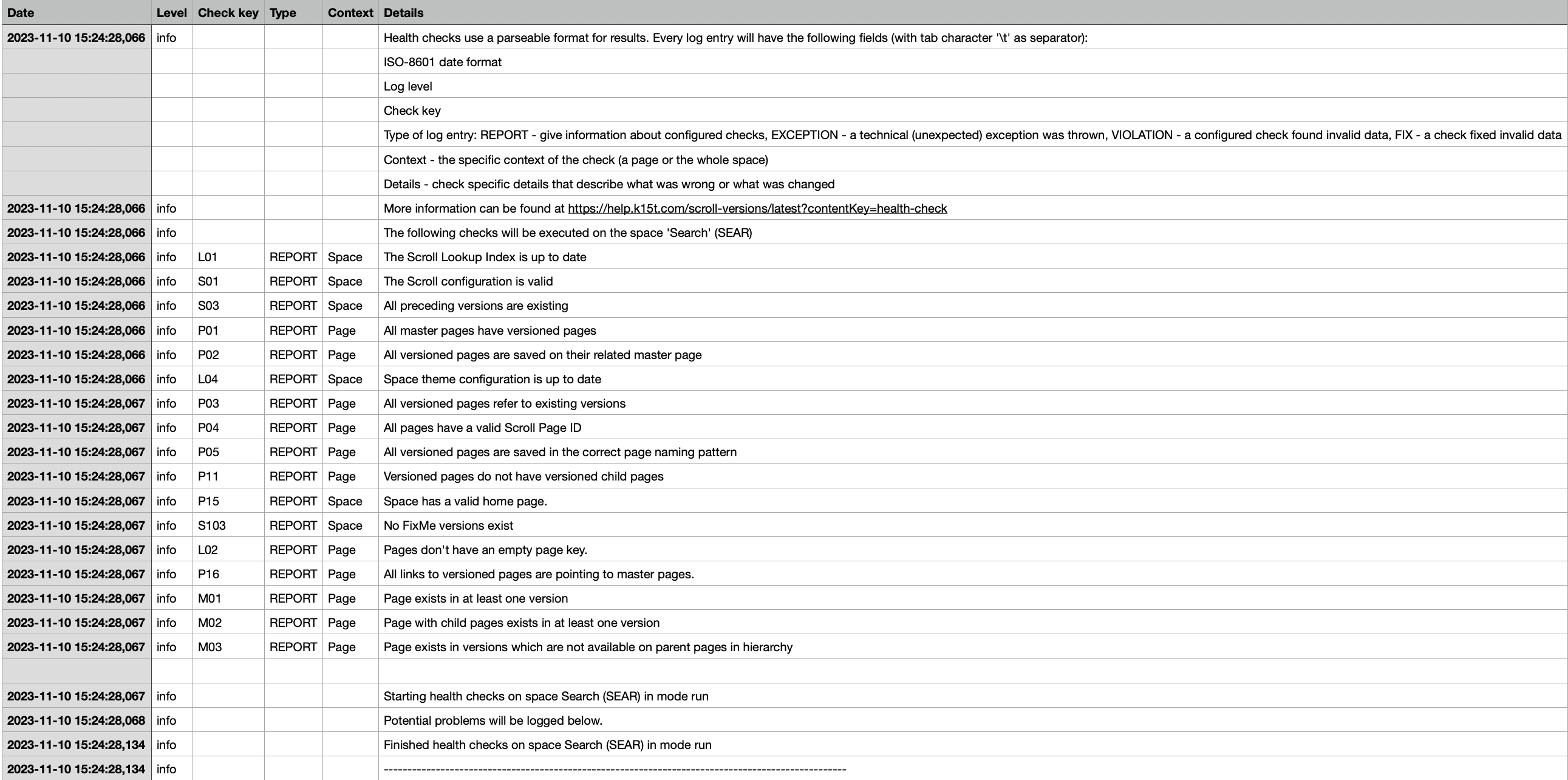
Scroll Health Checks automatically create a new Scroll Health Check Log for every space a check has been run in (once a log file for a space is created, every further check within the same space is written in the same log file). The logs contain more information about exceptions, violations and fixes during the Scroll health checks.
The logs are saved in the naming pattern: scroll-health-check-<spaceKey>-<date>--<time>.csv
It can either be opened with a standard text editor or with CSV-compatible software (like MS Excel).
The log file is stored in the directory <confluence-home>/logs:
The log file contains information about all exceptions, violations, and fixes occurred during each check and is automatically included in the Confluence Support ZIP.
The log file contains the following types of log entries:
|
Type |
Description |
|---|---|
|
REPORT |
Information about the configured checks |
|
EXCEPTION |
a technical (unexpected) exception was thrown |
|
VIOLATION |
a configured check found invalid data |
|
FIX |
a check fixed invalid data |
For every type the corresponding page and further details are displayed:
Related articles
- Downgrade to a Previous Version of Scroll Versions
- Deactivate Scroll Versions
- Reduce Confluence Index Flush Jobs
- Disable Scroll Versions Onboarding Notifications
- Reduce Confluence Index Flush Jobs
- Downgrade to a Previous Version of Scroll Versions
- Disable Scroll Versions Onboarding Notifications
- Reduce Confluence Index Flush Jobs
- Disable Scroll Versions Onboarding Notifications
- Downgrade to a Previous Version of Scroll Versions
- Deactivate Scroll Versions
- Supported Macros and Features
- Supported Macros and Features
- Deactivate Scroll Versions
- Supported Macros and Features