
The Scroll page details, Document toolbox, toolbar and workflow status are all tools you can access directly from the Confluence page view of your documents' pages.
They provide quick access to page specific actions and information, such as adding a Scroll page title, comparing document versions, or navigating back to the Document Manager.
Scroll Page Details
.png?cb=d71c08aa5c0023813b4e947a8408b342)
With Scroll Content Manager installed, a new Scroll page details entry appears in the byline of your Confluence pages. A quick click reveals key details about your page:
-
Is it part of any variant? If this page is part of a document with variants and contains conditional content, you can preview how the conditional content will appear in each variant before exporting or publishing. To learn more, see: Preview Variants
-
Is translations enabled for this document? If so, you can see which languages this page exist in. You can also create translations of your versions, or manage existing ones, directly from the page instead of using the Document Manager. To learn more about this read: Update Translations.
-
Does it have a Scroll page title? If the page is a part of a document you’ll see wether the page has a Scroll page title. This special title is used when publishing to Scroll Sites or exporting with our Scroll Exporter apps. You can learn more about how to customize Scroll page titles here: Add Scroll Page Titles
Document Toolbox
.png?cb=ca1811c935582a4d091d608951e4bebb)
From the Document toolbox, you can:
-
See the name of your document.
-
Save a version of your document.
-
Navigate to the Document Manager to access more document-specific actions.
-
Switch between versions and translations using the built-in pickers.
-
Execute version-specific actions, including:
-
Access the Scroll page details.
Toolbar
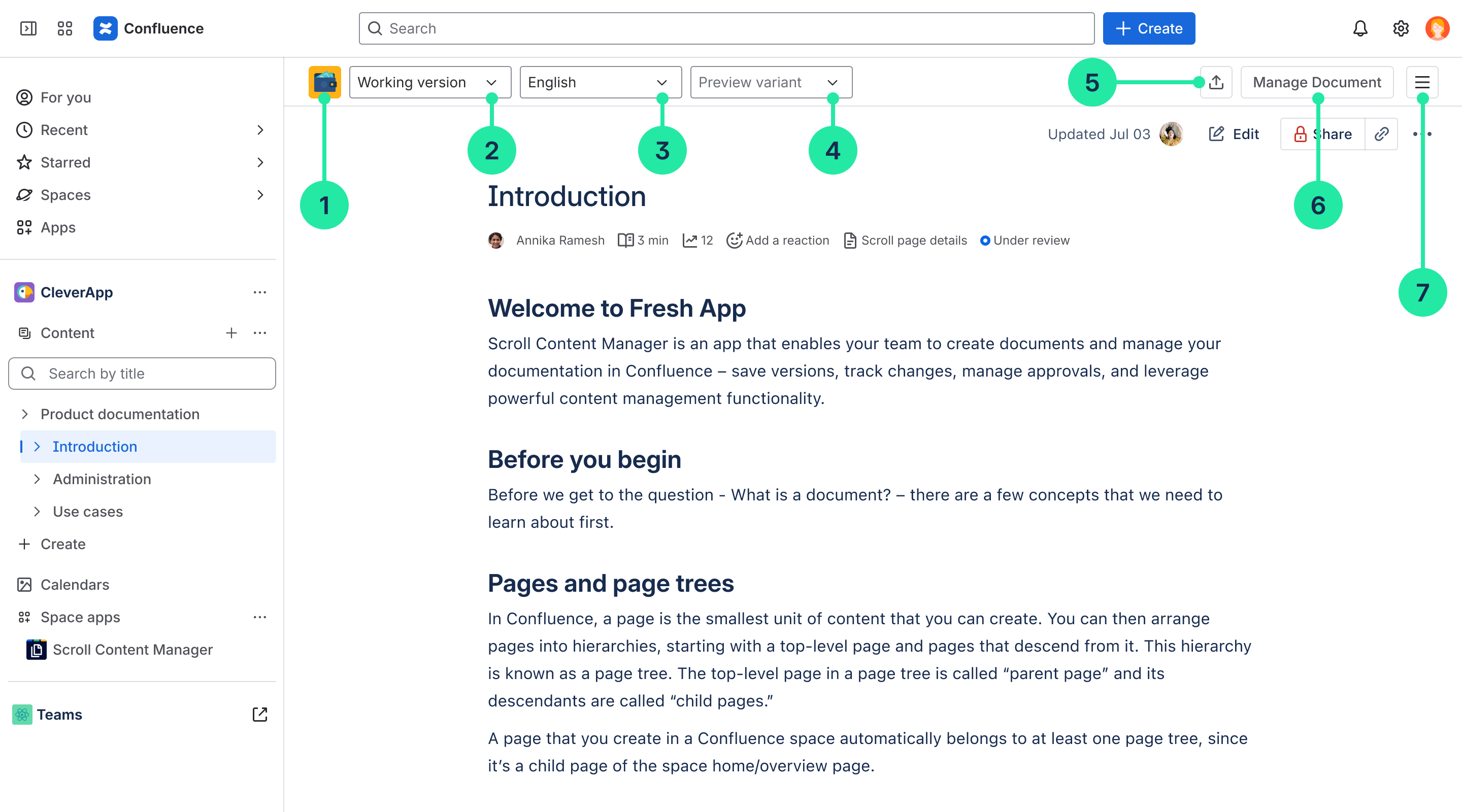
The toolbar is a navigational feature in Scroll Content Manager. Designed for faster navigation, the toolbar lets you:
-
See at a glance whether the page you're viewing is part of a document.
-
Switch between different versions of your document.
-
Switch between translations of your document.
-
Preview variants of your document.
-
Export your document with Scroll PDF, Word, or HTML Exporter.
-
Access the Document Manager.
-
Access version actions like Set Scroll Page Title, Organize page tree, Compare versions, and View activity.
Workflow Status
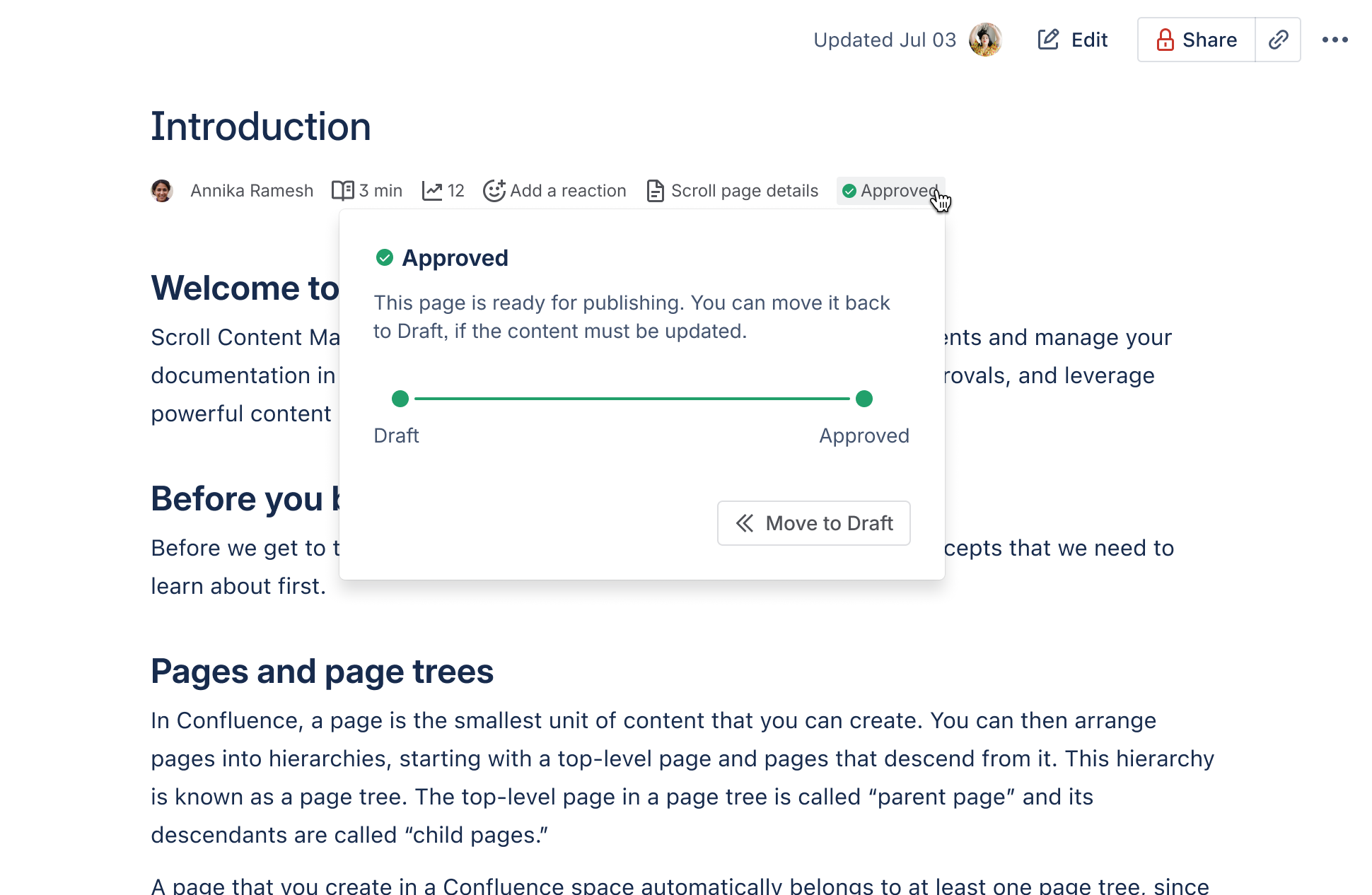
If workflows are enabled in your document, you'll see the page's current status (Draft, In Review, or Approved). If workflows aren't active in the space, you'll see a workflow status entry indicating that this page isn't using a Scroll workflow.