
The Content Manager is a central view that consolidates several content management functions into one overview. It's available in two modes:
-
Space-level Content Manager: View native Confluence page properties such as labels, owners, and contributors, and update some of them in bulk.
-
Document-level Content Manager: Manage the same native Confluence properties, plus the advanced properties that come with a Scroll document, such as workflow status, Context Keys, variants, and translations.
To learn more about the Content Manager, see Manage Page Trees.
What You Can Do in the Space Content Manager
To access the space Content Manager, click Scroll Content Manager in the Confluence sidebar, then click Content if you aren't there already.
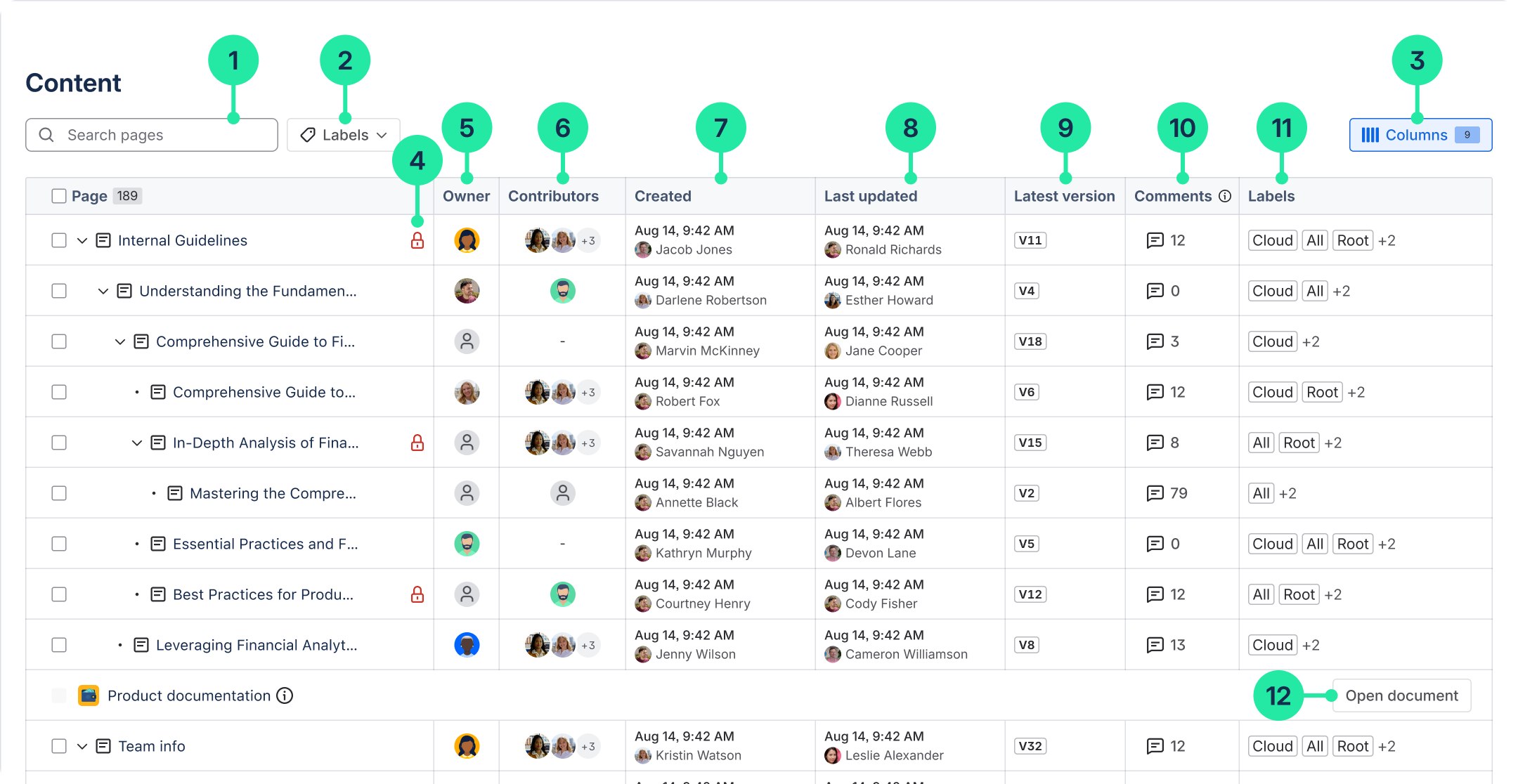
In the space-level Content Manager, you can:
-
Search for pages by title.
-
Filter pages by label.
-
Adjust which columns are visible in the table.
-
See page restrictions.
-
See and bulk-change page owners.
-
See contributors.
-
See the creation date and page creator.
-
See when each page was last updated and by who.
-
See the latest page version number from the Confluence page version history.
-
See which pages have open inline comments.
-
See and bulk-add, replace, or remove labels.
-
Open a document and navigate to its Content Manager.
For more information, read: Manage Page Trees in a Space
What You Can Do in the Document Content Manager
To access the document-level Content manager:
-
In the Confluence sidebar, click Scroll Content Manager, then select Documents.
-
Click the document card for the document you want to work on.
-
Click Content in the document sidebar.
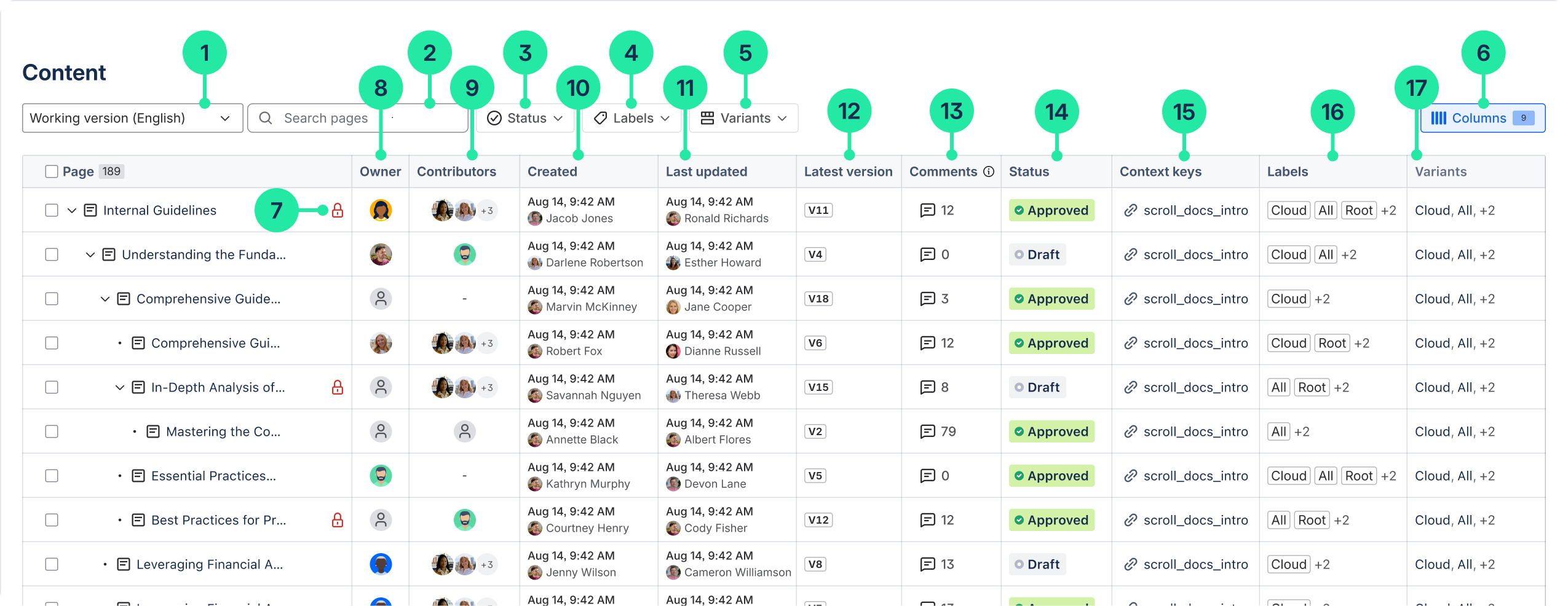
In the document Content Manager you can:
-
Filter the page tree by a specific version or language.
-
Search for pages within the version's page tree.
-
Filter pages by workflow status.
-
Filter pages by labels.
-
Filter pages by variants.
-
View and adjust the scope of the columns visible in the table.
-
View page restrictions.
-
View or change page owners.
-
View contributors.
-
View the creation date and page creator.
-
View when each page was last updated and by who.
-
View the latest page version number from the Confluence page version history.
-
Navigate to unresolved inline comments on a page.
-
View or change the status of a page.
-
View or copy the Context Key of a page.
-
See and change the labels on a page
-
View which variant a page belongs to.
For more information, read: Manage Pages Trees in a Document