You must install the Scroll Exporter Extensions app to use the macros described in this guide.
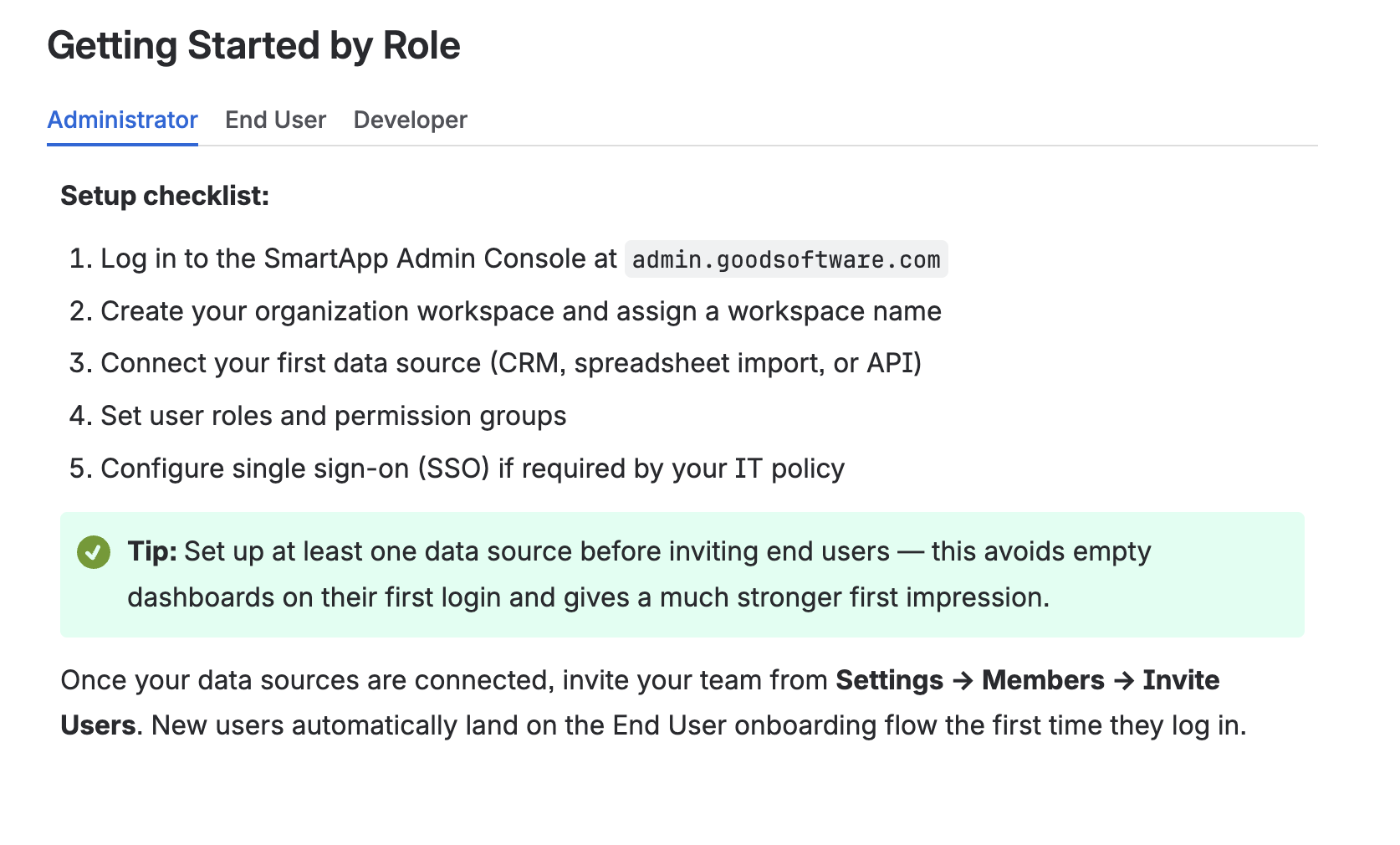
Use the Scroll Tab Group and Scroll Tab macros to organize content on a Confluence page into tabs. Readers can switch between tabs to show or hide sections of content, which is useful for grouping related information — for example, instructions for different operating systems, or configuration steps for different versions of a product.
Support: Scroll Tabs are currently rendered only on Scroll Sites. When exporting with Scroll PDF Exporter, Scroll Word Exporter, or Scroll HTML Exporter, the content of each tab is included in the export, but not as interactive tabs — all tab content is exported one after another.
Add a Tab Group
-
On your Confluence page, place your cursor where you want the tabs to appear.
-
Insert the Scroll Tab Group macro.
The Scroll Tab Group macro is a container. On its own it doesn't display anything — you need to add at least one Scroll Tab macro inside it.
Add Tabs
-
Inside the Scroll Tab Group macro, insert a Scroll Tab macro.
-
Give the tab a title. This title is what readers see and click on to switch to that tab.
-
Add the content for that tab.
-
Repeat steps 1–3 to add more tabs to the same group.
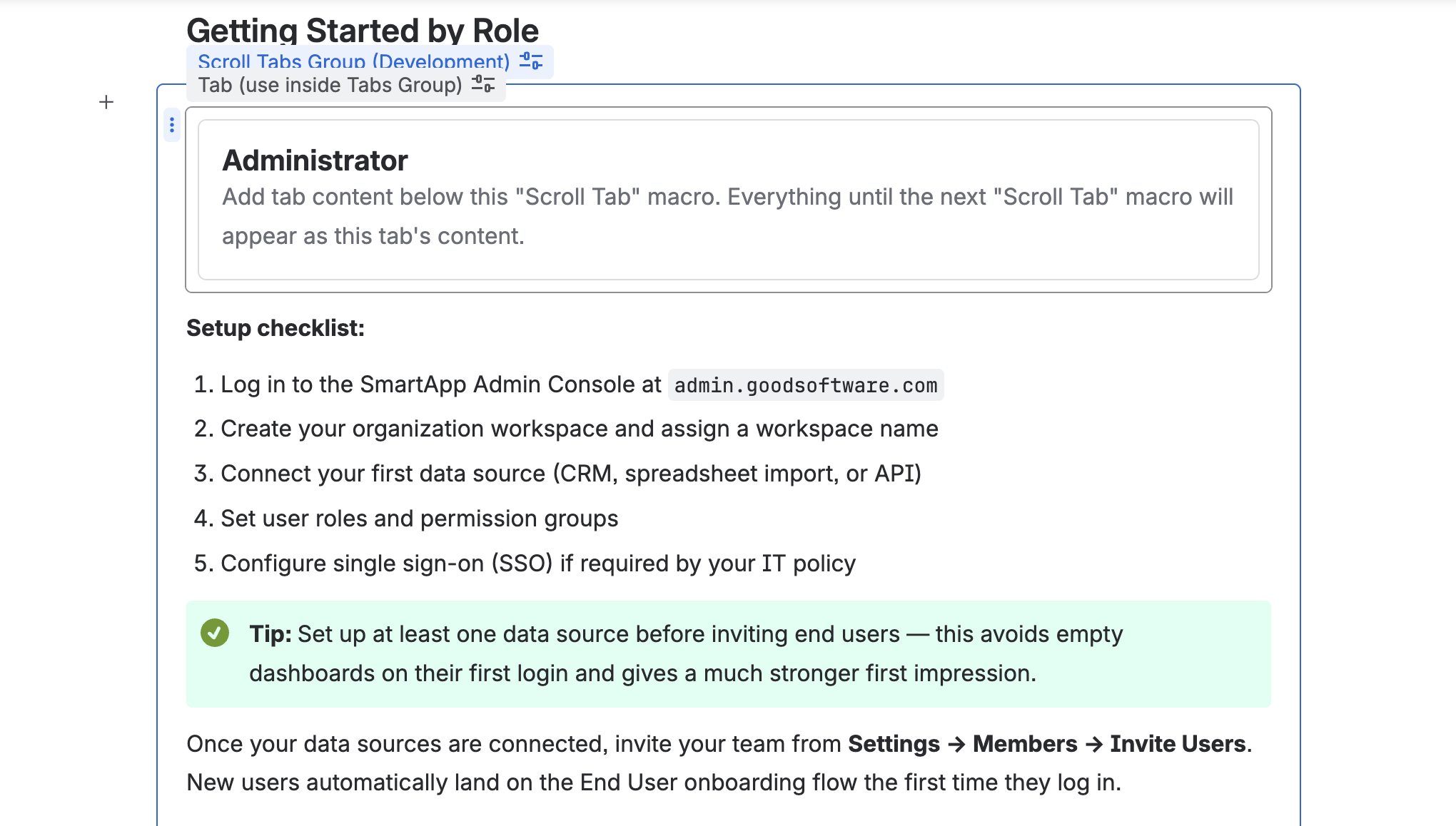
Result
On the Confluence page, the Scroll Tab macros render as clickable tabs — only the content of the selected tab is shown at a time.