
Scroll Viewport has evolved into Scroll Sites, and your content now lives safely in the new app.
Atlassian is ending support for Connect-based apps, and Scroll Viewport was built on Connect. That's why we built Scroll Sites as the successor to Scroll Viewport on Atlassian Forge and decided to retire Scroll Viewport on September 30, 2026.
What Happens to Your Sites
On October 1, 2026, we’ve began automatically moving every remaining Scroll Viewport site to Scroll Sites, whether it's published or not. You don’t need to do anything.
Your live sites will keep running.
What Does the Auto-Upgrade Process Look Like?
The upgrade process to Scroll Sites involves replicating each of your existing Scroll Viewport sites as a new Scroll site. This new Scroll site will then eventually replace your existing Viewport site.
-
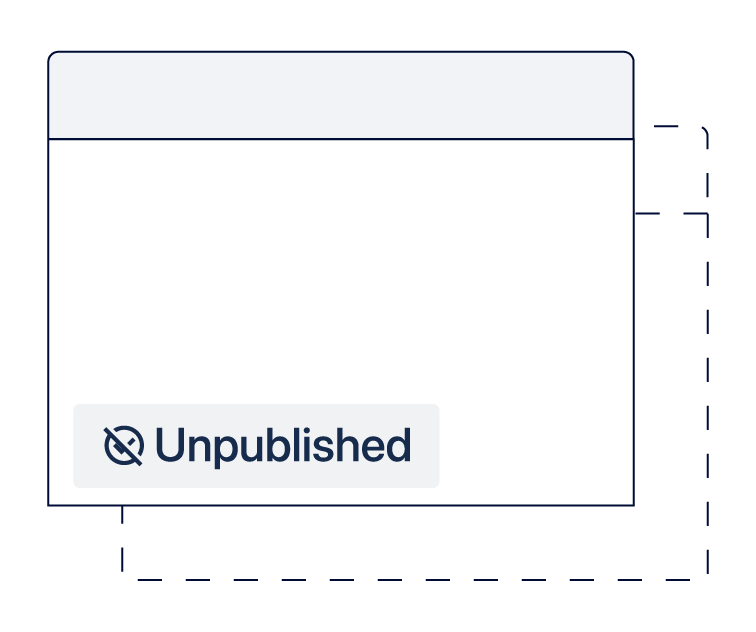
Replicate
A Scroll Sites site is created with your settings, theme, and redirects. It has a temporary web address.
-
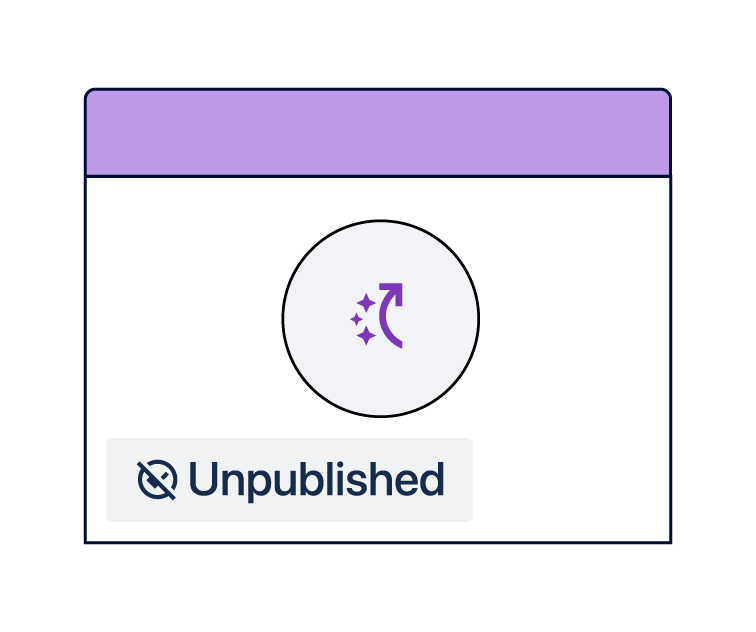
Review Import
Review upgrade of your site and adjust settings if needed.
-
Hand over domain
Your live site's site url address moves from Viewport to Scroll Sites.
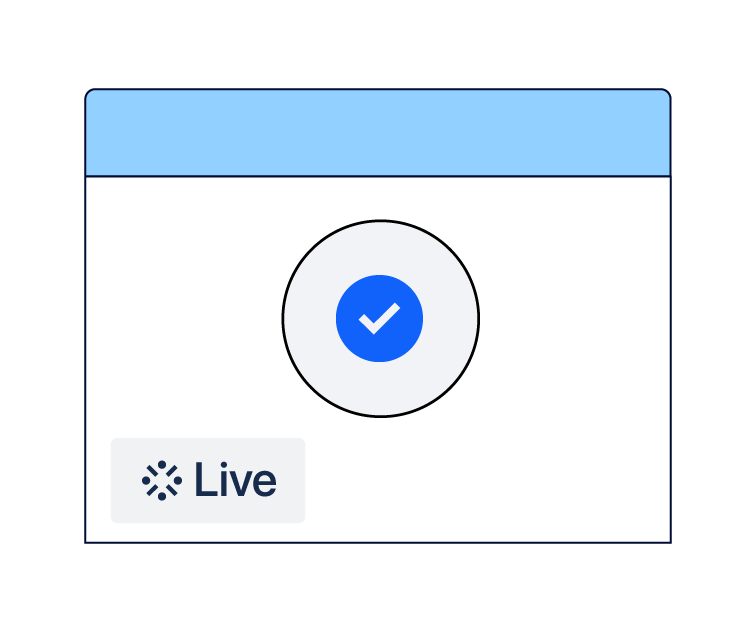
-
Complete the upgrade to Go Live with your site.
The migrated site copies the last published pages from Viewport, not the current Confluence content. This means what visitors see stays the same as it was on Viewport.
-
Important: The migrated site copies the last published pages from Viewport, not the current Confluence content. This means what visitors see stays the same as it was on Viewport.
-
You'll manage your sites in the Scroll Sites app in Confluence.
-
Your billing doesn't change.
Where to Find Scroll Sites
Scroll Sites is a its own, unique, app in Confluence. To open it:
-
In the Confluence sidebar, click Apps.
-
Click Scroll Sites.
-
Review you migrated sites in the My sites section.
Look for sites with the auto-upgraded label.
From now on, you can manage and update your sites in Scroll Sites.
Review or Delete Your Auto-Upgraded Sites
Your auto-upgraded sites are listed in the purple box on the My sites screen. Go through the list and decide for each site whether to keep it or delete it.
Review a site
-
In the list, look for the site you want to review and hover over it.
-
Click Review site.
The auto-upgrade is a great opportunity to review the sites that are not in active use. For more information see Review the Auto-Upgraded Sites in Scroll Sites
Delete sites you don’t needed
Deleting a site permanently removes it and all its configuration. If the site is live, visitors can no longer reach it. You can't undo this.
-
Select the checkbox next to each site you want to delete
-
Click Delete sites
-
In the confirmation dialog, enter ‘delete’ in the "delete" to confirm field
-
Click Delete
Your site is now permanently deleted and removed from the purple box on top of the Scroll Sites' My sites list.
Additional Resources