
Which Content Types Does Scroll Content Manager Support?
Before you create your new document, it’s important to understand that Scroll Content Manager is specifically designed for use with standard Confluence pages.
Scroll Content Manager cannot be used to manage blog posts as the enabling of Scroll Content Manager on blog posts is not supported.
Now, let's explore the various ways in which you can create a document using both new and existing Confluence pages below.
Use Existing Page Tree
Your documentation could be organized as a single Confluence page, a page tree, or an entire Confluence space. This option will create a new document, enable versioning for it, and add your documentation page tree (with its structure and content) as the Working version.
But, before we can begin, here are a couple of things you should know -
You can create a new document from existing content in two ways:
-
From the Document Library,
-
or via the Document toolbox.
Start from the Document Library (recommended)
To create a document from an existing page tree in the Document Library, follow the steps below:
-
Navigate to the space where your documentation exists and select Scroll Content Manager from the sidebar.
-
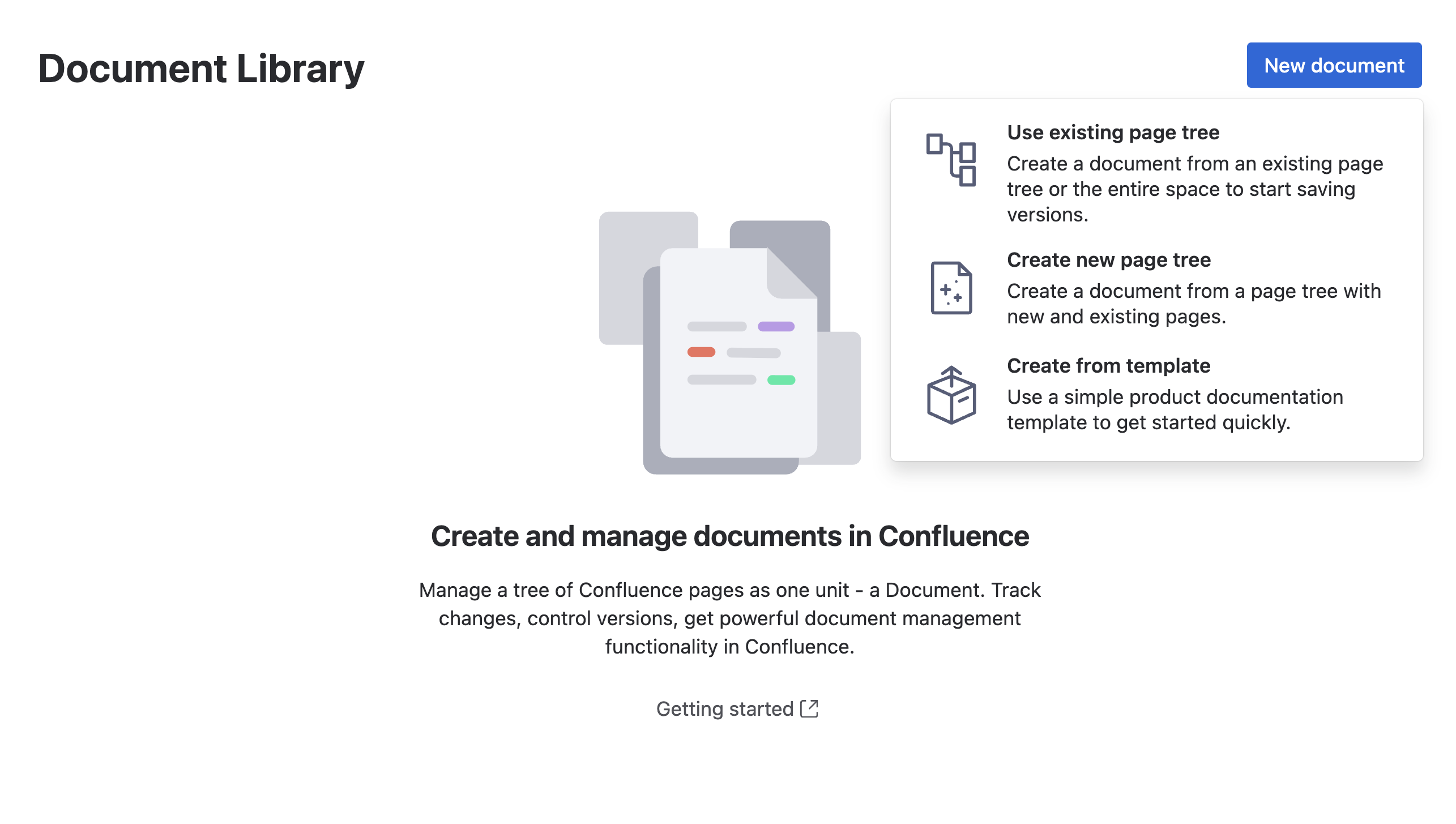
Click New document > select Use existing page tree. The Select page tree dialog displays.
-
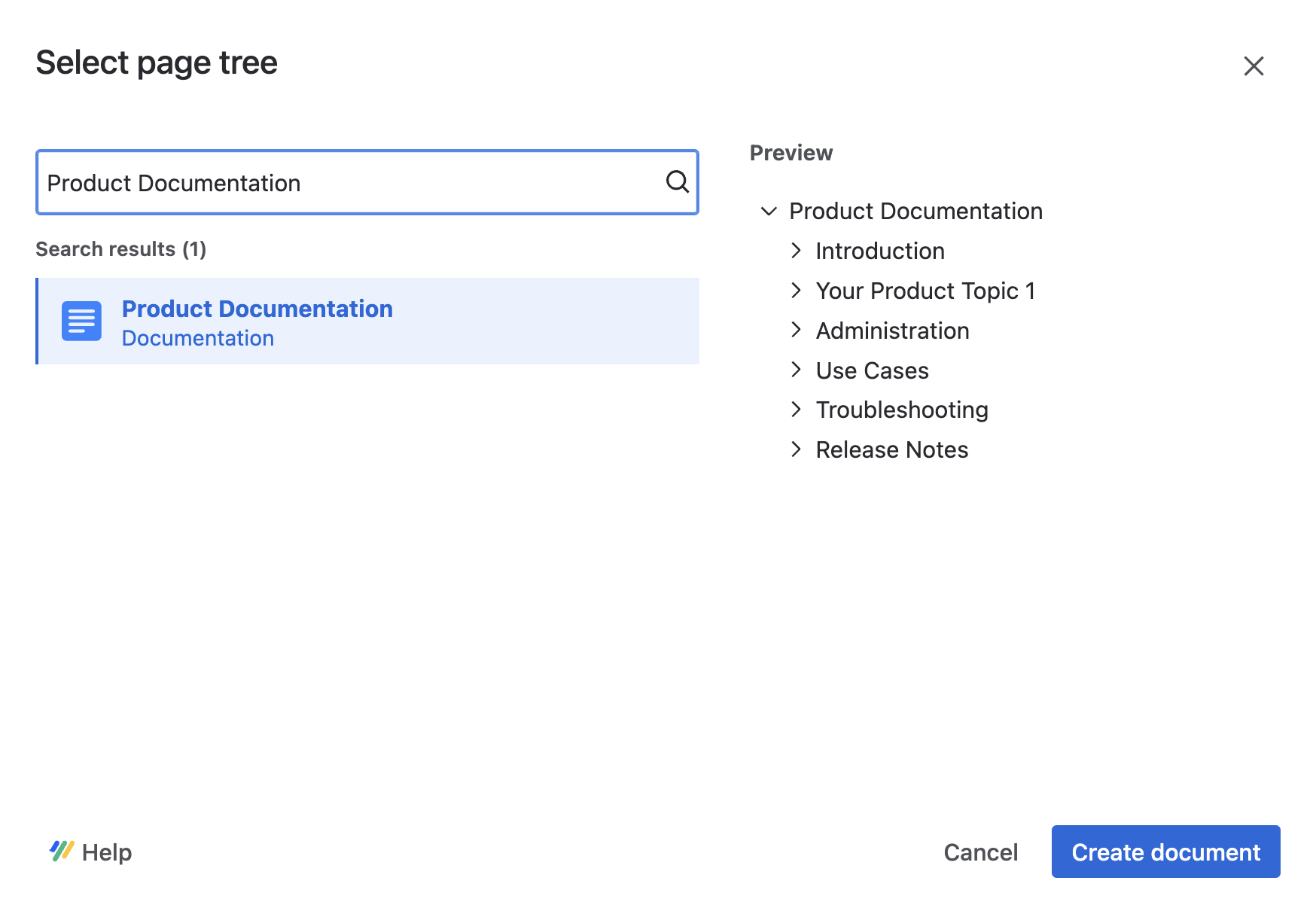
Search for the root page of your documentation and select it from the search results, you should see the structure of your documentation in the preview.
-
Next, click Create document.
Start from the Document toolbox
To create a document from an existing page tree from the Document toolbox, follow the steps below:
-
Navigate to the root page of your documentation.
-
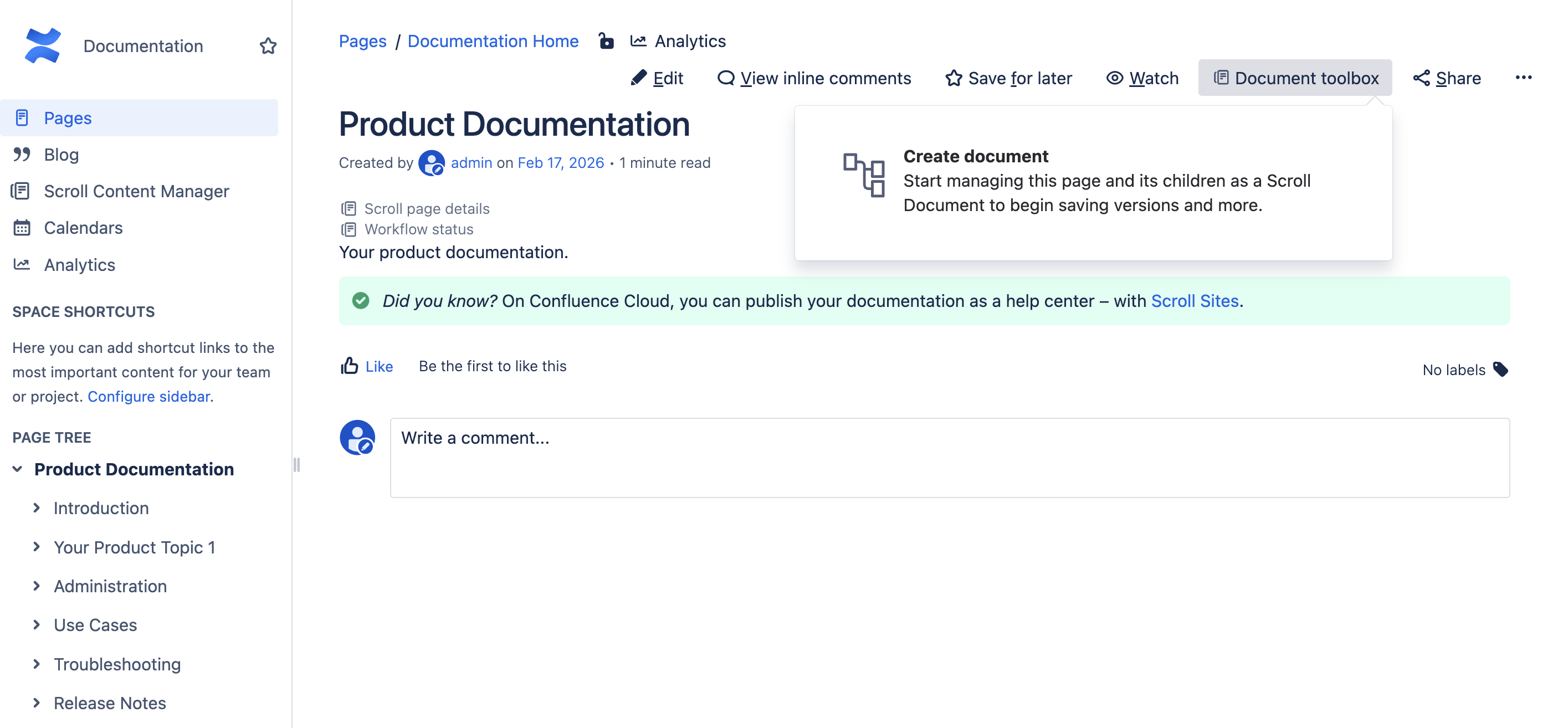
Click Document toolbox located at the top of the page where page actions are located.
-
Next, click Create document.
Create New Page Tree
This option creates an empty document and enables versioning for it. It also lets you define the structure of your documentation page tree and adds it as the Working version of the document.
-
Open Scroll Content Manager from the Apps section in your space sidebar.
-
From the Document Library, click New Document in the upper right corner.
-
Select Create new page tree.
-
In the Document Details define document details such as Document owner, document title and summary.
-
In the Organize Page Tree, define and organize your documentation page tree.
6. Click Save.
The pages you define and add in the Organize Page Tree dialog, will be added to the Working version of your document.
Create From Template
This option creates a new document, enables versioning for it, and creates a new documentation page tree that is defined and structured by a template. It then and adds the page tree as the Working version of the document.
-
Click Scroll Content Manager in the Confluence sidebar.
-
From the Document Library, click New Document.
-
Select Create from template.
-
Make sure that Product Documentation is selected, then click Next.
-
Edit the document details such as Document owner, document title, summary, cover image, and labels.
-
Click Save.
What’s Next?
Scroll Content Manager has now turned your content into the Working version of a document. You can think of your Working version as the continuously progressing version of your document.
Use this version to prepare changes to your document and save a version once complete.