
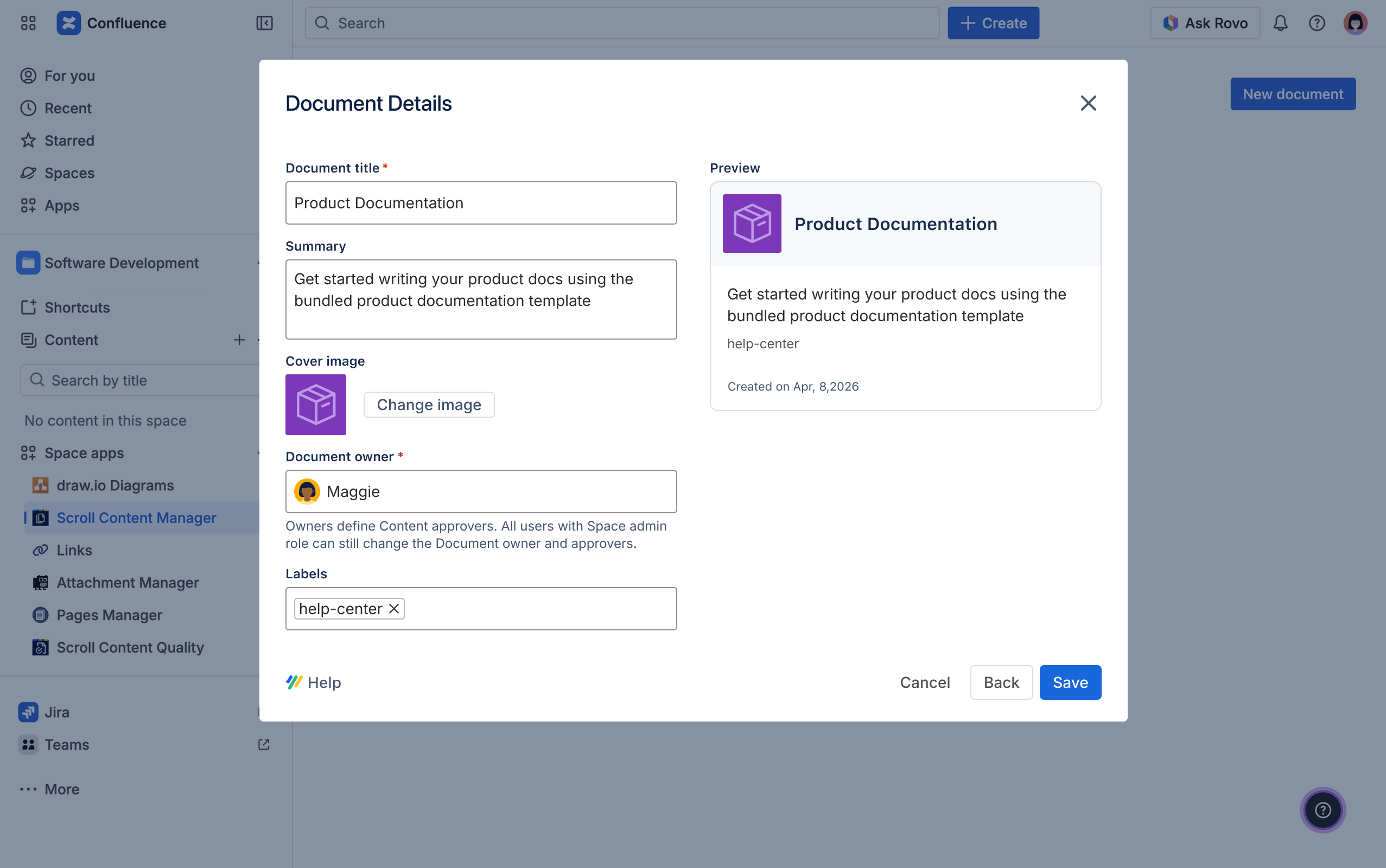
Once you have initiated the document creation process, you can add metadata to your document which includes the document title, labels, summary, and cover image. You can also edit all these details after document creation.
Define Document Details
To define the metadata of a new document, start by creating a document.
From the fields in the Document details:
-
Enter a document title of your choice.
-
Add a Document owner.
-
A Document owner can assign Content approvers if you are making use of workflows. To learn more, see: Add Content Approvers
-
A space admin can assign or change the document owner at any time through the Document Settings.
-
(Optional) add:
-
Labels which offer flexibility for categorizing and filtering the documents in your space. Note that the document labels are not the same as Confluence page labels.
-
Summary to help you and other users know what this document is about without having to open or read each individual page.
-
Cover image to help you visually identify and distinguish your document in the document library.
-
Edit Document Details
You can update your document's metadata at any time within the General document settings.
To get started, navigate to the Document Manager:
-
Click Scroll Content Manager from the space sidebar.
-
From the Document Library, click the document card of a document.
Or
-
From a page in a document, click Document toolbox.
-
Click Manage (the cog icon).
In the Document Manager:
-
Click Settings.
-
Within the Document settings screen click General.
2. Update what details you find necessary.
3. Click Save.
How to Update the Cover Image
To update the cover image of your document follow these steps:
-
Navigate to the Document details within the General settings following the instructions above.
-
Click Change image, from here you can choose between the options:
-
Gallery if you want to use a default image.
-
Upload image if you want to upload and use a custom image.
-
-
Click Save when you are done.
When updating the cover image keep in mind that Scroll Content Manager only support the formats:
-
.jpg
-
.jpeg
-
.png