
In Confluence, it is not possible for two pages to have the same title in a single space. As a result, Scroll Content Manager adds a prefix to every page in a version of a document to work around this limitation. When saving a version, the version name is used as the default prefix, e.g. if you have chosen a version name like - 1.0.0, then the prefix will be (1.0.0).
Learn more about why version prefixes are useful and about how to use duplicate page titles within a document version.
But there may be situations where you would like to change this prefix, for example:
-
If you choose to rename the version, or
-
You would like a different prefix scheme
In which case, you can use the Change prefix option to update the prefix of all pages of a version in bulk.
Change Prefix
Changing the prefix for a version updates the prefix of all the pages in the document version.
Before you can update the version prefix, you need to navigate to the Document Manager:
-
Click Scroll Content Manager from the space sidebar.
-
From the Document Library, click the document card of a document.
Or
-
From a page in a document, click Document toolbox.
-
Click Manage (the cog icon).
Once you are in the Document Manager, follow the steps below in order to update the version prefix:
-
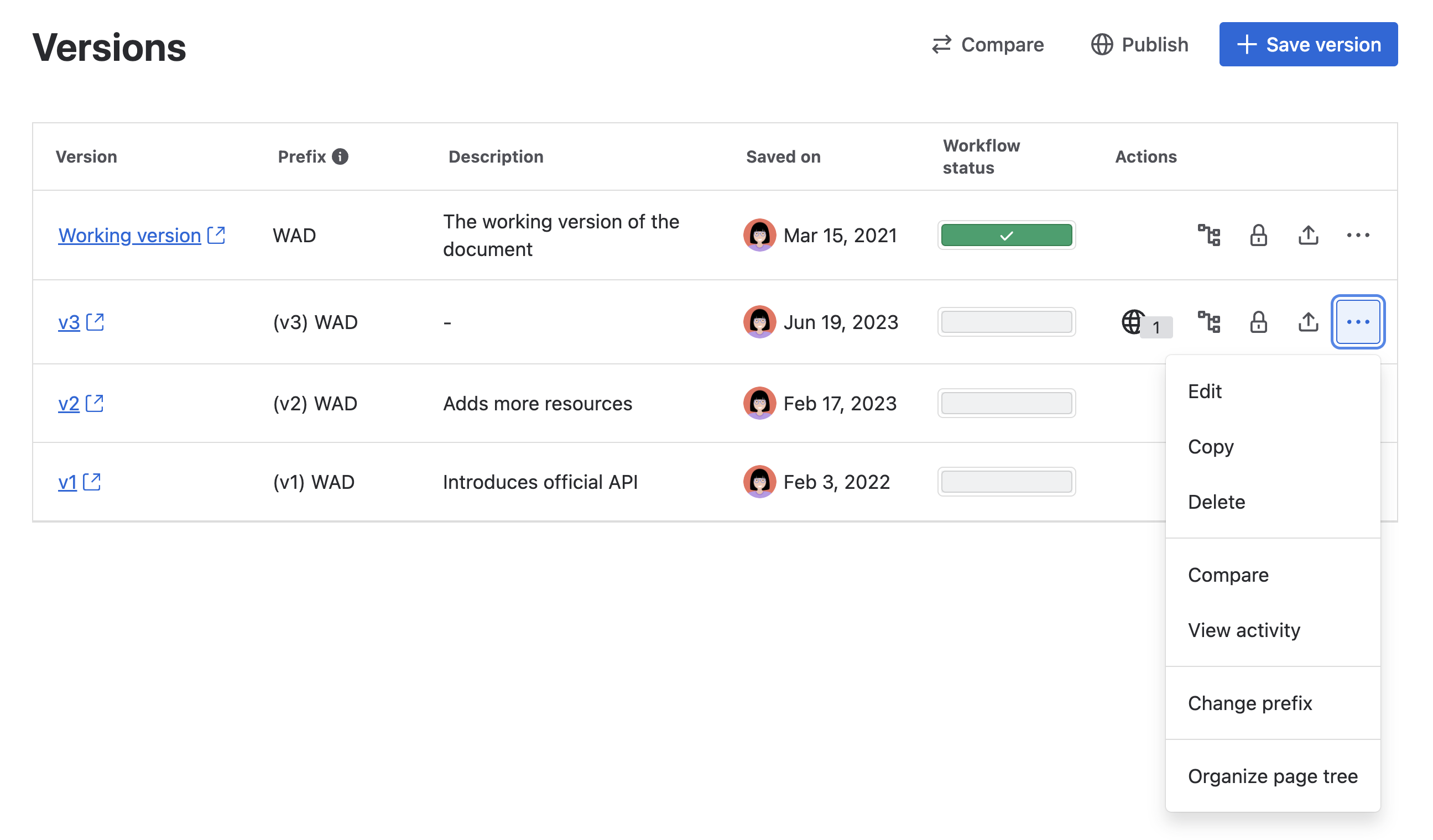
For the version you want to edit details for, click More page tree actions (•••) > select Change prefix.
-
Add the new prefix in the Prefix text box.
-
Click Save.