
Manage page trees in Confluence, either at the space level, without needing to create a Scroll document, or at the document level, where you can take advantage of advanced document management features. Both are handled through the Content Manager.
What is the Content Manager?
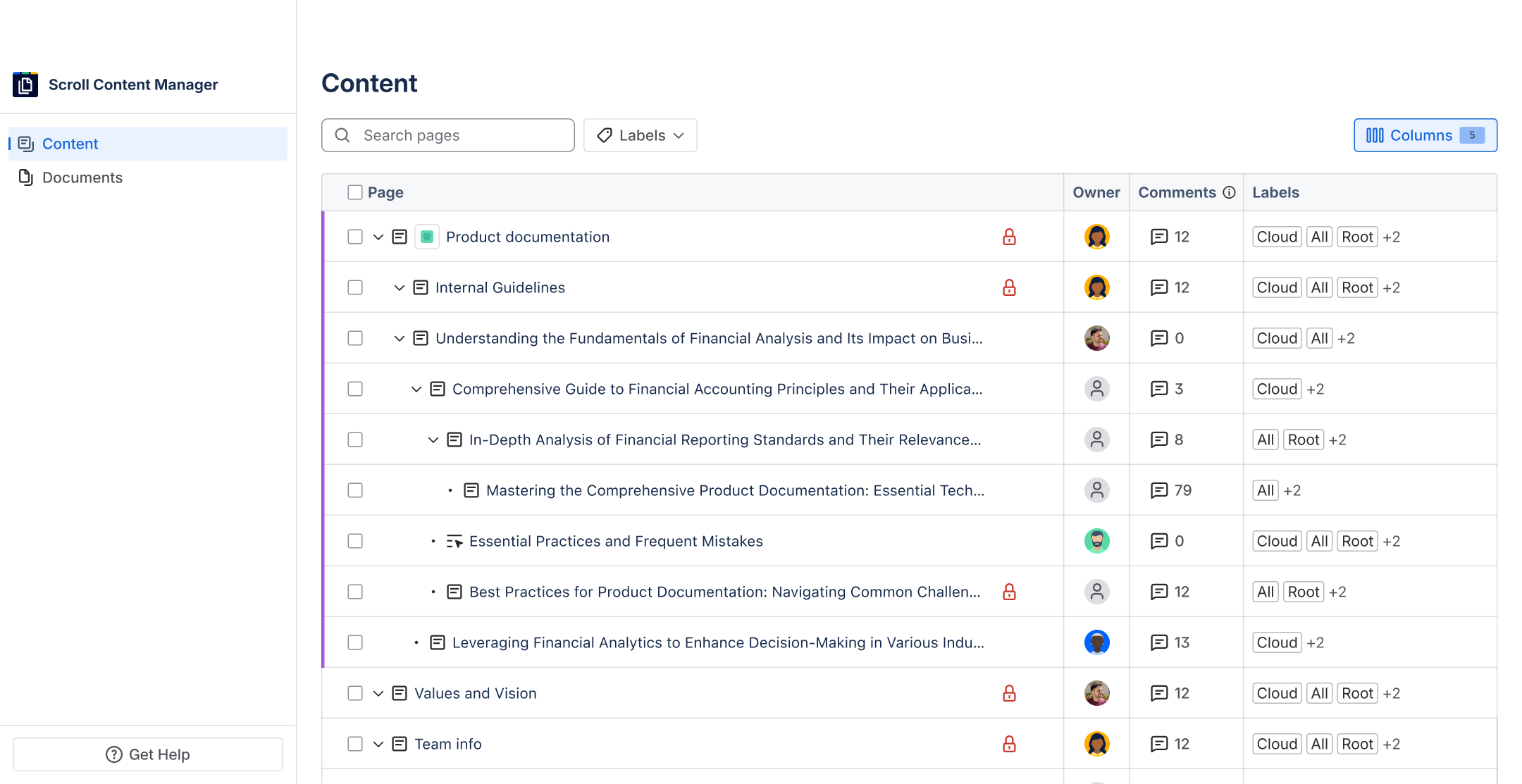
The Content Manager is a sortable, filterable table that shows every page within your space or inside a Scroll document. It brings together information and actions that were previously spread across different parts of Confluence, so you can review and update content from a single view.
By "content," we mean pages and their associated properties, for example, workflow status, ownership, labels, context keys, assigned variants, and more.
Space-Level and Document-Level Content Manager
The Content Manager is available in two modes. What you can manage depends on which mode you're using:
-
At the space level, you can see Confluence-native page properties such as labels, comments, owners, contributors, last updated date, and more. Useful for teams that want a content overview without setting up a Scroll document.
-
At the document level, you can additionally see or update properties that are specific to Scroll documents, such as workflow status, context keys, variant labels, and translation status labels. This is useful for teams using Scroll documents to handle versioning, multiple languages, and content for different audiences.
In both modes, you can use bulk actions to update properties across many pages at once, making large-scale content management more efficient.
What's Next?
To learn more about each mode of the Content Manager, see:
-
Manage Page Trees in a Space The Content Manager is now available at the space level, giving you a single view of all content in a space.
-
Manage Pages Trees in a Document Manage every page in your document from a single view with the document-level Content Manager.
-
Perform Bulk Actions in Content Manager In the Content Manager, you can perform bulk actions to update your page properties
-
Customize the Content Manager view The Content Manager is flexible, you can choose which columns are visible, reorder them, filter the list, and refresh for the latest updates. At the document level, you can also switch between page trees from different versions and translations.