
Learn how Scroll Sites optimizes your help center site for the best possible results with AI tools and large language models (LLMs).
Every Scroll site automatically includes a llms.txt and llms-full.txt file in order to ensure LLM-ready sites.
Scroll Sites' Help Center theme also comes with a ready-to-use AI toolbox integrated directly into your help articles that will make it very easy for your site visitors to interact with the content in your site using AI tools (e.g ask questions about the content).
By default, all help center articles will show a prominent Use with AI dropdown menu in the top right of the page, from which all options can be accessed. With the help of this integrated menu it’s fast for your visitors to transition directly from the help center to the AI tools of their choice.
When Hide site from search engines is enabled, LLM tools and AI crawlers won’t be able to read your site either. The external tool entries in the Use with AI menu (Chat with ChatGPT, Chat with Claude) are therefore hidden as long as this setting is on. View as Markdown and Copy as Markdown remain available.
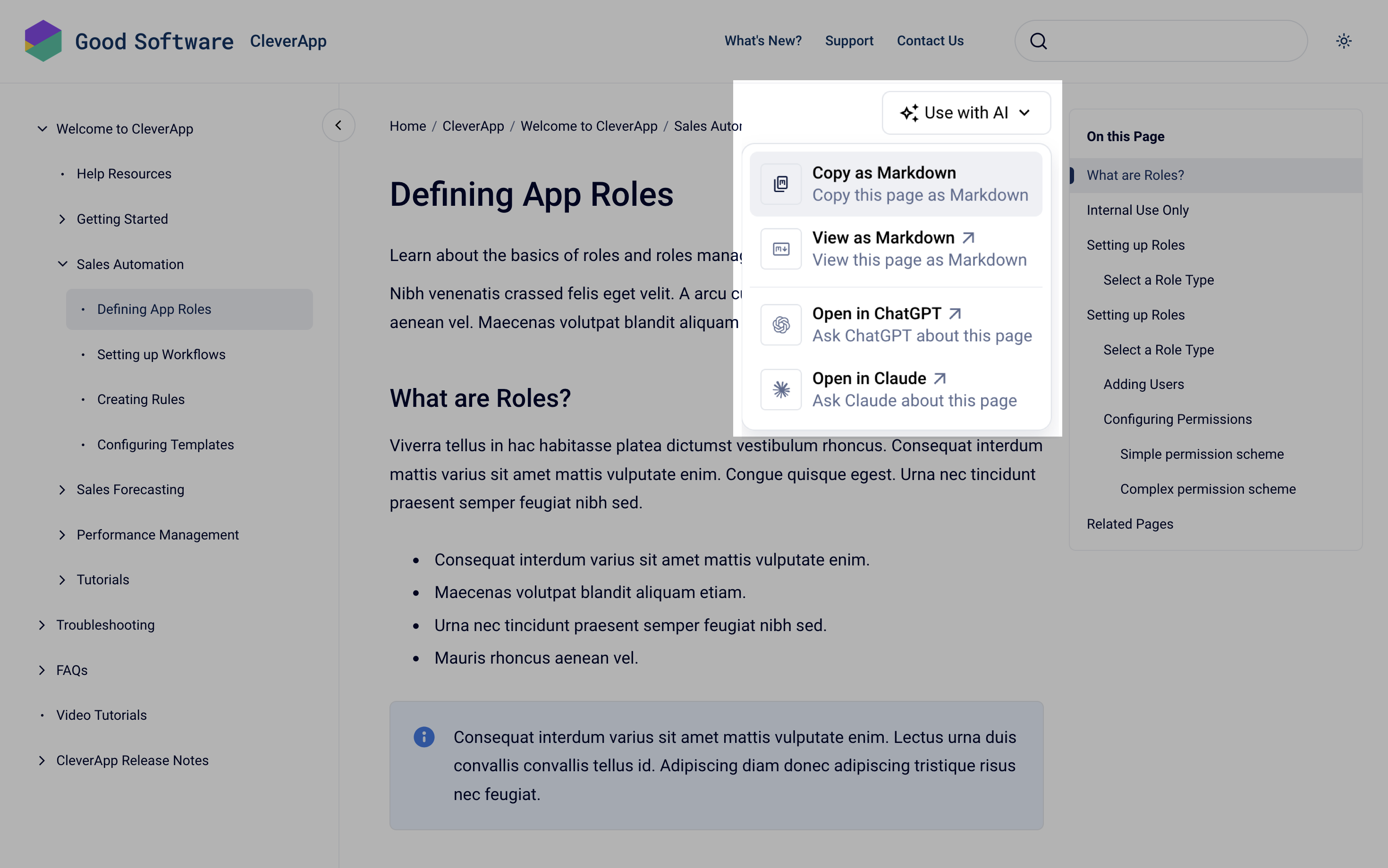
The offered Use with AI options are always scoped to the current article.
Copy or View Articles as Markdown Files
By selecting the options
-
Copy as markdown
-
View as markdown
your site visitors can copy and view the article’s content in markdown format. These options will let your site visitors easily bring the .md files into their preferred Large Language Model or AI tool.
The markdown format will ensure optimal results with AI tools as it’s the preferred, structured text format for AI, offering a lightweight, human-readable, and machine-parsable syntax.
Initiate a Chat With ChatGPT Or ClaudeAI
By selecting the options
-
Open in ChatGPT
-
Open in ClaudeAI
you site visitors can initiate a chat with either one these two AI tools. The chat starts with the prompt “Read [.md file of selected article] and answer questions”, making it very easy for your visitors to continue the chat directly with their questions or queries for this specific article.
Hiding the Use With AI Menu
The Use with AI menu is enabled for all your help center article by default.
If you prefer to hide this menu for all your articles in the site, you can do so by injecting the following custom CSS code:
ai-actions {
  display: none;
}
If you prefer to hide only specific items from the menu, you can do so by injecting the following custom CSS code:
const dropdown = document.querySelector('ai-actions');
if (dropdown) {
  dropdown.filter = (id) => !['option-1', 'option-2'].includes(id);
}
In the code above, depending on the options you want to hide, you need to replace option-1 and option-2 with one or more of these item IDs:
-
copy-as-markdown -
view-as-markdown -
open-in-chatgpt -
open-in-claude
Using llms.txt and llms-full.txt Files to Help AI Tools Crawl Your Site
With each Scroll site, we automatically generate a llms.txt and llms-full.txt file with the paths /llms.txt and /llms-full.txt in your domain's top level directory (e.g. example.scroll.site/).
These standard files clearly tell large language models which pages they can access and crawl on the site and what content they contain.
llms.txt is a markdown file that includes:
-
links to all pages in the site
-
excerpts or summaries of the pages
llms-full.txt is a markdown file that includes:
-
the titles of all pages in the site (if using Scroll Documents: it includes information about their version, variant and language)
-
the page’s full content in markdown
In combination, these files allow large language models to consume the site more effectively and intelligently - giving your users better results when they ask the AI tools of their choice questions about the content of your site.
Large language models will typically look for these files in their location.
Please note that you cannot modify the provided text file.