
The Scroll page details, Document toolbox, toolbar and workflow status are all tools you can access directly from the Confluence page view of your documents' pages.
They provide quick access to page specific actions and information, such as adding a Scroll page title, comparing document versions, or navigating back to the Document Manager.
Scroll Page Details
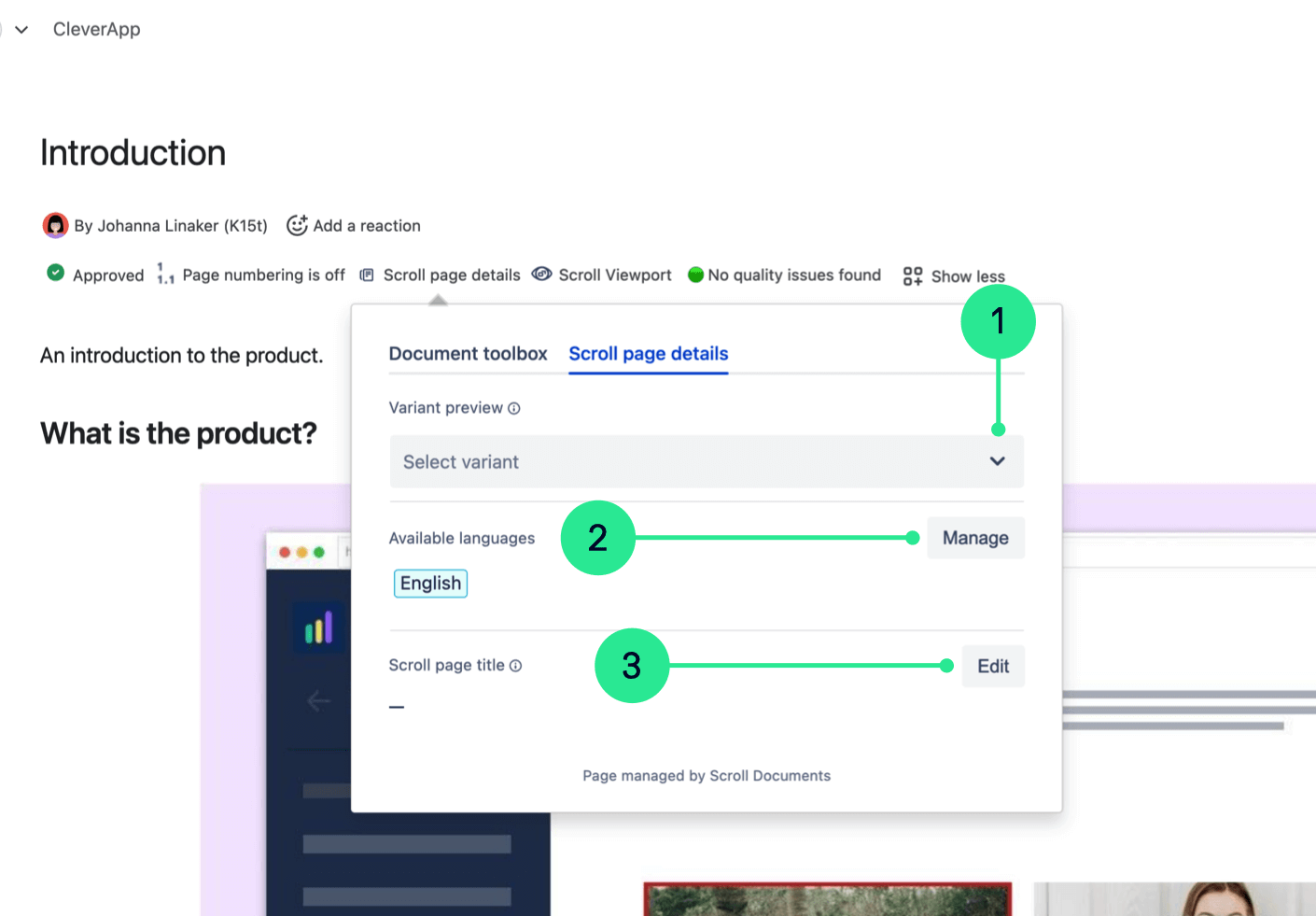
With Scroll Documents installed, a new Scroll page details entry appears in the byline of your Confluence pages. A quick click reveals key details about your page:
-
Is it part of any variant? If this page is part of a document with variants and contains conditional content, you can preview how the conditional content will appear in each variant before exporting or publishing. To learn more, see: Preview Variants
-
Is translations enabled for this document? If so, you can see which languages this page exist in. You can also create translations of your versions, or manage existing ones, directly from the page instead of using the Document Manager. To learn more about this read: Update Translations.
-
Does it have a Scroll page title? If the page is a part of a document you’ll see wether the page has a Scroll page title. This special title is used when publishing to Scroll Sites or exporting with our Scroll Exporter apps. You can learn more about how to customize Scroll page titles here: Add Scroll Page Titles
Document Toolbox
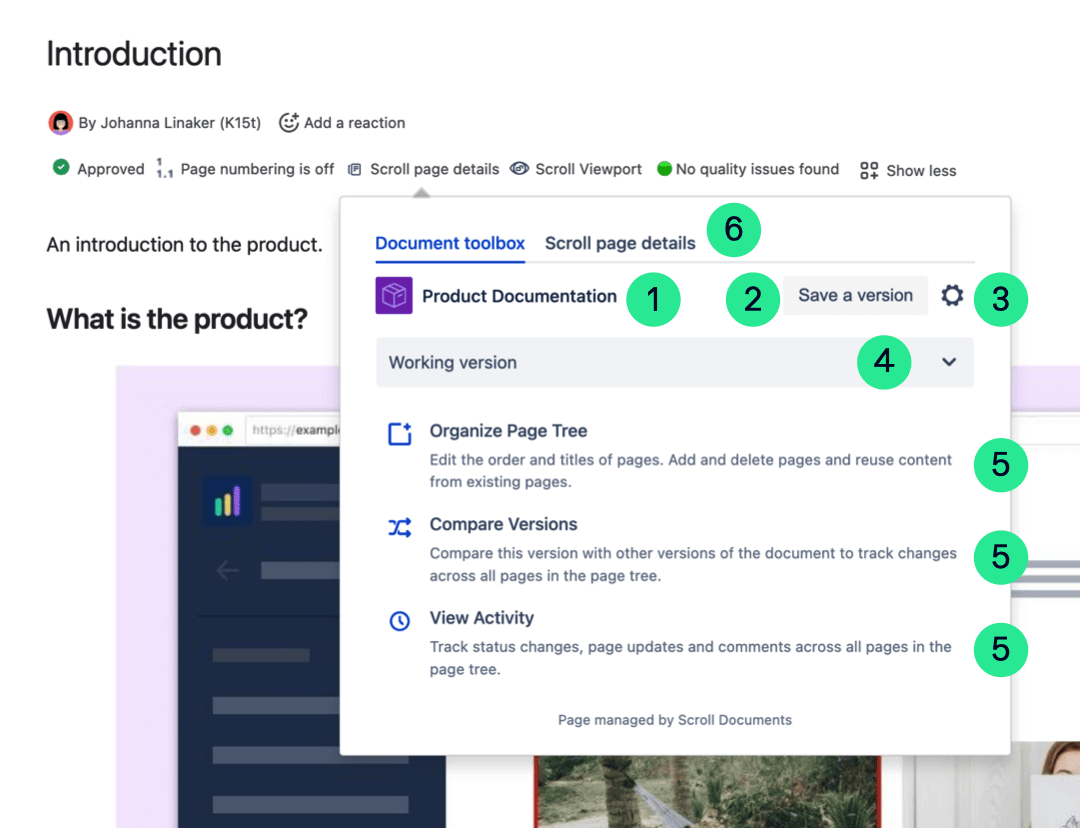
From the Document toolbox, you can:
-
See the name of your document.
-
Save a version of your document.
-
Navigate to the Document Manager to access more document-specific actions.
-
Switch between versions and translations using the built-in pickers.
-
Execute version-specific actions, including:
-
Access the Scroll page details.
Toolbar
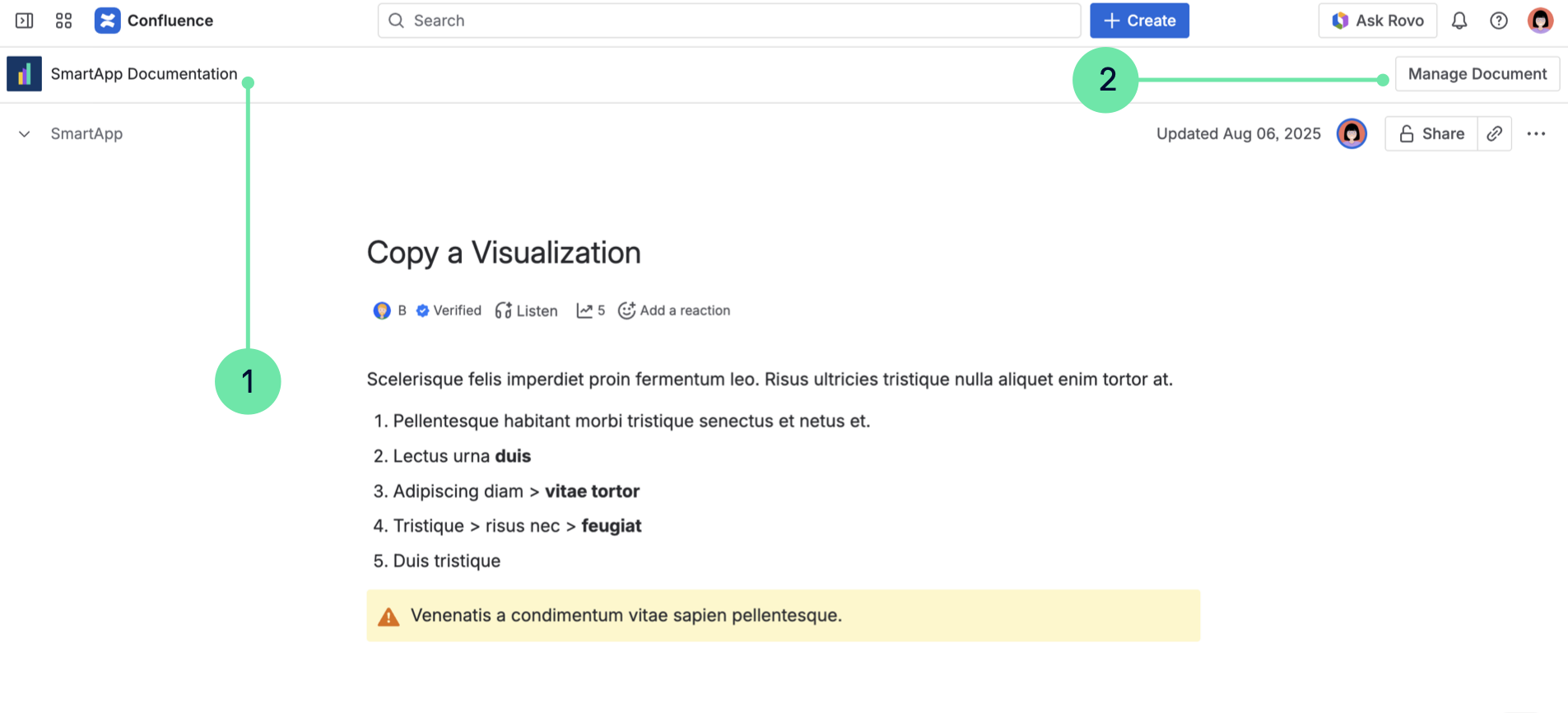
The toolbar is a new navigational feature in Scroll Documents.
Designed for faster navigation, the toolbar enables you to:
-
Immediately see if the page you are viewing is part of a document.
-
It also provides quick access back to the Document Manager.
Future updates will also add a version picker and workflow status directly into the toolbar.
We would love to hear your feedback!
Your input is essential as we continue to develop the toolbar. If you have ideas for improvements or want to contact support with detailed feedback, please don't hesitate to reach out. Send us an email using this link: Provide feedback
Let us know what you think ❤️
Workflow Status
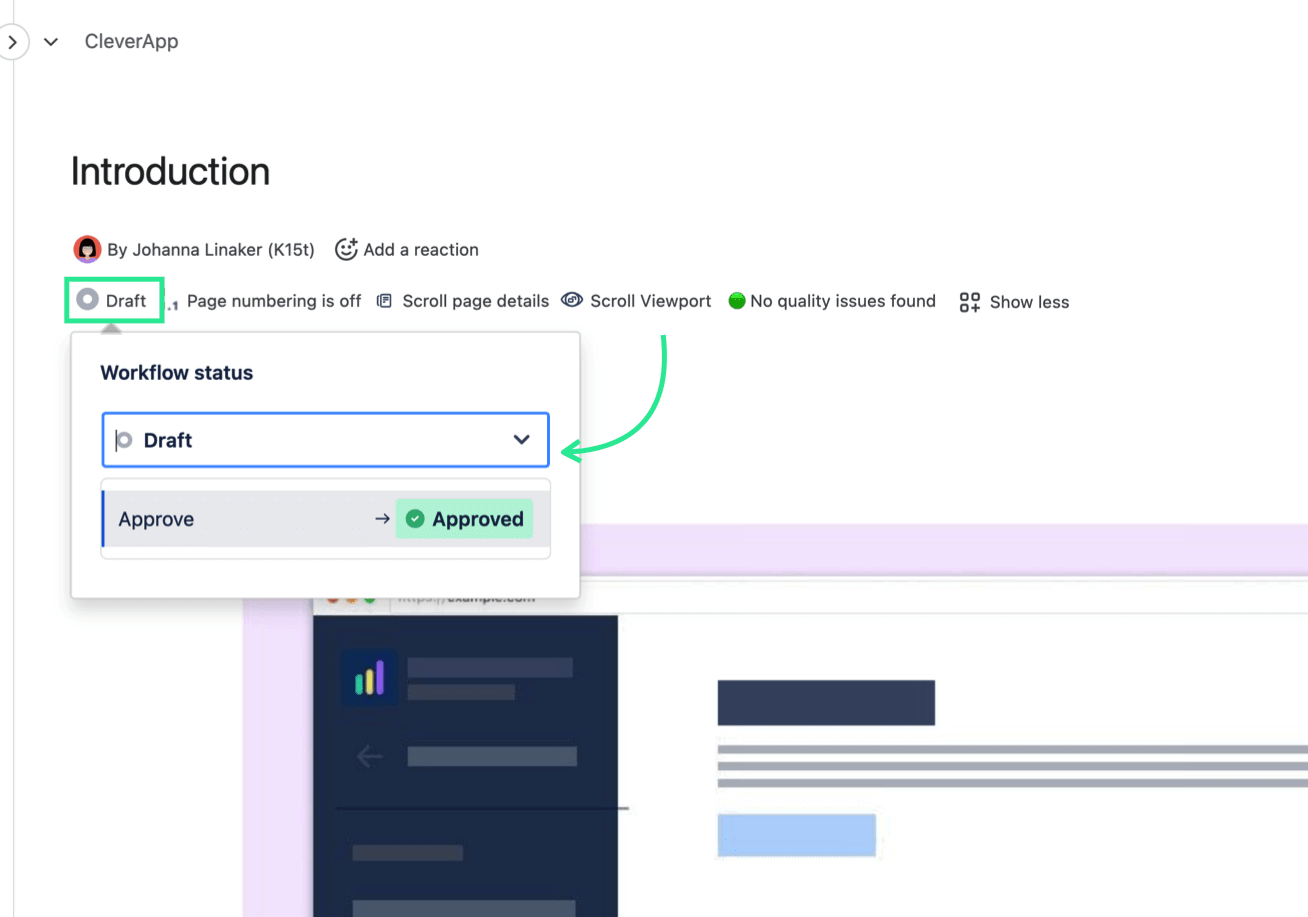
If Workflows are enabled in your document, you'll see the page's current status (Draft, In Review, or Approved). If Workflows aren't active in the space, you'll see a workflow status entry indicating that this page isn't using a Scroll workflow.