
The Version list is the place within the Document Manager where you manage the versions and translations of your document. Here, you can perform key actions like saving versions, creating variants and translations, and publishing to other Confluence spaces.
To access the Version list:
-
Click Scroll Documents from the space sidebar.
-
From the Document Library, click the document card of a document.
-
Within the Document Manager, click Versions.
Or
-
From a page in a document, click Scroll page details.
-
Ensure the Document toolbox tab is selected.
-
Click Manage (cog icon) to access the Document Manager.
-
Click Versions.
What You Can Do in the Version List
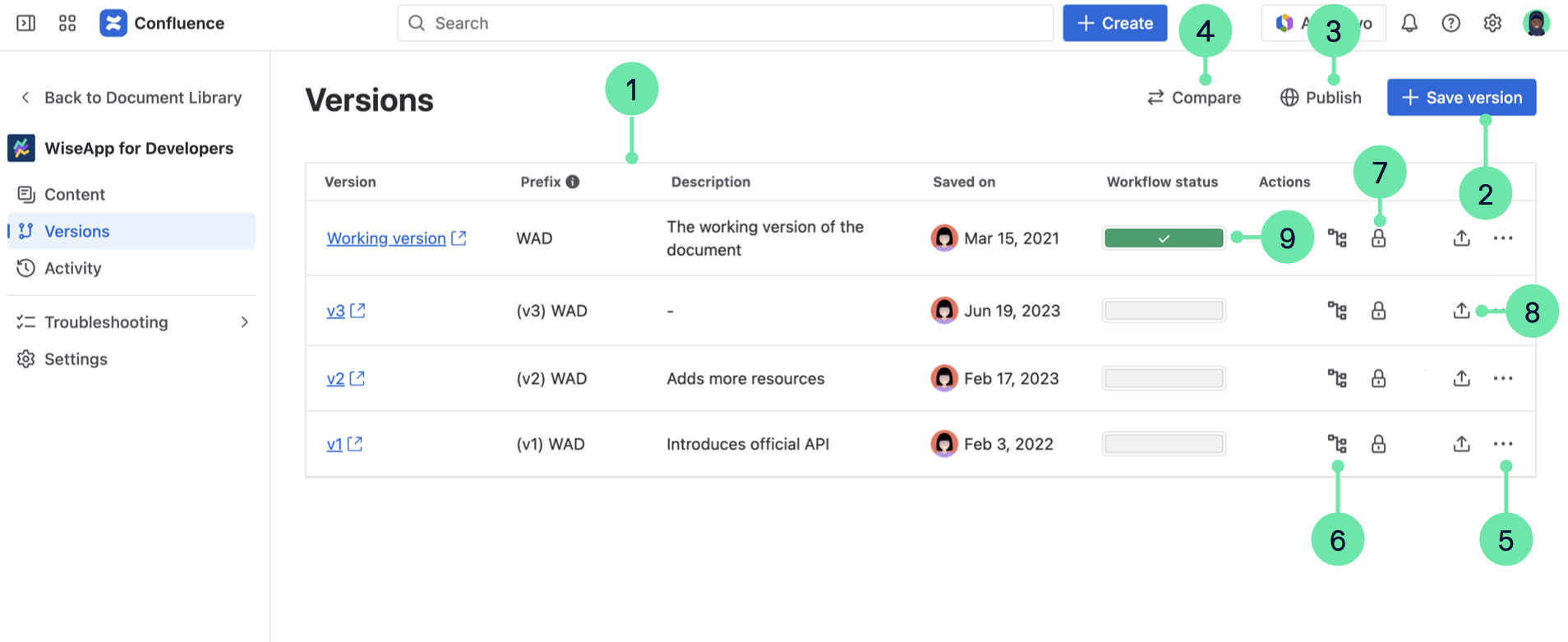
In the Version list, you can perform key actions related to your document's management:
-
View your saved versions in the version history table.
-
Save a version of your document.
-
Publish your document to Scroll Sites or Confluence. For more information read:
-
Compare versions of your document.
-
Perform version-specific actions:
-
View and edit version details such as version name and description.
-
Copy a version to create a new document with it as the Working version.
-
Compare versions of your document.
-
View a version's activity, such as who created and updated pages.
-
Update the page tree of a version using the Organize the page tree.
-
-
Access the Content Manager to get an overview of the pages in your version.
-
Manage restrictions to to control who can access the pages within a version.
-
Access the Workflow report (if workflows are enabled)