
Learn how Scroll Sites optimizes your help center site for the best possible results with AI tools and large language models (LLMs).
Every Scroll site automatically includes a llms.txt and llms-full.txt file in order to ensure LLM-ready sites.
Scroll Sites' Help Center theme also comes with a ready-to-use AI toolbox integrated directly into your help articles that will make it very easy for your site visitors to interact with the content in your site using AI tools (e.g ask questions about the content).
By default, all help center articles will show a prominent Use with AI dropdown menu in the top right of the page, from which all options can be accessed. With the help of this integrated menu it’s fast for your visitors to transition directly from the help center to the AI tools of their choice.
When Hide site from search engines is enabled, LLM tools and AI crawlers won’t be able to read your site either. The external tool entries in the Use with AI menu (The Open in ChatGPT and Open in ClaudeAI) entries are therefore hidden as long as this setting is on. View as Markdown and Copy as Markdown remain available.
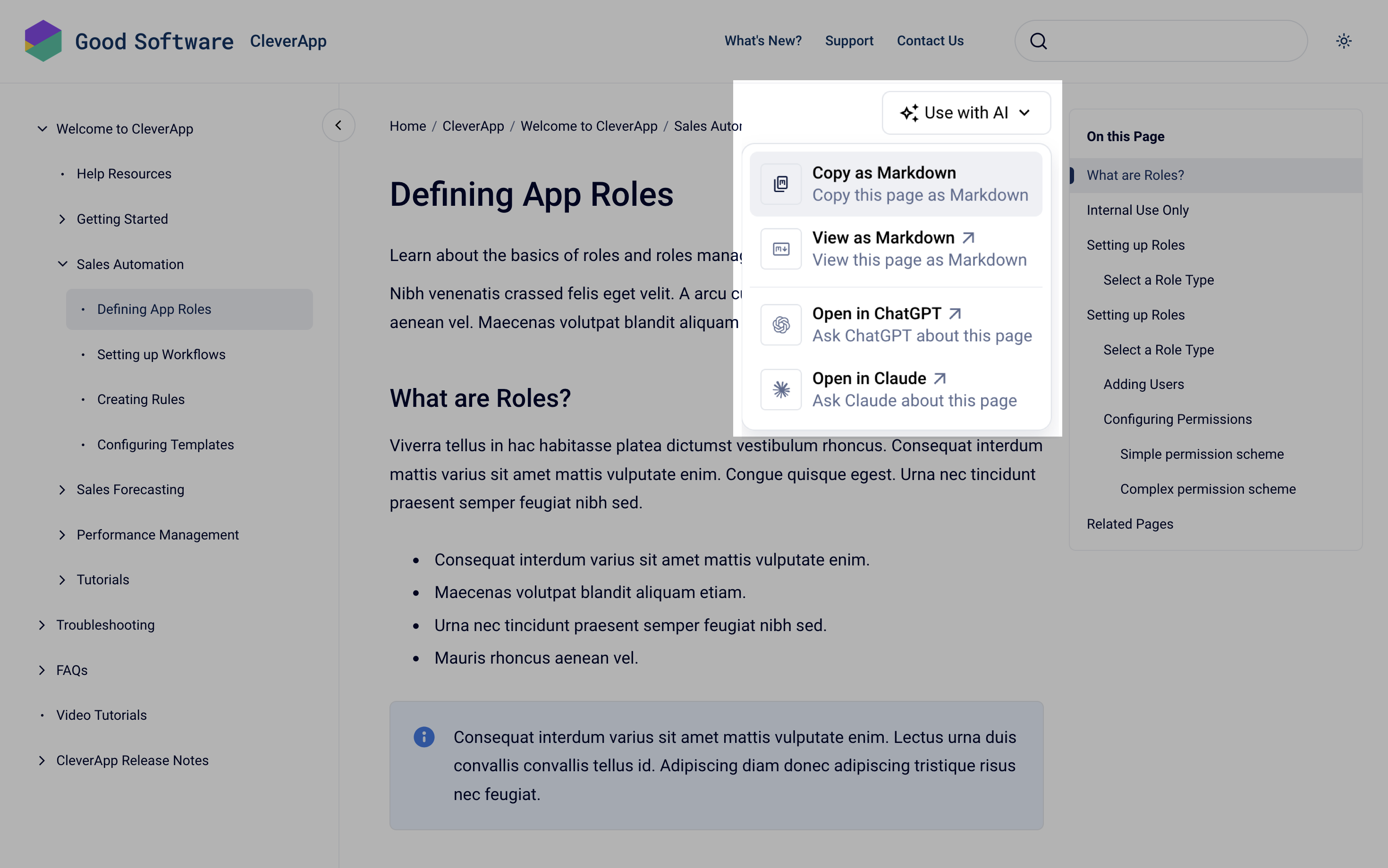
The offered Use with AI options are always scoped to the current article.
Copy or View Articles as Markdown Files
By selecting the options
-
Copy as markdown
-
View as markdown
your site visitors can copy and view the article’s content in markdown format. These options will let your site visitors easily bring the .md files into their preferred Large Language Model or AI tool.
The markdown format will ensure optimal results with AI tools as it’s the preferred, structured text format for AI, offering a lightweight, human-readable, and machine-parsable syntax.
Initiate a Chat With ChatGPT Or ClaudeAI
By selecting the options
-
Open in ChatGPT
-
Open in ClaudeAI
your site visitors can initiate a chat with either one of these two AI tools. The chat starts with the prompt “Read [.md file of selected article] and answer questions.”, making it very easy for your visitors to continue the chat directly with their questions or queries for this specific article.
When the ChatGPT and ClaudeAI Options Don't Appear
The Open in ChatGPT and Open in ClaudeAI options only appear when your articles are publicly reachable. Both tools have to fetch the article from your site to answer questions about it. When they can't reach it, Scroll Sites hides both options and leaves Copy as Markdown and View as
Markdown in place.
The two options are hidden when:
-
Your site is protected, either with access tokens or with SAML single sign-on
-
Hide site from search engines is enabled
-
Your site isn't published yet
The protection method makes no difference. Access tokens and SAML single sign-on both mark the site as protected, so both hide the same two options.
Hiding the Use With AI Menu
The Use with AI menu is enabled for all your help center articles by default.
If you prefer to hide this menu for all your articles in the site, you can do so by injecting the following custom CSS code:
ai-actions {
  display: none;
}
If you prefer to hide only specific items from the menu, you can do so by injecting the following custom JavaScript code:
const dropdown = document.querySelector('ai-actions');
if (dropdown) {
  dropdown.filter = (id) => !['option-1', 'option-2'].includes(id);
}
In the code above, depending on the options you want to hide, you need to replace option-1 and option-2 with one or more of these item IDs:
-
copy-as-markdown -
view-as-markdown -
open-in-chatgpt -
open-in-claude
Custom CSS hides the menu from the interface only. It doesn't disable the AI-ready feature underneath, so llms.txt, llms-full.txt, and the per-article Markdown endpoints stay accessible. If you need the feature switched off rather than hidden, see "Opting Out of the AI-Ready Feature" below.
Using llms.txt and llms-full.txt Files to Help AI Tools Crawl Your Site
With each Scroll site, we automatically generate a llms.txt and llms-full.txt file with the paths /llms.txt and /llms-full.txt in your domain's top level directory (e.g. example.scroll.site/).
These standard files clearly tell large language models which pages they can access and crawl on the site and what content they contain.
llms.txt is a markdown file that lists links to all pages in your site. Each link points to the markdown version of the page (the page URL with .md appended). The file contains links only — it does not include excerpts or summaries of the page content.
For larger sites the file is paginated at 1,000 links. Follow the Next Page link at the end of the file to retrieve the remaining entries.
llms-full.txt is a markdown file that includes:
-
the titles of all pages in the site (if using Scroll Documents: it includes information about their version, variant and language)
-
the page’s full content in markdown
In combination, these files allow large language models to consume the site more effectively and intelligently - giving your users better results when they ask the AI tools of their choice questions about the content of your site.
Pages that you exclude from navigation and search are also not listed in llms.txt, llms-full.txt or sitemap.xml, and the exclusion applies to their child pages too. The page's own markdown endpoint stays reachable, but returns an empty body.
Large language models will typically look for these files in their location.
Please note that you cannot modify the provided text file.
AI Search vs. the Use With AI Menu
Scroll Sites offers two separate AI capabilities, and it's easy to confuse them. They work independently, so turning one off has no effect on the other.
AI Search adds a conversational search experience to your site. Visitors ask questions in natural language, and the search returns a readable answer that draws on articles across your site. AI Search is off by default, and you enable it per site with your own OpenAI API key.
The Use With AI menu is the AI-ready feature. It appears in every help center article by default and gives visitors quick ways to use the current article with external AI tools, such as copying the page as Markdown or opening a chat in ChatGPT or Claude.
This table summarizes the differences:
|
|
AI Search |
Use With AI menu |
|---|---|---|
|
What it does |
Answers visitor questions in natural language, using your site content |
Hands the current article to an external AI tool |
|
Where it appears |
In the site search experience |
In the top right of every help center article |
|
On by default |
No |
Yes |
|
Setup required |
Your own OpenAI API key, and you're charged per request |
None |
|
How to turn it off |
Disable it in your site settings |
Hide the menu with custom CSS, or request a full opt-out |
To set up AI Search, see Enable AI Search.
Opting Out of the AI-Ready Feature
Hiding the menu with custom CSS suits most teams. If your organization has confidentiality, compliance, or governance requirements that go further than hiding the interface, K15t can disable the AI-ready feature for your site.
When the feature is disabled:
-
The Use With AI menu no longer appears in any article.
-
The per-article Markdown and LLM file endpoints stop working.
-
Scroll Sites no longer generates the
llms.txtandllms-full.txtfiles.
To request an opt-out, contact K15t Support at help@k15t.com or raise a ticket in the K15t Help Center.
Enabling "Hide site from search engines" has a narrower effect. It stops AI crawlers from reading your site and hides the Open in ChatGPT and Open in ClaudeAI entries from the Use With AI menu, but it leaves the rest of the menu and the LLM files in place.
If you only need to hide the menu while keeping the underlying files available, use the custom CSS approach described above.